Use the coach API
Create an API token so an AI agent or your own script can read and write your clients' programming as you.
The coach API lets an agent like Claude Code, or a script you write, do your programming data entry. It reads and writes your clients’ workouts with your permissions, through a token you create.
What the API can do
A token acts as you. It reaches the clients you coach, and owners and admins can ask for every client in the account. With it, an agent can:
- list your active clients
- read a client’s workouts in a date range, with what the client logged
- create a workout, edit one, or copy one to another date
- look up exercises in your exercise library
- read a client’s training maxes and set a new one
- read a lift’s best sets and its recent sessions
Workouts the API creates or copies are hidden from the client until the agent publishes them.
The API covers programming only. It can’t add clients, send messages, book sessions or take payments.
Create a token
- Select CoachSync at the top of the page to open the menu.
- Under Account, select API tokens.
- Under New token, enter a Name. Name it after the agent or script that will use it.
- Select Create token.
- Under Copy your new token, select Copy.
- Store the token somewhere safe, such as a password manager.
- Select Done.
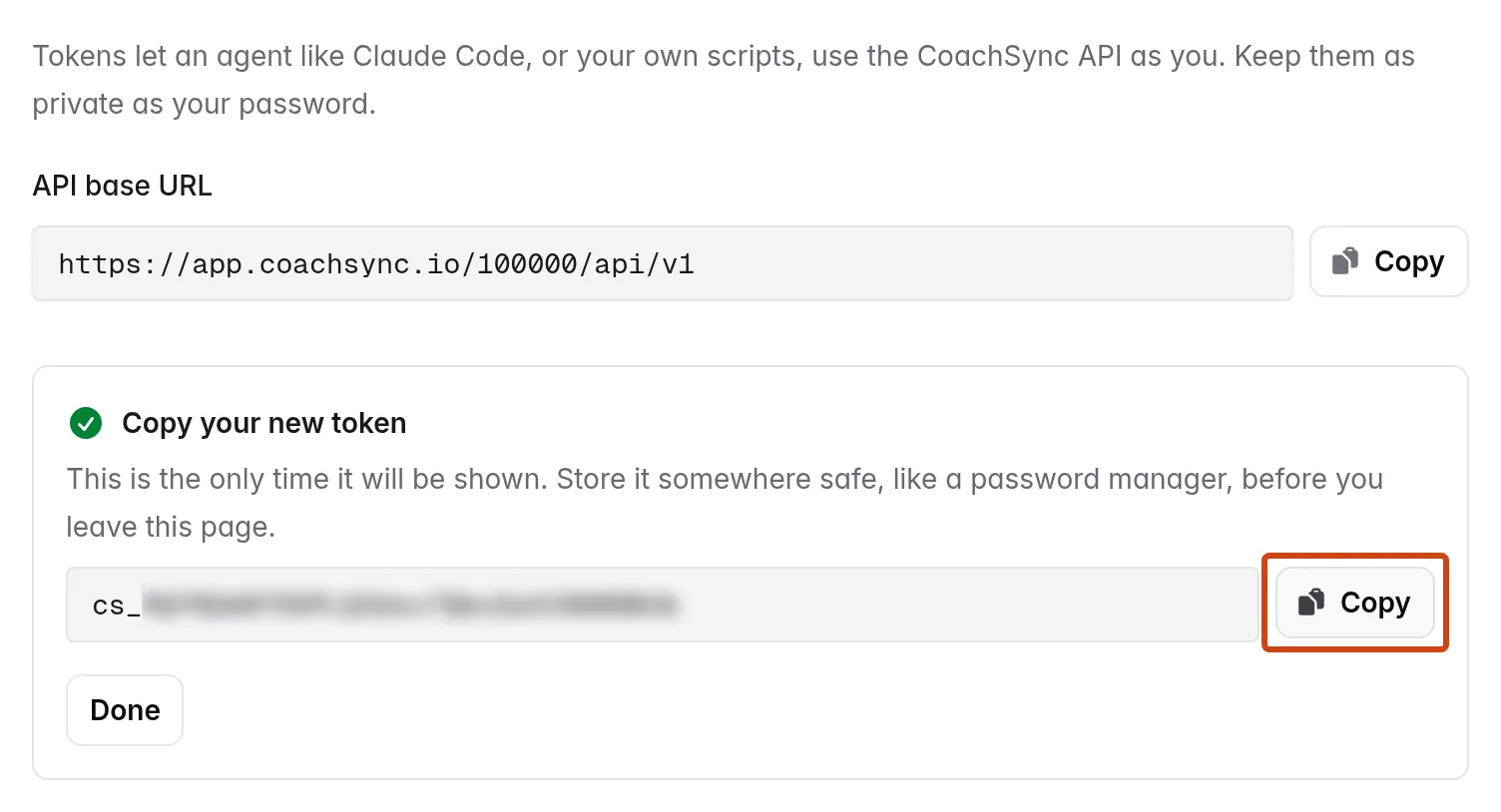
Tokens start with cs_. Keep them as private as your password, because anyone with the token can change your clients’ programming.
Connect your agent
The agent needs two things:
- The API base URL from the top of the API Tokens page. Select its Copy button. It has the form
https://app.coachsync.io/<account>/api/v1, where<account>is the number at the start of every page address in your account. - The token, sent with every request in the header
Authorization: Bearer <token>.
Store the token in an environment variable, not in a chat message or a file you share. To check the token works, list your clients:
curl -H "Authorization: Bearer $COACHSYNC_TOKEN" https://app.coachsync.io/<account>/api/v1/clientsA token belongs to one account. If you work in two CoachSync accounts, create a token in each.
Endpoints
Paths are relative to the API base URL. Requests and responses are JSON.
| Method | Path | What it does |
|---|---|---|
| GET | /clients |
Lists your active clients. Owners and admins can add ?scope=all for every client. |
| GET | /clients/:id/workouts?from=YYYY-MM-DD&to=YYYY-MM-DD |
Lists a client’s workouts in a date range. Without dates, it covers four weeks either side of today. |
| GET | /workouts/:id |
Reads one workout with its exercises, prescriptions and logged sets. |
| POST | /clients/:id/workouts |
Creates a workout, hidden from the client unless the request sets visible_to_client to true. |
| PATCH | /workouts/:id |
Edits a workout’s title, date, visibility, exercises and prescriptions. |
| POST | /workouts/:id/duplicate?date=YYYY-MM-DD |
Copies a workout to a date, hidden from the client. |
| GET | /exercises?q=<name> |
Finds an exercise in your library by name. |
| GET | /clients/:id/maxes |
Lists each lift’s training max next to the client’s latest tested single. |
| PUT | /clients/:id/exercises/:exercise_id/training_max |
Sets a new training max for a lift. |
| GET | /clients/:id/exercises/:exercise_id/history?limit=10 |
Reads a lift’s best 1, 2, 3 and 5 rep sets and its recent sessions. |
Errors and limits
An error response holds an error message. These status codes mean:
400, a date orlimitin the request is missing or not valid401, the token is wrong or revoked402, the account’s billing is not set up403, the token’s user does not coach this client404, the account, client, workout or exercise does not exist422, the workout or training max is not valid, with the reasons inerrors429, more than 300 requests in a minute from one token
Revoke a token
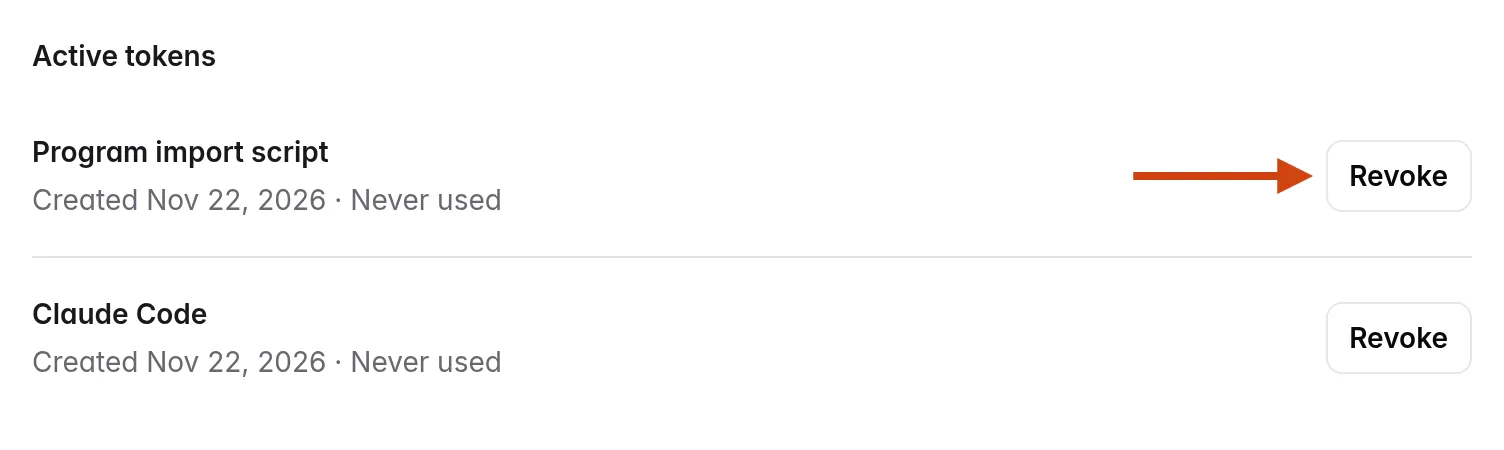
Each token on the API Tokens page shows when you created it and when it was last used.
- On the API Tokens page, under Active tokens, find the token.
- Select Revoke.
- Select Revoke in the dialog to confirm.
When a user is deleted, their tokens are deleted with them.