Connect Kit
Record a purchase in your Kit account each time a client subscribes to one of your payment plans.
When a client subscribes to one of your payment plans at checkout, CoachSync records a purchase in your Kit account. You can start a Kit automation from that purchase, for example a welcome sequence for new members.
What CoachSync sends to Kit
CoachSync sends Kit a purchase when a client subscribes to a payment plan at checkout. Each purchase holds:
- the client’s email address
- the payment plan’s name, as the product
- the payment plan’s price and currency
If Kit has no subscriber with that email address, Kit creates one.
CoachSync sends nothing else. Renewals, cancellations, class bookings and session bookings do not go to Kit. Subscriptions that started before you connected Kit are not sent.
Before you start
- You must be an owner or admin of the CoachSync account.
- You need a Kit account.
Connect from CoachSync
- In CoachSync, open Account Settings.
- In the Integrations box, select Manage integrations.
- Select Connect Kit.
- On Kit’s screen, approve access for CoachSync.
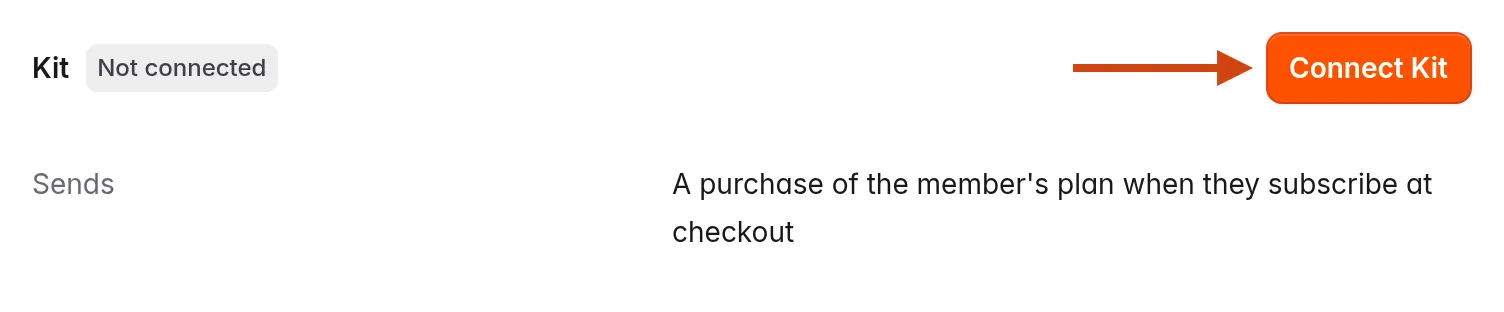
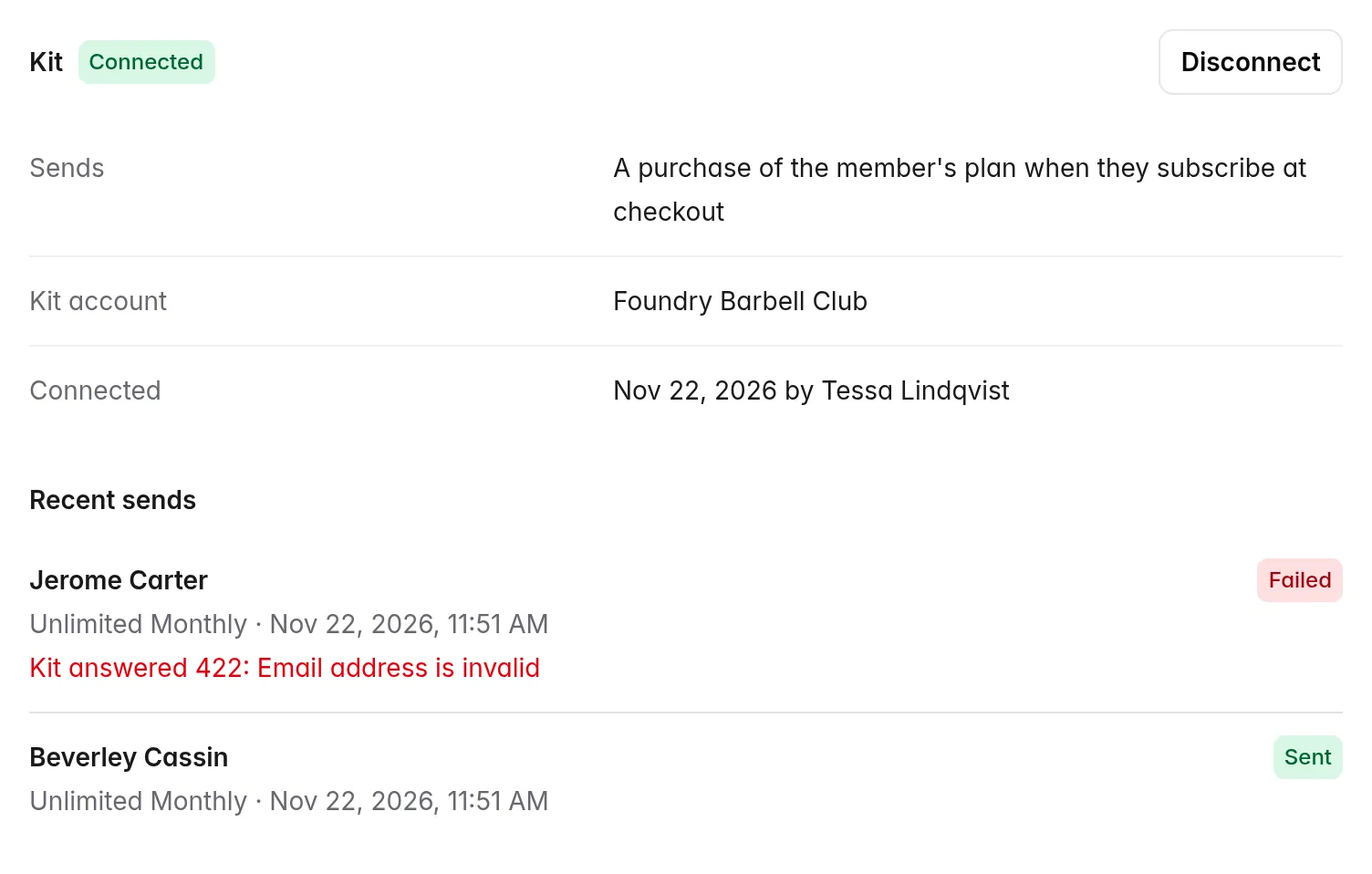
The Integrations page then shows Kit as Connected, with the name of your Kit account and who connected it.
Connect from Kit’s App Store
When you install CoachSync from Kit’s App Store, Kit opens https://app.coachsync.io/integrations/kit/install.
- Log in to CoachSync if it asks.
- Select the CoachSync account to connect. The page lists each account you own or administer.
- On Kit’s screen, approve access for CoachSync.
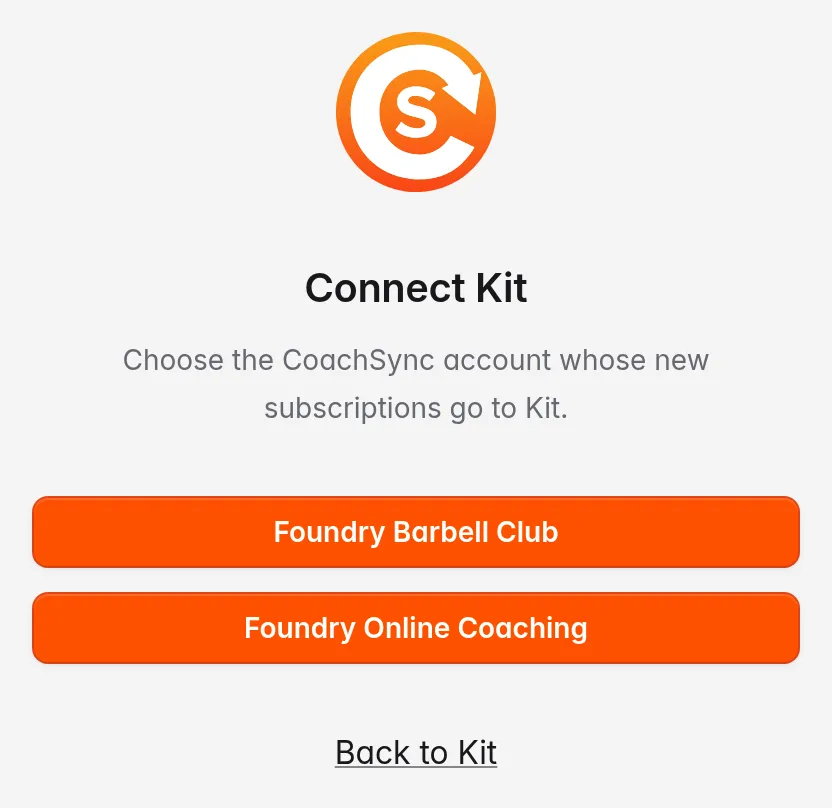
If you are not an owner or admin of any CoachSync account, the page says so and you cannot connect Kit.
Start an automation from a purchase
In Kit, start a Visual Automation from the Product purchased entry point, then select the payment plan as the product. In Kit’s Rules, the same trigger is called Purchases a product.
A payment plan appears in Kit as a product only after its first sale through CoachSync. Until a client subscribes to it, you cannot select it.
Check what CoachSync sent
The Integrations page lists the ten most recent sends under Recent sends. Each send shows the client, the payment plan, the time and one of these labels:
- Queued or Sending. CoachSync has not finished sending the purchase.
- Sent. Kit recorded the purchase.
- Failed. Kit did not record the purchase. The reason appears under the payment plan’s name.
If the Integrations page shows Kit as Needs reconnect, Kit no longer accepts CoachSync’s access. Select Reconnect Kit and approve access again. Until you reconnect, new sends fail.
Disconnect Kit
On the Integrations page, select Disconnect, then confirm. CoachSync stops sending new purchases to Kit and gives up its access to your Kit account. Purchases already in Kit stay there.
Get help
If something on this page does not match what you see, contact support.