Fix an invitation
Read a client's invitation badge, resend an invitation, and correct a mistyped email address.
A client can’t sign in until they set a password from their invitation. The badge next to their name shows whether the invitation went out and whether it bounced. You fix most problems from the client’s page.
Owners, admins and the client’s coach can resend an invitation and correct the email address.
What the badge means
The badge appears next to the client’s name on My Clients and on the client’s page.
- Not invited. Nobody has sent an invitation yet. The link beside it is Invite.
- Invited. CoachSync sent the invitation, and the client has not signed in yet. The link beside it is Resend.
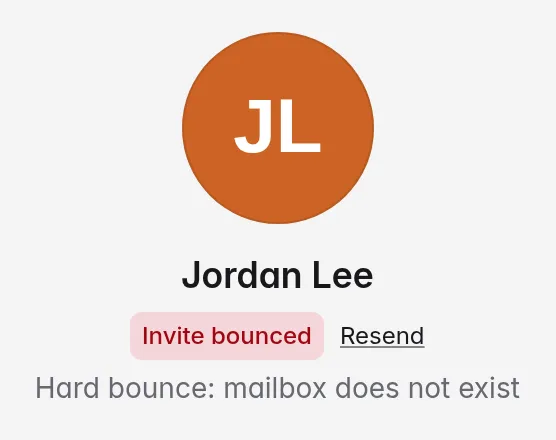
- Invite bounced, in red. The client’s email provider bounced the invitation or reported it as spam. On the client’s page, the reason appears under the badge, for example a mailbox that does not exist. The link beside it is Resend.
The badge disappears once the client signs in for the first time.
Resend an invitation
Resend when the client can’t find the email, or when the link in it has run out. Each invitation link works for seven days. An expired link takes the client to a page that says the link is invalid or has expired.
- On My Clients or the client’s page, find the badge next to the client’s name.
- Select Resend.
The client gets a new email with a new link.
If the invitation bounced, correct the email address before you resend.
Correct the email address
You can correct a client’s email address until they sign in for the first time.
- Open the client’s page.
- Select Edit Client.
- Under Email Address, enter the correct address.
- If the client has paid you through Stripe, the form shows Also update the email on their Stripe customer. Leave it selected to change the address Stripe has for them too.
- Select Save changes.

CoachSync shows User updated successfully. It moves the client to the new address and clears the bounce.
If someone else in your account already uses that address, the form says it belongs to someone else in this account.
After the client has signed in
Once the client has signed in, the email address on their Edit User page is read-only. The client changes it themselves from their profile. See Change your account settings.
When the client still can’t sign in
- Ask the client to check their spam or junk folder for the invitation.
- The client can set a password without the invitation. On the sign-in page, they select Forgot password? and enter the address you invited. That link works for 15 minutes. See Sign in and switch accounts.
- An archived client can’t be invited. Restore them first. See Manage your client list.