Add coaches and staff
Add the people who work in your account, choose what each role can do, and change or remove a role later.
Everyone in your account is a user, and each user has one role. The roles are Owner, Admin, Coach and Member. Staff are owners, admins and coaches. Members are your clients and the people who book with you.
What each role can do
| Task | Owner | Admin | Coach |
|---|---|---|---|
| Program workouts, keep notes and send invitations | All clients | All clients | Their own clients |
| Add, archive and delete clients | Yes | Yes | No |
| Open Users and Account Settings | Yes | Yes | No |
| Set up session types, classes, packages and memberships | Yes | Yes | No |
| See payments and give refunds | Yes | Yes | No |
| Connect Stripe | Yes | No | No |
| Choose the CoachSync plan on Billing Settings | Yes | No | No |
| Set their own availability and see Coach Calendar | Yes | Yes | Yes |
| Manage the exercise library and create API tokens | Yes | Yes | Yes |
Members see only their own training, bookings and billing.
Each account has at least one owner. CoachSync makes the person who signs up the owner.
Add a user
- Select CoachSync at the top of the page to open the menu.
- Under Management, select Users.
- Select New User.
- Enter the person’s Full Name.
- Enter their Email Address.
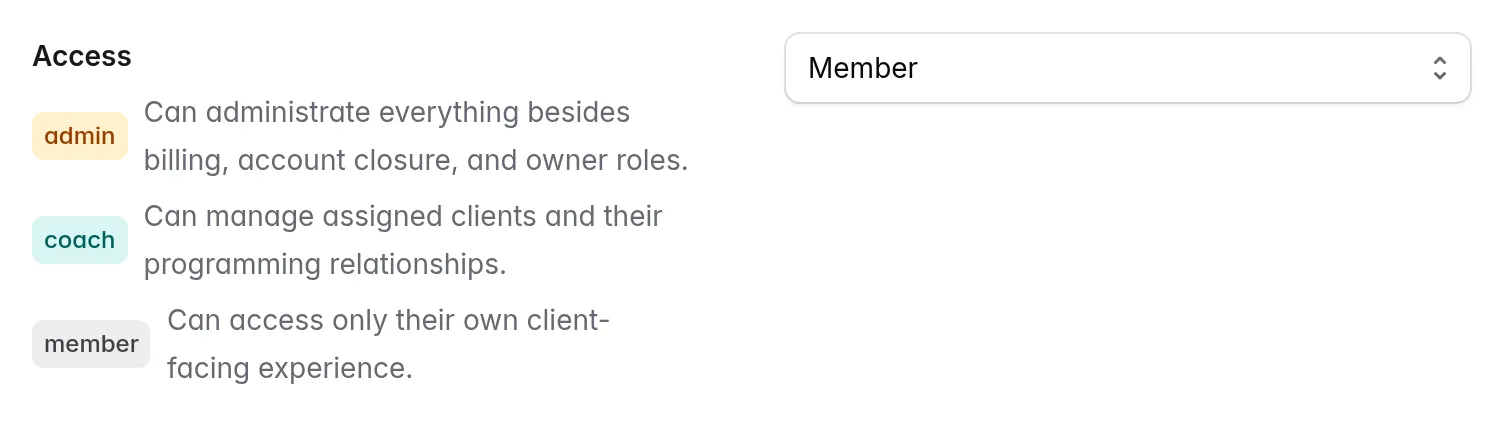
- Under Access, choose Admin, Coach or Member.
- Select Save changes.
CoachSync shows the person’s name followed by created successfully. and returns to the Users page.
If someone in your account already uses that email address, the form says A user with this email already exists. with a link to edit them.
If the role would put the account over its plan’s coach limit, the form shows an error that says so and names Gym as the plan with unlimited coaches.
A new user starts as a Member with Assigned Coach set to Unassigned. While both stay that way, a note under Assigned Coach says the member won’t appear on any coach’s My Clients and can’t be invited.
Tell them how to sign in
CoachSync does not email a new staff member. Send them this:
- Open
https://app.coachsync.io. - Select Forgot password?.
- Enter the email address you added them with.
- Follow the link in the email to set a password.
If their email address already signs in to CoachSync, for example for another gym, they sign in with their current password. They then choose your business on Choose an account. See Sign in and switch accounts.
To add a client, use New Client on My Clients, then send the invitation from the client’s page. See Add a client.
Change a user’s role
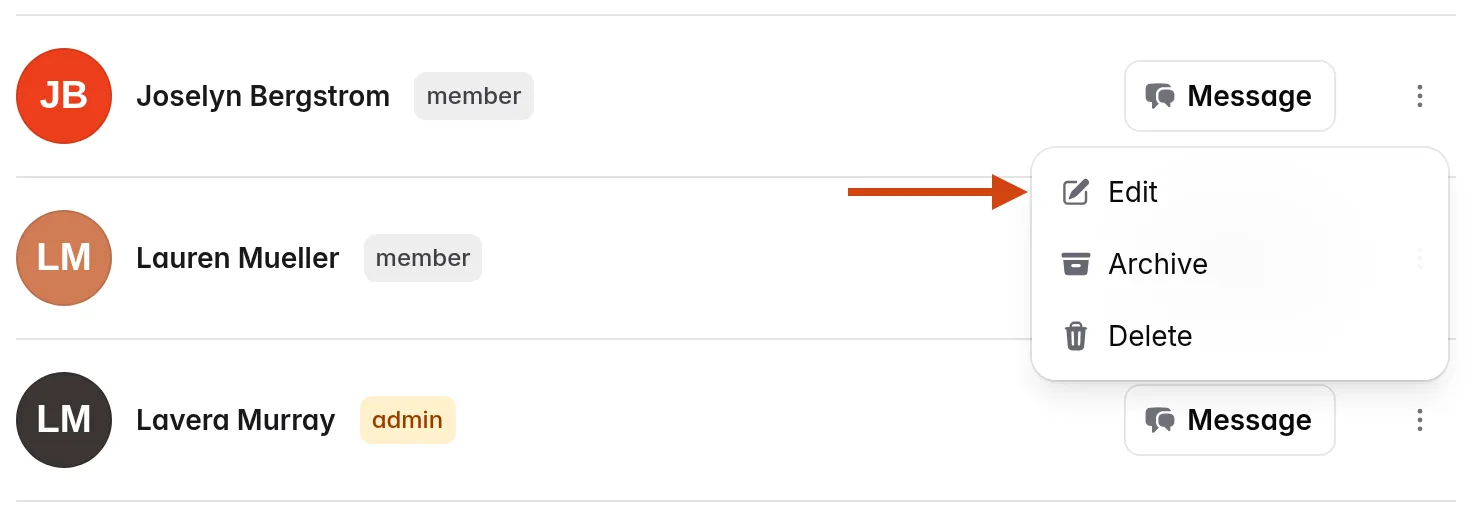
- On the Users page, select the three-dot button at the end of the person’s row.
- Select Edit.
- Under Access, choose the new role.
- Select Save changes.
CoachSync shows User updated successfully.
- The owner’s Access row shows the owner badge instead of a role menu. To move ownership to someone else, contact support.
- A coach with assigned clients cannot become a member. Give their clients another coach first.
Program workouts for a staff member
Staff can train with you too. To program for a coach or admin, open their Edit User page, choose a coach under Assigned Coach, and select Save changes. They then appear on that coach’s My Clients.
Staff with an assigned coach do not count toward the Starter client limit.
Remove a user
- On the Users page, select the three-dot button at the end of the person’s row.
- Select Delete.
- Select Delete user to confirm.
CoachSync refuses to delete a coach who still has assigned clients. Give those clients another coach first, then delete the coach. CoachSync also refuses to delete the account’s last owner. When CoachSync can’t delete someone, the Users page says why.
Only members can be archived. To keep a client’s history without deleting it, archive them. See Manage your client list.