Start your free trial
Create your CoachSync account and work through the four setup steps that lead to your first workout.
The trial lasts 14 days and needs no card. You get a CoachSync account for your business, with you as its owner.
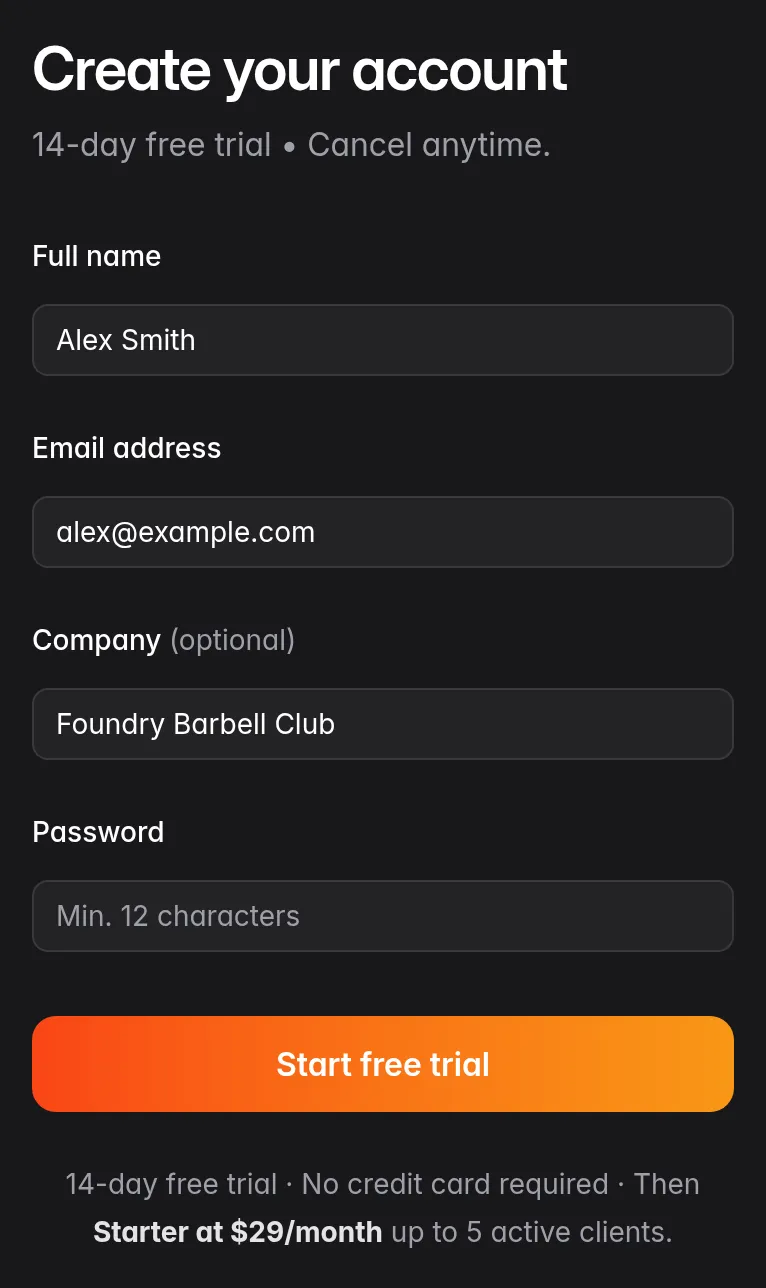
Create your account
- Open
https://app.coachsync.io/sign_up/new. - Enter your Full name.
- Enter your Email address.
- Enter your business name in Company. The field is optional. Without it, CoachSync names the account after you, for example “Alex Smith’s Account”.
- Enter a Password of at least 12 characters.
- Select Start free trial.
CoachSync shows Your 14-day free trial has started. Select Go to your dashboard to begin the setup steps.
CoachSync takes the business time zone from your browser when you sign up.
Work through the setup steps
The first time you open your account, CoachSync shows four setup steps. They end on a new workout for your first client.
- On Choose units, select Kilograms or Pounds.
- Select Continue.
- On Choose exercises, select the starter exercises you want in your exercise library. The choices are Squat, Deadlift, Bench Press, Press and Power Clean. Choose at least one.
- Select Continue.
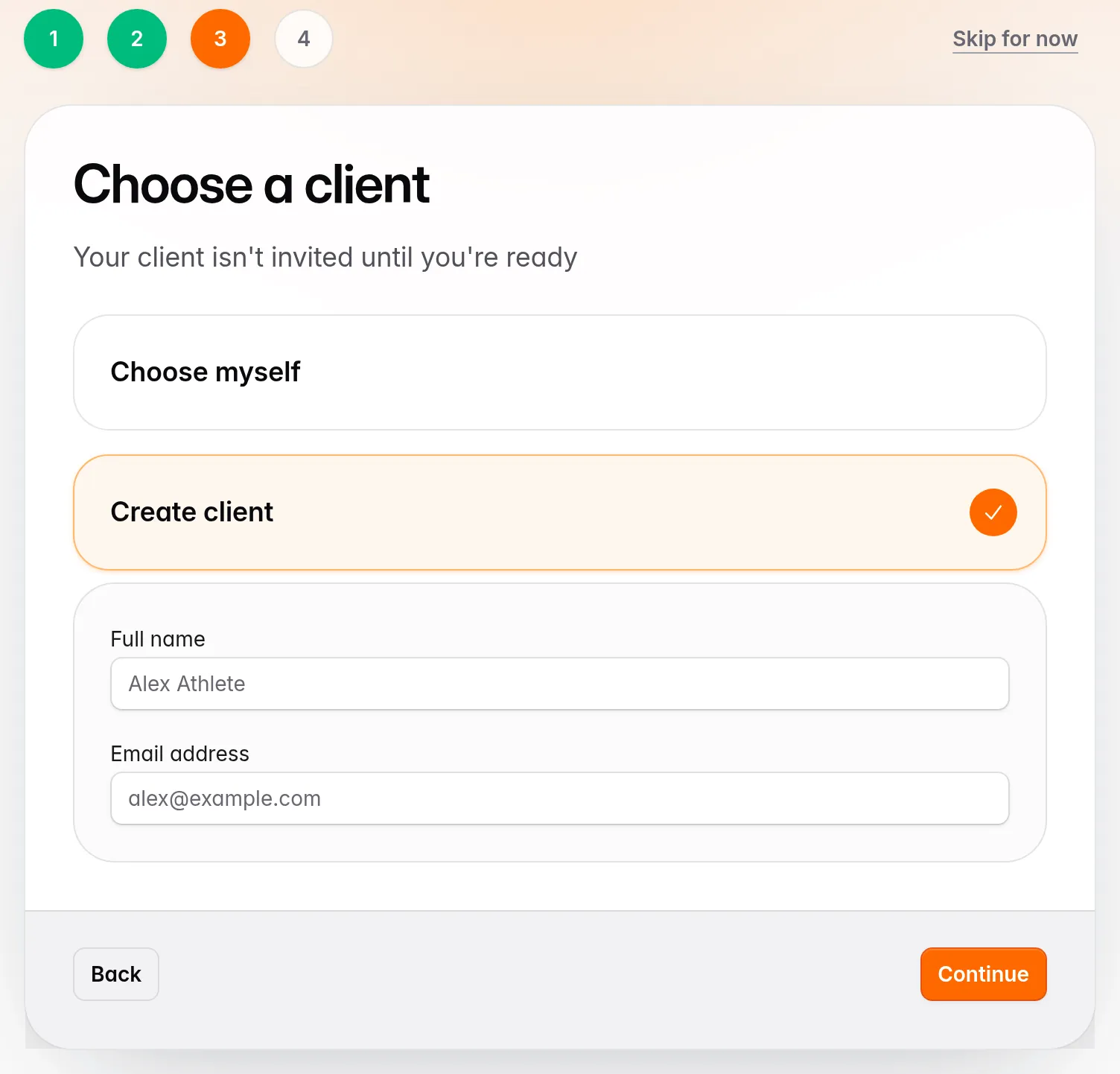
- On Choose a client, select Choose myself to program for yourself, or Create client to add someone else.
- If you selected Create client, enter the client’s Full name and Email address.
- Select Continue.
- On How did you hear about us?, select an answer. If you select Other, type a few words in the box below.
- Select Build a workout.
CoachSync opens a new workout for the client you chose. To write it, see Create a workout.
Creating a client in step 6 does not email them. You send the invitation when you are ready. See Add a client.
You can change the weight unit later in Account Settings, until a workout in your account has a weight in it. See Change your account settings.
Skip the steps or run them again
- To skip the steps, select Skip for now above them. CoachSync opens My Clients.
- To run them again later, open Account Settings and select Run again in the Onboarding box.
When the trial ends
During the trial, the CoachSync menu shows how many days are left. In the last seven days, a banner at the top of each page counts down. CoachSync also emails the owner seven days, three days and one day before the trial ends.
To keep the account after the trial, the owner sets up billing. See Choose your plan.
If the trial ends without billing, the owner sees a page to choose a plan before anything else opens. Everyone else in the account sees Free trial ended until the owner sets up billing.