See your day on Today
Find today's sessions, classes and workouts, and work through what is waiting on you, from one page.
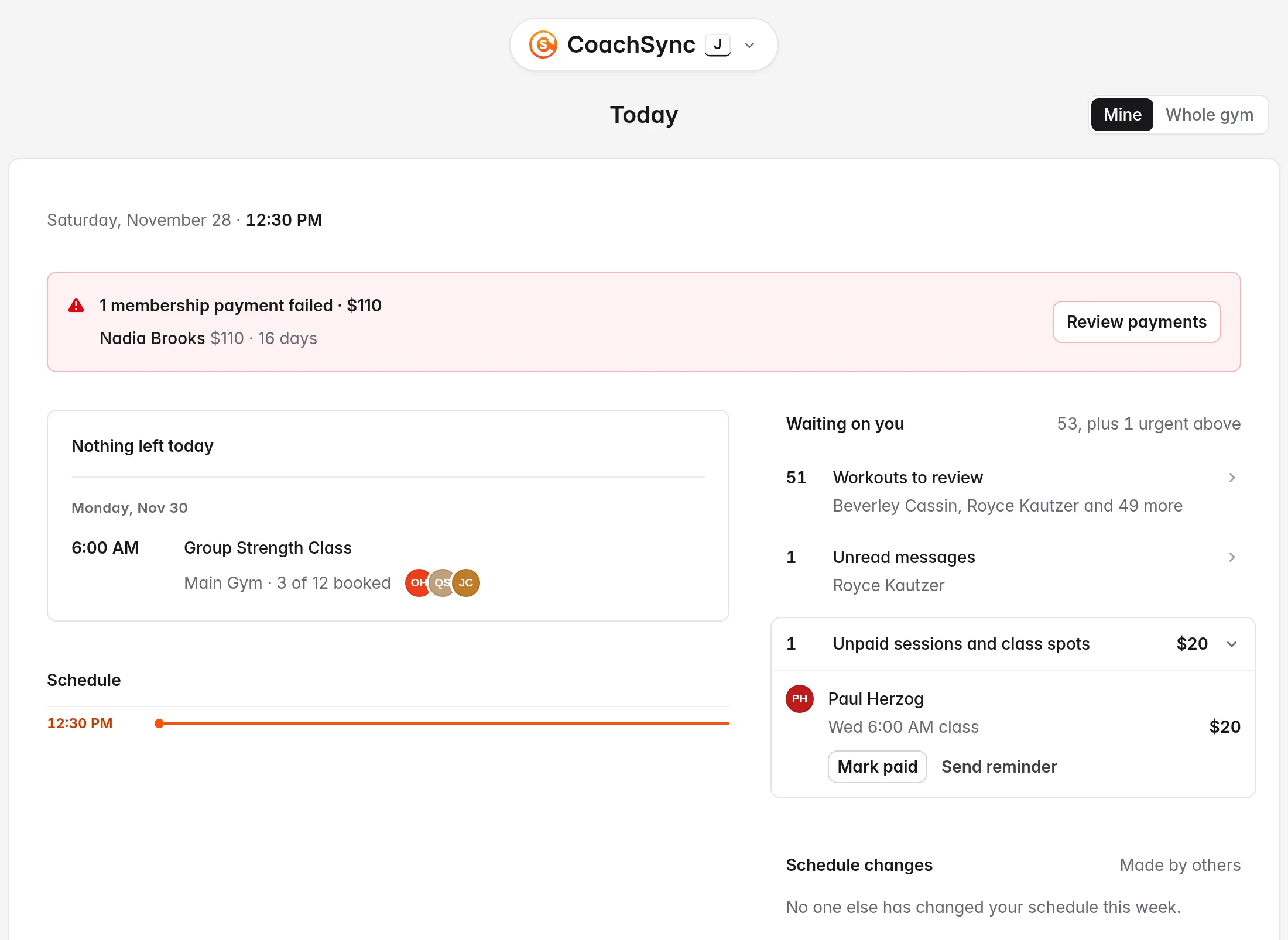
Today shows what is on your schedule today and the work waiting on you, such as workouts to review, unread messages, programs to write and unpaid sessions. You act on most of it without leaving the page.
Open Today
- Select CoachSync at the top of any page to open the menu.
- Under Management, select Today.
The first line gives the date and the time. The page updates itself when something changes, such as a booking, a message or a finished workout.
Owners and admins choose whose work the page shows with the switch beside the title. Mine shows your own sessions, classes and clients. Whole gym shows everyone’s, and names each entry’s coach.
Urgent problems
A red band at the top of the page holds problems to fix first:
- Failed membership payments, with the amount. Only owners and admins see them. Review payments opens Subscriptions.
- A calendar sync that is failing, so its events no longer block your hours. Reconnect opens your own calendar connection. Open settings opens Availability.
Your schedule
This part shows when your plan includes 1:1 sessions or classes.
Next up names the next session or class, how soon it starts and who is coming. A line starting On now: shows what is under way. When the session or class has a problem flagged, the card has one button to fix it:
- Publish program publishes the client’s hidden workouts.
- Write program opens the client’s calendar.
- Send waiver emails the client your waiver.
- Open session or Open roster opens the session or the class roster.
When nothing is left today, the card says Nothing left today, with what you finished and the entries on the next day that has any.
Schedule, or Gym schedule with Whole gym, lists today’s sessions and classes in time order. A line marks the current time. Finished entries have a check, and a cancelled entry is struck through with who cancelled it. When more than three entries are over and more are still to come, the earlier ones fold under Earlier today. A session’s time opens the session, and the client’s name opens their client page. A class’s name opens its roster once someone has booked it.
Entries carry these flags:
- No program. The client has no published workout waiting.
- Program not published. The client’s workouts are written but hidden.
- Unpaid, with the amount owed.
- No waiver. The person has no signed waiver.
A class shows the same flags as counts, such as 2 unpaid or 1 without waiver.
Clients training today shows when your clients have workouts today. A bar shows how many are done, to review and not started, and each group lists its clients. Review opens a finished workout in a panel beside the page.
Schedule changes lists the five latest changes that other people made in the last seven days: sessions booked, rescheduled or cancelled, and class bookings moved or cancelled. A dot marks a change from the last hour. A change leaves the list once its session or class has started.
Your clients, without a schedule
On the Starter plan, Today shows a card for each client instead of a schedule, up to twelve. Each card shows:
- the client’s status today: To review, Not started or Done
- today’s workout, and when the client logged it
- the week from Monday to Sunday, with each day marked done, missed or planned
- the client’s latest comment, video or message
- a note when the program has run out or the client missed their last workouts
Each card has one button: Review workout, Write program or Message with the client’s first name. This week beside the cards counts the workouts Done, Missed and Still to do across your clients.
Waiting on you
Waiting on you has one line for each kind of work, with a count and the names of the first people. Select a line to open it. An open line shows five items. The button below them, such as Show 4 more, shows up to twenty. Past twenty, View all opens the full list. Only one line is open at a time.
| Line | What it lists | Buttons |
|---|---|---|
| Workouts to review | Finished workouts, and workouts with new comments or videos | Review |
| Clients with no coach | Clients nobody coaches. Owners and admins only. | Assign |
| Unread messages | Each unread message, per person | A reply box with Send, and Open conversation |
| Clients who need a program | Clients booked in the next seven days with no published workout ahead, then clients with no workout three days out | Write program |
| Clients going quiet | Clients who did not log their last three published workouts | Check in |
| Paid sessions without a time | Sessions paid for after their held time went to someone else | Reschedule and Send booking link |
| Unpaid sessions and class spots | Sessions that owe a payment, and class spots to be paid at the door | Send reminder, and Mark paid for a class spot |
| Clients missing a waiver | Clients with no signed waiver. Gym plan with a waiver only. | Send waiver |
| Account setup left | A trial ending within a week, the client limit reached, Stripe not connected, or setup not finished. The owner only. | A link to fix each one |
Paid sessions without a time and Unpaid sessions and class spots show on the Coach and Gym plans.
Review opens the workout in a panel beside the page, with the client’s comments and videos. Reply there, then select Complete Review, or Dismiss for a workout you already reviewed. Open page in the panel opens the same review as a full page. A workout’s name on Today opens the workout in the same panel.
Check in opens a message box. Your message goes to your conversation with the client. The client stays in the line until they log a workout, and the item shows when you wrote.
Send reminder emails the person the amount due. Send booking link emails the person a link to pick a new time again. Each item then shows when you sent it. See Booking emails and reminders.
After Complete Review, Dismiss or Mark paid, the item changes to a line that says what you did, with Undo. The line stays for eight seconds, longer while the pointer is on it.
The Workouts to review, Clients who need a program and Clients going quiet lines also work as a filter on My Clients. See Manage your client list.
Get help
If something on this page does not match what you see, contact support.