Change your account settings
Set your account's default weight unit, find the waiver, integration and time zone settings, and edit your own profile.
Account Settings holds the choices that apply to your whole business. Your profile holds your own details. This page covers both.
Open Account Settings
- Select CoachSync at the top of the page to open the menu.
- Under Account, select Settings.
The page has a box for each group of settings:
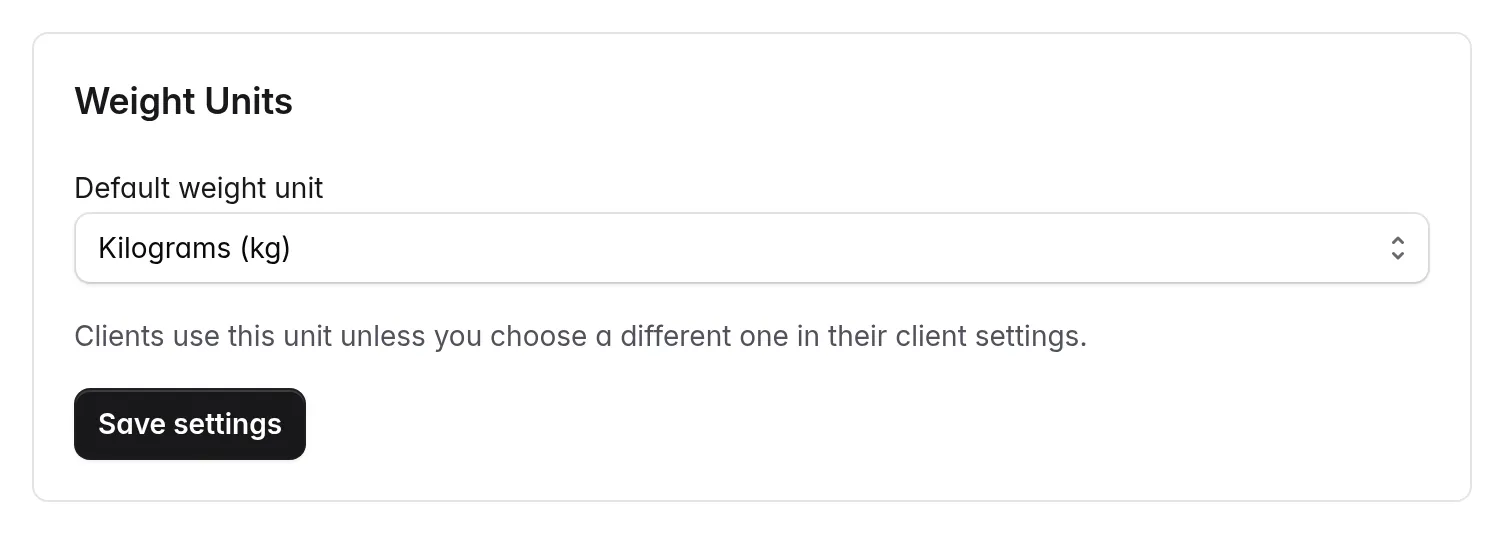
- Weight Units, the default unit for your clients’ weights.
- Waiver, on the Gym plan. Select Set up waiver or Manage waiver to write your liability waiver and share its link. See Set up your waiver.
- Integrations, the status of each connected tool. Select Manage integrations to connect Kit. See Connect Kit.
- Onboarding. Select Run again to repeat the setup steps from your first sign-in. See Start your free trial.
On the Coach and Gym plans, owners also see Settings under Payments in the menu. That item opens Payment Settings, which is for client payments. See Connect Stripe.
Set the default weight unit
Clients use the default unit unless you choose a different one for a client on their Edit User page.
- In the Weight Units box, choose Kilograms (kg) or Pounds (lb) under Default weight unit.
- Select Save settings.
CoachSync shows Account settings updated.
Set the business time zone
CoachSync takes the business time zone from your browser when you sign up. On the Coach and Gym plans, owners and admins can change it on the Scheduling Defaults page.
- In the CoachSync menu, under Scheduling, select Availability.
- Select Defaults.
- Under Time zone, choose the business time zone.
- Select Save changes.
Changing it moves every availability schedule that follows the business time zone. For the other settings on that page, see Locations and booking limits.
Change the business name
The business name comes from the Company field at signup. If you left it empty, the name is your name followed by ’s Account. Clients see it in CoachSync’s emails, and it labels the account on Choose an account. The app has no field to change it. To change it, contact support.
Edit your profile
Your profile holds your name and contact details in this account.
- In the CoachSync menu, under Account, select Profile.
- Change any of Full Name, Phone, Time Zone, Date of Birth and Photo.
- Select Save changes.
CoachSync shows User updated successfully.
Change your email address
- On your profile, under Email Address, select Change email.
- Enter the new email address.
- Select Send confirmation.
- Open the email that CoachSync sends to the new address, and follow its link. The link works for 30 minutes.
- Select Continue.

CoachSync changes the address, signs you in again and opens your profile.