Choose your plan
Compare Starter, Coach and Gym, switch plans, set up billing and manage what you pay for CoachSync.
Your plan decides how many clients and coaches your account can have, and which parts of CoachSync it includes. You choose it on Billing Settings.
Compare the plans
| Plan | Price | Clients | Coaches | Includes |
|---|---|---|---|---|
| Starter | $29/month | Up to 5 | 1 | Programming |
| Coach | $79/month | Unlimited | 1 | Programming, 1:1 session booking, and client payments |
| Gym | $129/month | Unlimited | Unlimited | Programming, 1:1 session booking, client payments, classes, memberships, class packs and passes, waivers, and public booking pages |
The coach count includes the owner, admins and coaches. On Starter and Coach, the owner is the account’s one coach.
Payments your clients make through CoachSync carry a fee on top of the plan price. See Fees.
What counts as a client
The client count is the number of active clients the account coaches. These do not count:
- archived clients
- contacts, the people who book or buy but have no training program
- the owner, admins and coaches, even when someone programs workouts for them
For more on clients and contacts, see Manage your client list.
Open Billing Settings
- Select CoachSync at the top of the page to open the menu.
- Under Account, select Billing.
The Subscription box shows your plan and your client count, for example “Plan: Starter, 4 of 5 active clients”. The Plans section below it has a card for each plan.
Switch plans during your trial
Until you set up billing, the plan your trial runs on has a Your trial badge.
- On Billing Settings, find the plan you want under Plans.
- Select Switch to followed by the plan name, for example Switch to Gym.
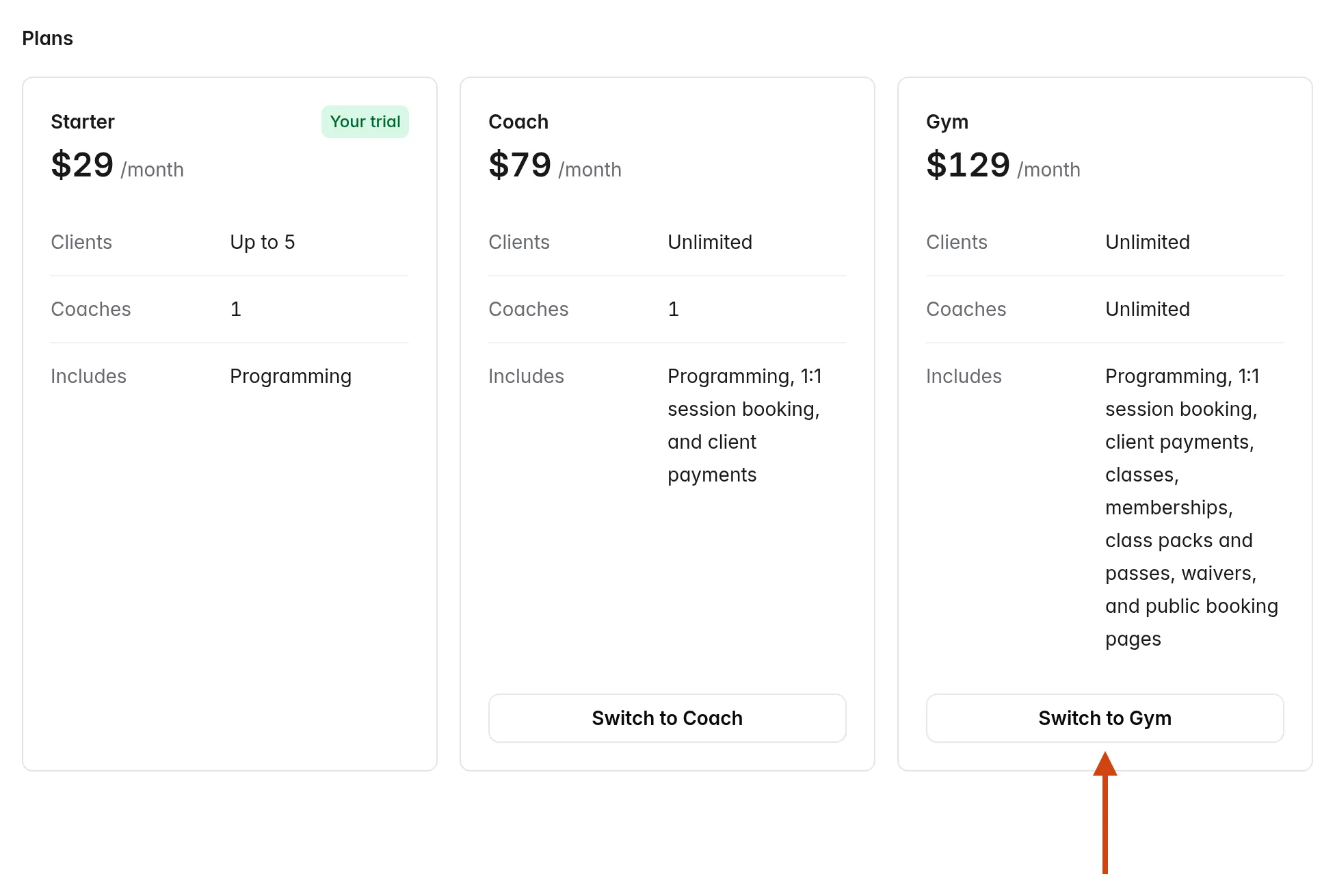
CoachSync shows The account is on Gym. The switch is free and takes effect at once. Pages the new plan includes appear in the menu right away, and pages it leaves out disappear.
Set up billing
Setting up billing saves your card with Stripe, so the account keeps working after the trial.
- On Billing Settings, select Set up billing.
- On Stripe’s checkout page, enter your card details.
- Confirm on Stripe’s checkout page.
CoachSync shows Billing is set up. Select Go to Billing Settings to return.
Billing Settings then shows the subscription’s status, your Current billed plan, and the date and amount of your next payment.
Switch plans after billing is set up
- On Billing Settings, select Switch to followed by the plan name.
- In the dialog, select Switch to followed by the plan name again.
CoachSync shows The account is on followed by the new plan’s name.
When a plan card has no button
A card shows a sentence instead of a button when your account does not fit that plan. For example:
- Starter seats 1 coach, and the account has 4. Delete or change the role of the extra staff first. See Add coaches and staff.
- Starter covers 5 clients, and the account has 6. Archive clients you no longer coach first.
- Starter has no client payments. Cancel the account’s 1 client subscription first. Cancel those subscriptions before you switch. See Pause, change or cancel a membership.
Reach the Starter client limit
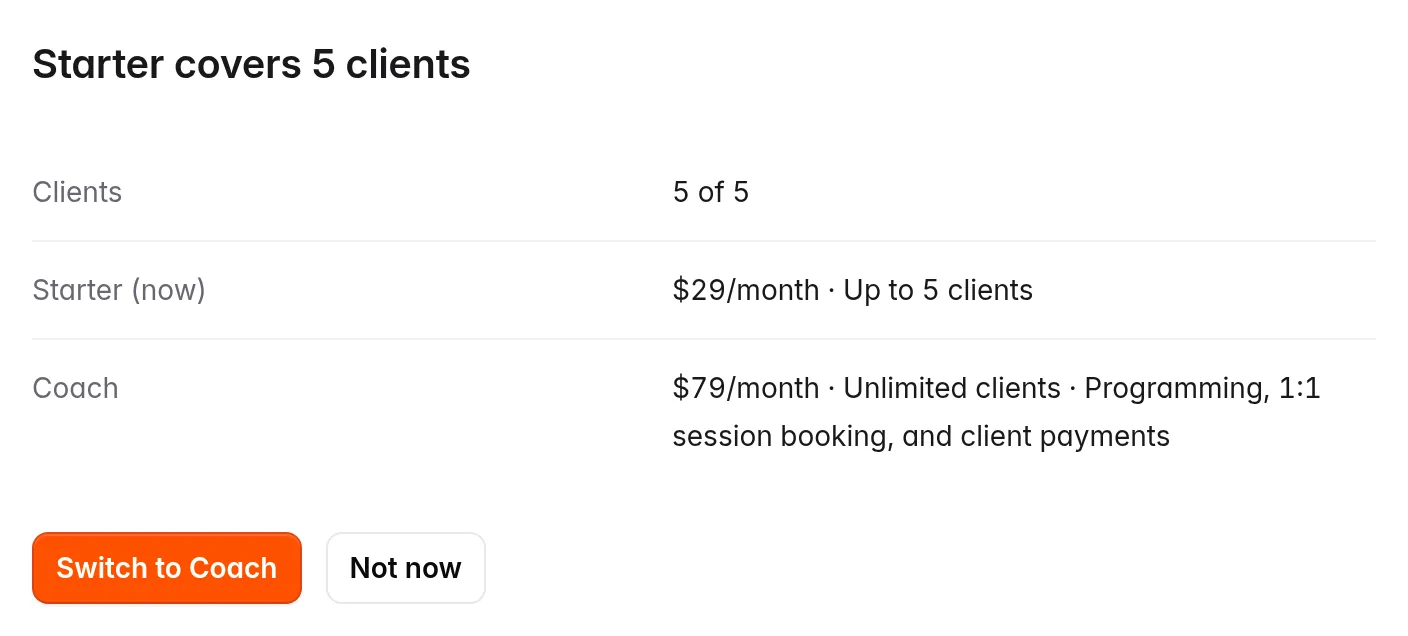
On Starter, adding a sixth client opens the Client Limit page instead. The same page opens when you restore an archived client or start coaching a contact while you have five clients.
- The owner can select Switch to Coach to move to the Coach plan and carry on, or Not now to go back.
- Admins see Only the account owner can change the plan.
Open Stripe’s billing portal
After you set up billing, the Subscription box on Billing Settings has a Manage billing link. Select it to open Stripe’s billing portal for your CoachSync subscription. When you leave the portal, Stripe returns you to Billing Settings.
If the trial ends without billing
When the trial ends and billing is not set up, every page the owner opens goes to Your trial has expired. Select Continue with followed by a plan name to set up billing on Stripe’s checkout page. Stripe charges the card at once, because no trial days are left. The account opens again once Stripe confirms the payment.
Everyone else in the account, clients included, sees Free trial ended until the owner sets up billing.
If your account is on a plan CoachSync no longer offers, Billing Settings says so above the plan cards. After you switch to Starter, Coach or Gym, you can’t switch back.