Pause, change or cancel a membership
Put a member's subscription on hold, move them to another payment plan, or cancel it, with their class access kept in step.
For a member who pays through a subscription, make every change on the Subscriptions page. CoachSync changes the subscription in Stripe and updates the member’s class access in the same step. For a membership you added by hand, edit the membership itself. Only owners and admins can change subscriptions and memberships.
Find the subscription
Select CoachSync at the top of any page to open the menu. Under Payments, select Subscriptions. Each row has a three-dot menu with more actions. A row can also have a Hold or Resume button. The list leaves out canceled subscriptions until you choose Canceled or All under Filters.
A subscription that another platform made in your Stripe account has no Hold, Resume, Change plan or Cancel at period end, because Stripe refuses those changes from CoachSync. To manage it here, move it to CoachSync first. See Move a subscription to CoachSync.
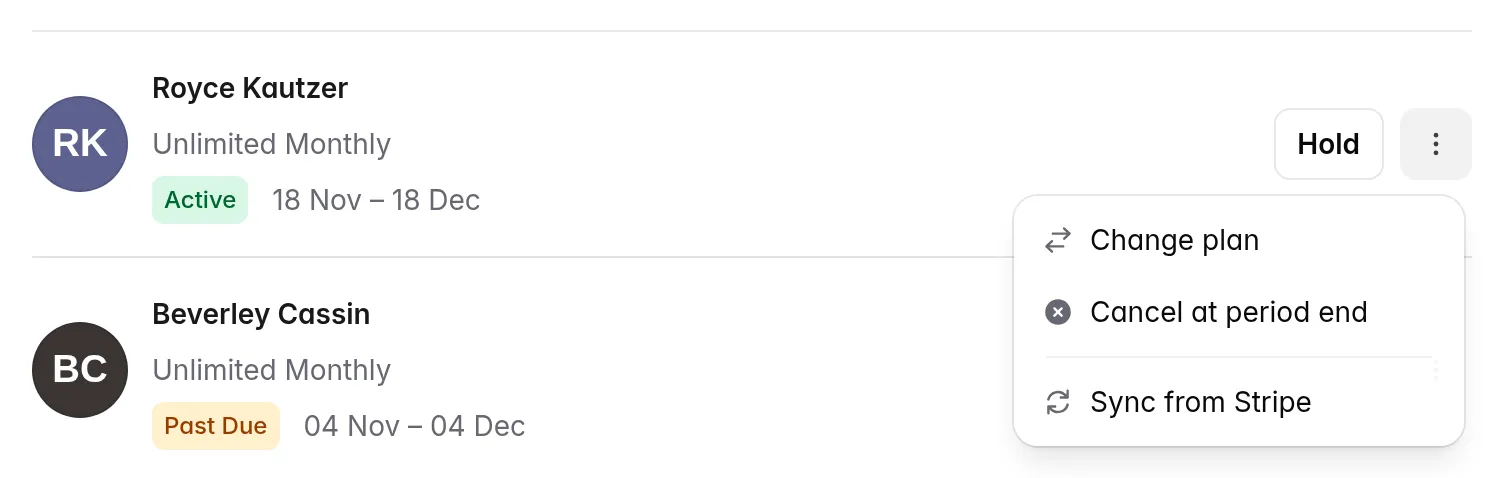
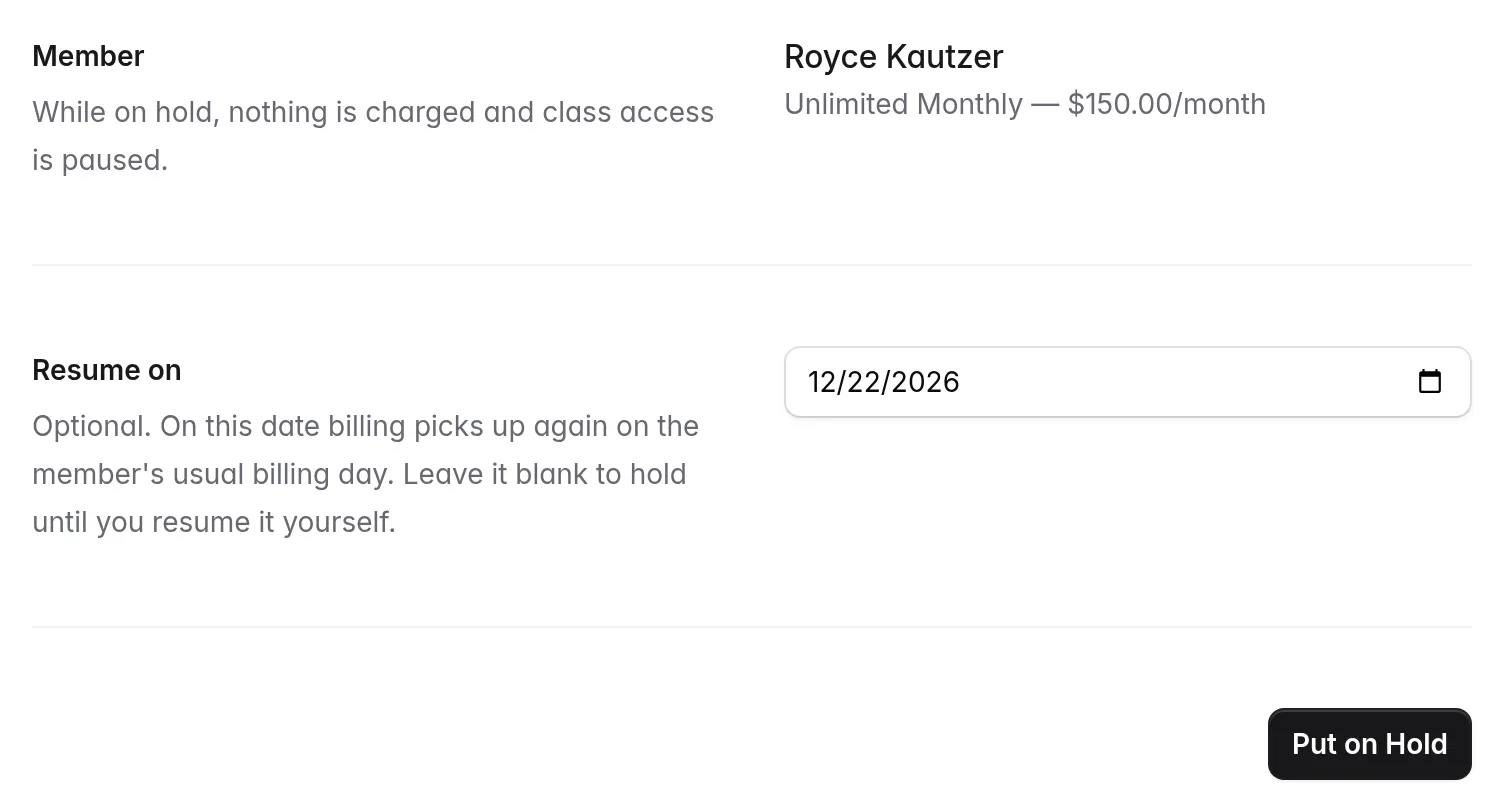
Put a subscription on hold
While a subscription is on hold, Stripe charges nothing and the member’s class access pauses. Stripe voids any invoice raised during the hold, so the member owes nothing when they come back. Hold shows on active subscriptions that are not set to cancel.
- Select Hold on the member’s row.
- In Resume on, choose the date billing starts again, if you want one. Leave it blank to hold the subscription until you resume it yourself.
- Select Put on Hold.
The row shows Paused, with the resume date if you set one. The member’s membership shows On hold. On the resume date, billing picks up again on the member’s usual billing day.
Resume a subscription
- Select Resume on the member’s row.
- Choose how to bill:
- Leave Start a new billing cycle today ticked to charge a full period today. Today becomes the member’s billing day.
- Untick it to keep the old billing day. Stripe charges nothing until that day comes round, so the days in between are free.
- Select Resume.
Billing and class access start again at once.
Move a member to another payment plan
Change plan shows on active subscriptions that are not on hold or set to cancel.
- Open the three-dot menu on the member’s row and select Change plan.
- Under New plan, choose the payment plan. Payment plans with a set number of billing cycles are not offered.
- Under This period, choose one:
- Just switch. Nothing changes this period. The new price starts on the next invoice.
- Charge the difference now. An upgrade is charged today for the rest of the period. A downgrade becomes a credit against the next invoice.
- Select Change Plan.
The new payment plan takes effect at once, and class access changes with it. If the new payment plan has no class access, the member’s membership ends.
Cancel a subscription
- Open the three-dot menu on the member’s row and select Cancel at period end.
- Confirm with Cancel Subscription.
The row shows Cancels and the day the period ends. Stripe charges nothing more, and the member keeps class access until the end of the period they paid for. Then the subscription shows Canceled and the membership shows Cancelled.
CoachSync cannot end a subscription before the end of its period. Do that in your Stripe account.
Fix a subscription that looks wrong
Open the three-dot menu on the member’s row and select Sync from Stripe. CoachSync reads the subscription from Stripe and updates its status, billing period, hold and payment plan.
Changes made in your Stripe account, or by the member in Stripe’s customer portal, come back to CoachSync without this step. See Members manage their billing.
Change a membership you added by hand
- In the menu, under Scheduling, select Memberships. The list shows current memberships. To find a cancelled or ended one, select Filters, choose Cancelled or ended or All under Status, then select Apply filters.
- Select the pencil button on the member’s row.
- Change the Plan, the Billing Cycle Anchor or the Status.
- Select Save changes.
These are the statuses:
- Active. The membership covers classes.
- Past due. The membership still covers classes.
- On hold. The membership does not cover classes.
- Cancelled. The membership does not cover classes.
To end a pass early, set its status to Cancelled.
To remove a membership, select the member’s name, then Delete. Deleting cannot be undone.
Get help
If something on this page does not match what you see, contact support.