See your payments
Find your recurring revenue, the status of each subscription, and every one-time payment a client made.
CoachSync shows subscriptions on the Payments Dashboard and the Subscriptions page. One-time payments, such as packs, passes, drop-ins and sessions, are on each person’s Credits page.
Payments Dashboard
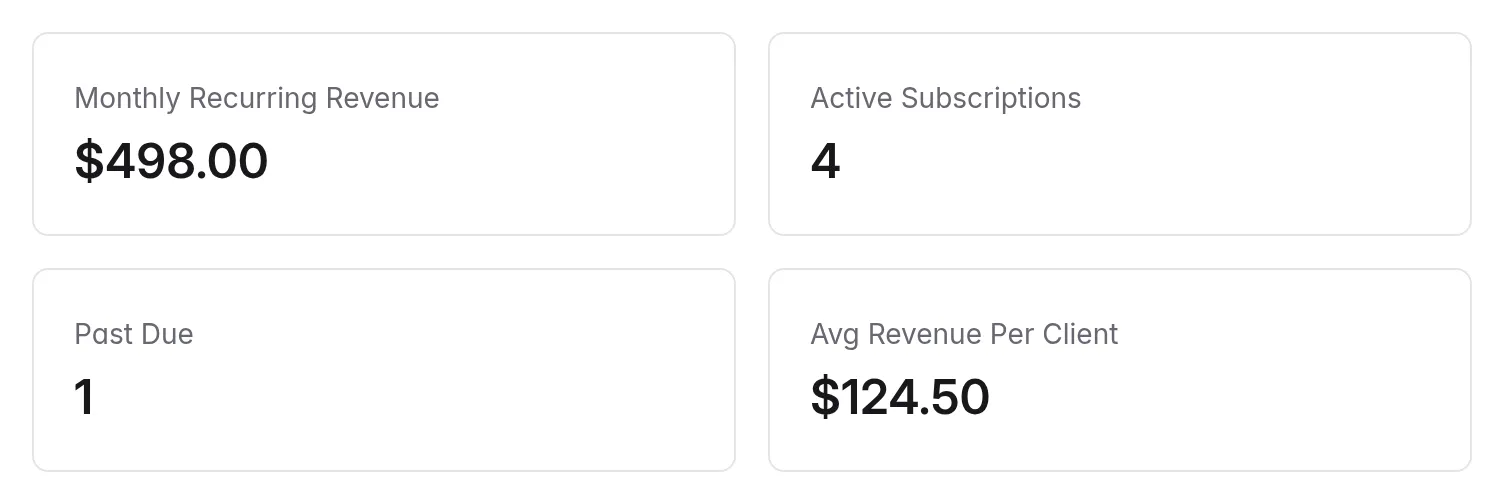
In the menu, under Payments, select Dashboard. The four figures at the top count subscriptions only:
- Monthly Recurring Revenue. The total of your active subscriptions at each payment plan’s current price, turned into a monthly amount. A plan billed by the week counts 4.348 times its price, a plan billed by the year counts one twelfth, and a plan billed by the day counts 30.44 times. Subscriptions on hold are left out.
- Active Subscriptions. Subscriptions with the Active status that are not on hold.
- Past Due. Subscriptions with the Past Due or Unpaid status.
- Avg Revenue Per Client. Monthly recurring revenue divided by the number of active subscriptions.
Below the figures, Recent Subscriptions lists your ten newest subscriptions, with the client, the payment plan, the status and the current billing period.
Subscriptions
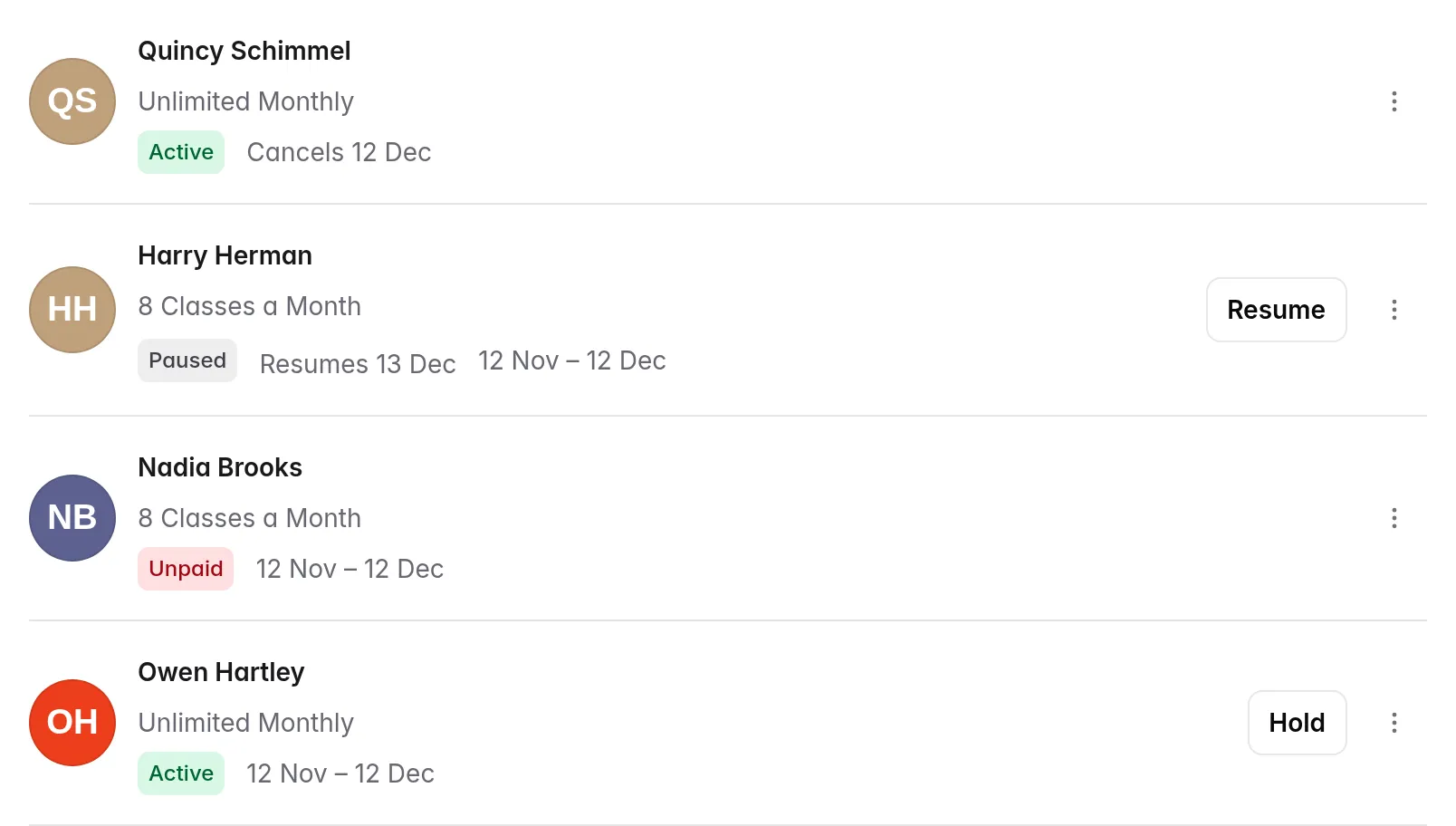
Under Payments, select Subscriptions to see your current subscriptions, newest first. Each row shows the member, the payment plan, a status, and the current billing period. A subscription set to cancel shows Cancels and the day it ends instead, such as Cancels 12 Dec. While a subscription moves to CoachSync, its two rows show Moves to CoachSync and Billing starts, each with a date. See Move a subscription to CoachSync.
The list leaves out canceled subscriptions. To see them, select Filters, choose Canceled or All under Status, then select Apply filters. Select Clear all above the list to go back to current subscriptions.
These are the statuses:
- Active. The subscription is paid and running.
- Trialing. The subscription is in a free trial set up in Stripe.
- Past Due or Unpaid. Stripe could not collect a payment.
- Incomplete. The first payment has not gone through.
- Paused. The subscription is on hold. A date beside it shows when it resumes.
- Canceled. The subscription has ended.
To put a subscription on hold, change its plan or cancel it, see Pause, change or cancel a membership.
One-time payments
CoachSync has no single list of one-time payments. Each person’s payments are on their Credits page.
- Open the person’s Credits page:
- For a client, open the client’s page and select Credits.
- For a contact, open Users, select Edit in the person’s menu, then select View credits.
- Scroll to Purchases.
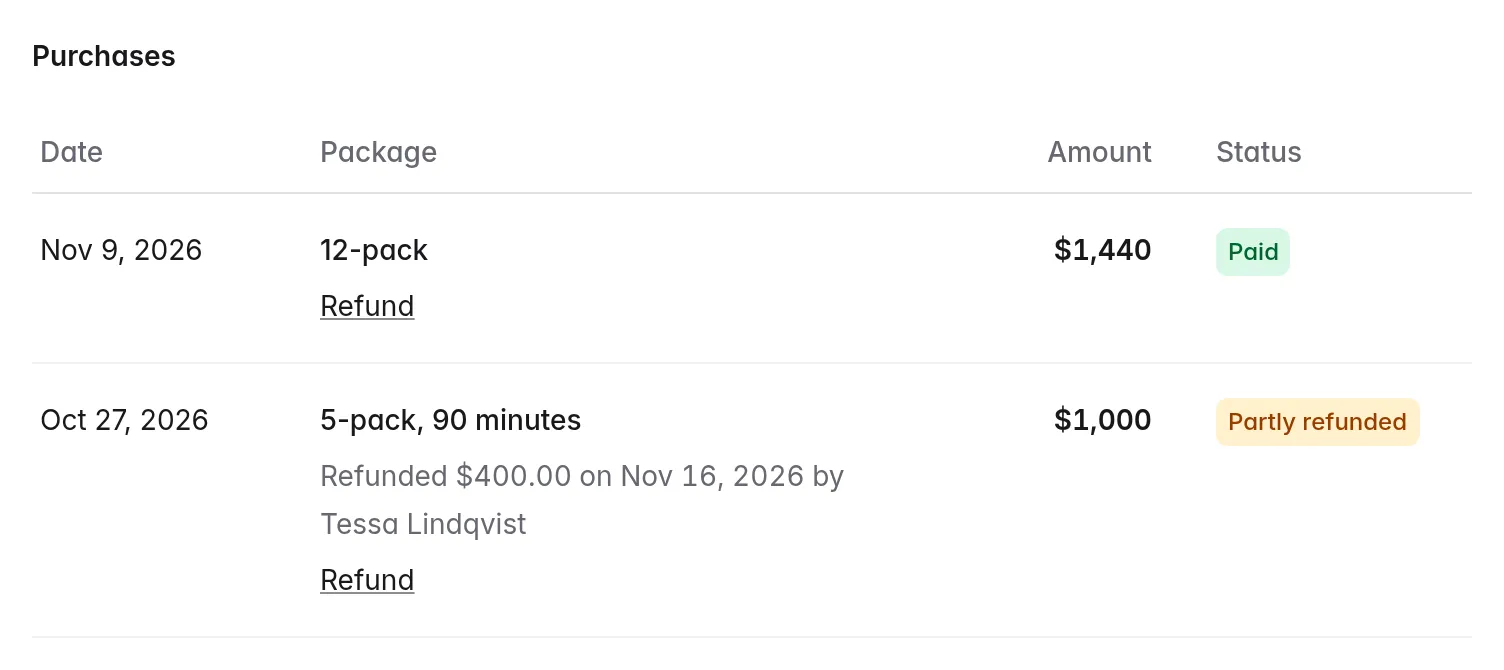
Each purchase shows the date, the package name, the amount and one of these statuses:
- Paid.
- Partly refunded.
- Refunded.
- Processing. The bank has not confirmed the payment yet.
- Payment failed.
A session paid by card also shows its payment on the session’s page, under Payment.
Payment notifications
When a subscription payment fails, CoachSync notifies the member’s coach. If the member has no coach, every owner and admin gets the notification. It arrives in CoachSync and by email.
When a subscription is set to end outside CoachSync, such as a member cancelling in Stripe’s customer portal, the same people get a Subscription Cancelled notification an hour later. It names the member, the payment plan and the day the subscription ends, with the member’s comment when they left one. The email also gives the reason they chose. Cancelling a subscription on Subscriptions, or moving one to CoachSync, sends no notification.
To get a notification for each successful subscription payment too:
- Under Payments, select Settings. Only the owner sees this page.
- Under Notifications, tick Successful payments.
- Select Save changes.
CoachSync sends at most one notification of each kind for a subscription in an hour.
What is only in Stripe
Payouts to your bank, Stripe’s fees and CoachSync’s fee are in your Stripe account. CoachSync does not show them.
Get help
If something on this page does not match what you see, contact support.