Give a refund
Refund a pack, pass, drop-in or session payment, in full or in part, to the card it was paid with.
From CoachSync, you can refund packs, passes, class drop-ins and sessions that were paid by card. The money goes back to the card the person paid with, and CoachSync emails them.
Refund a purchase
- Open the person’s Credits page:
- For a client, open the client’s page and select Credits.
- For a contact, open Users, select Edit in the person’s menu, then select View credits.
- Under Purchases, find the payment and select Refund below its name.
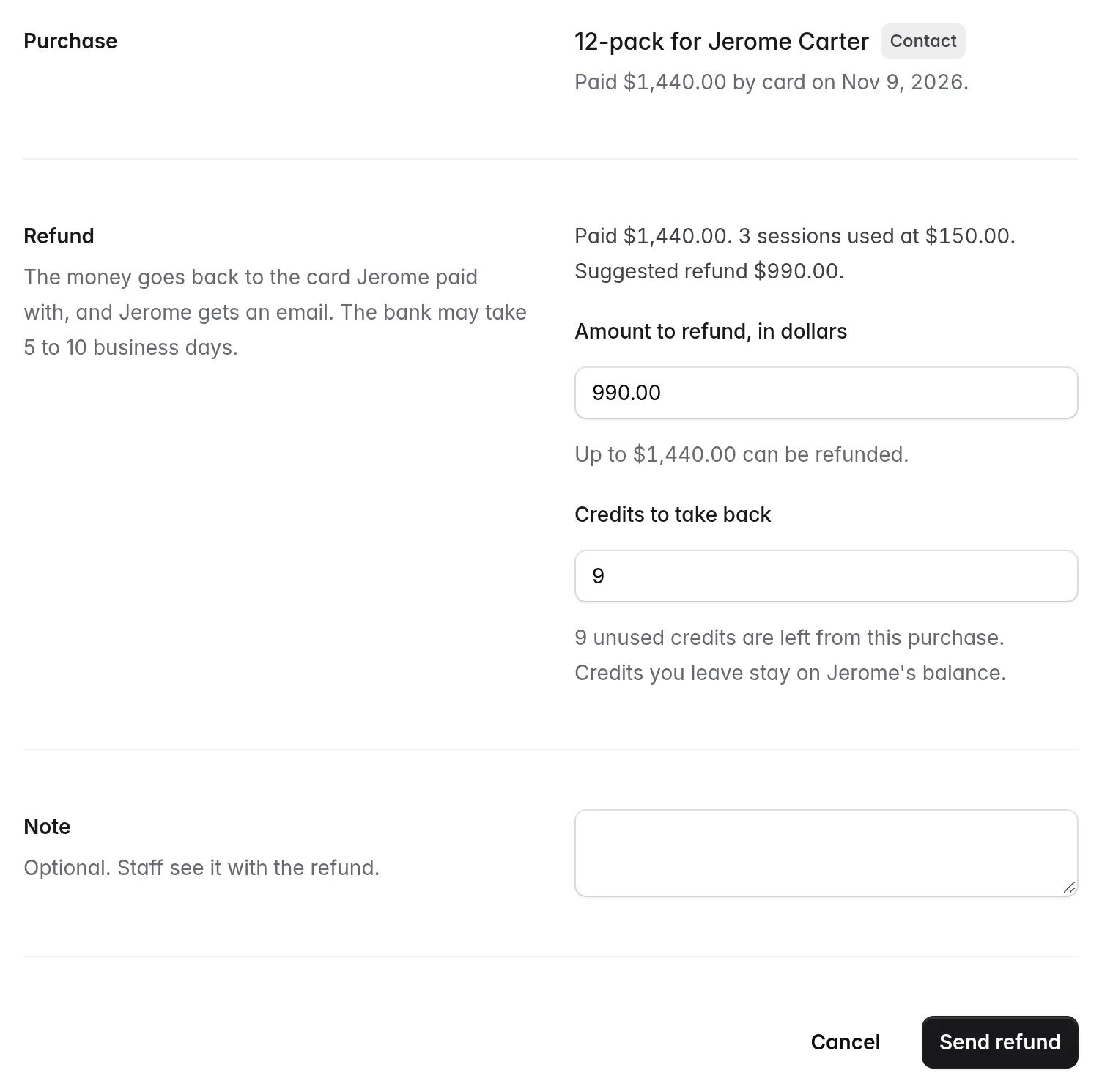
- Read the suggested refund, then check the amount in Amount to refund, in dollars. Change it to refund part of the payment.
- If the purchase still has unused credits, set Credits to take back. Credits you leave stay on the person’s balance.
- Add a Note if you want one. Staff see it with the refund.
- Select Send refund.
CoachSync shows “Refunded” with the amount, and the purchase shows who refunded it and when. Its status changes to Partly refunded or Refunded. The person’s bank may take 5 to 10 business days to return the money.
You can refund the same purchase more than once, up to the amount paid.
How CoachSync suggests an amount
The suggested refund starts from what the person paid. CoachSync then takes off any earlier refunds, the credits already used from a pack, each at the single price of its session or class, and any add-ons used.
For example, a 5-session pack cost $300. The person used 2 sessions at $75 each. The suggested refund is $150, and Credits to take back starts at 3, the unused credits.
A refund does not end a pass. To end a pass early, change its membership’s status. See Pause, change or cancel a membership.
Other places to refund
- When you cancel a session someone paid for by card, the cancel page offers to refund the payment to their card. See Reschedule or cancel a session.
- On a class roster, a drop-in paid online has Refund in the booking’s menu. A payment that arrived after its seat was released is listed under Paid after the booking was released, with Refund. See Class roster.
If the refund does not go through
- If Stripe refuses the refund, CoachSync says “Stripe did not make the refund, so nothing was refunded.” and gives Stripe’s reason. Any credits you took back return to the person’s balance.
- If CoachSync cannot reach Stripe, the Refund page shows the refund with the line “has not reached Stripe yet”. Select Send again to retry it.
Refunds and CoachSync’s fee
CoachSync gives back its 1% fee on the amount you refund. See Payment fees.
Get help
If something on this page does not match what you see, contact support.