Manage a class roster
See who is booked into a class, add people, record drop-in payments, move or cancel bookings and cancel the class.
Each class on each date has a roster. It lists who is booked and how each person is paying. From the roster you add people, mark drop-ins paid, move or cancel a booking, and cancel the class.
Open a roster
- Open the CoachSync menu at the top of the page and select Coach Calendar.
- Go to the class’s week with the arrows or Today.
- Select the class.
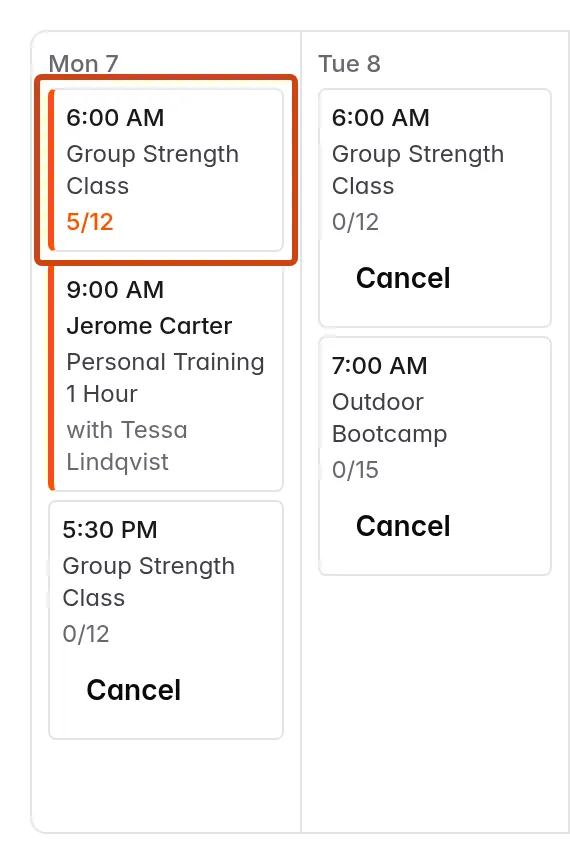
A class shows on the calendar in one of three ways:
- With bookings. The whole card opens the roster. When the class has a capacity, the card shows the spots filled, for example 8/12.
- With only cancelled bookings. The card has a Roster button.
- With no bookings yet. The card has only a Cancel button. Its roster opens from the card once someone books.
Read the roster
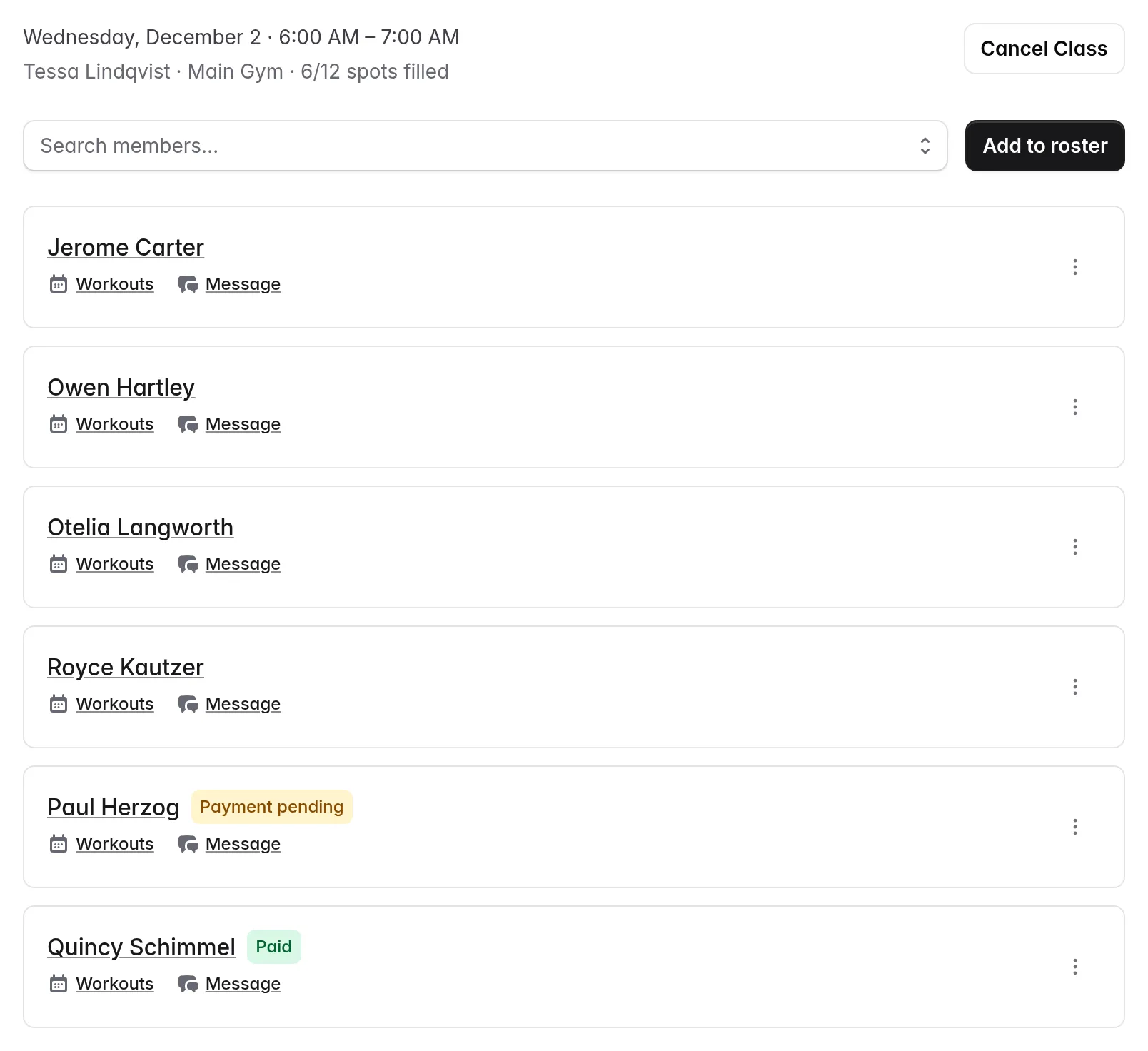
The top of the roster shows the date and time, the coach, the location and, when the class has a capacity, how many spots are filled.
Each person booked can carry these badges:
- Payment pending. A drop-in that has not been paid.
- Paid or Waived. A drop-in you marked paid or waived.
- Paid online. A drop-in paid by card at booking. It changes to Refunded after a full refund.
- Credit spent. A credit paid for the class.
- No membership. The person booked on a membership that does not cover this class on this date.
- 1 over limit, 2 over limit and so on. The member has booked more classes this period than their membership plan allows.
- A waiver badge, such as No waiver or Waiver signed with a date. It shows when your account has a waiver.
A booking covered by a membership with sessions to spare has no payment badge.
A client’s name opens their client page when you coach them, or when you are an owner or admin. Under the name, Workouts opens their calendar and Message opens your conversation with them. A contact’s name is not a link. Owners and admins see Message under it.
Add someone to a class
- Open the roster.
- In the search box, type a name and choose the person.
- Select Add to roster.
- If CoachSync asks you to confirm, read the reason and select Yes, add anyway.
CoachSync confirms with “[Name] added to roster.” The person gets a booking confirmation email.
When you add someone yourself, CoachSync books them this way:
- The class’s booking rules do not apply. You can add someone after booking closes.
- You can add someone to a full class. CoachSync warns that it overbooks the class.
- A membership with sessions left covers the class first, when its plan includes the class and the class is not Payment required. A credit for the class type comes next, in Membership required classes too. Otherwise CoachSync adds the person as a drop-in with Payment pending.
- In a Membership required class, a member with no sessions left this period and no credit is still added on their membership. CoachSync warns you first.
Record a drop-in payment
These steps work for a person marked Payment pending.
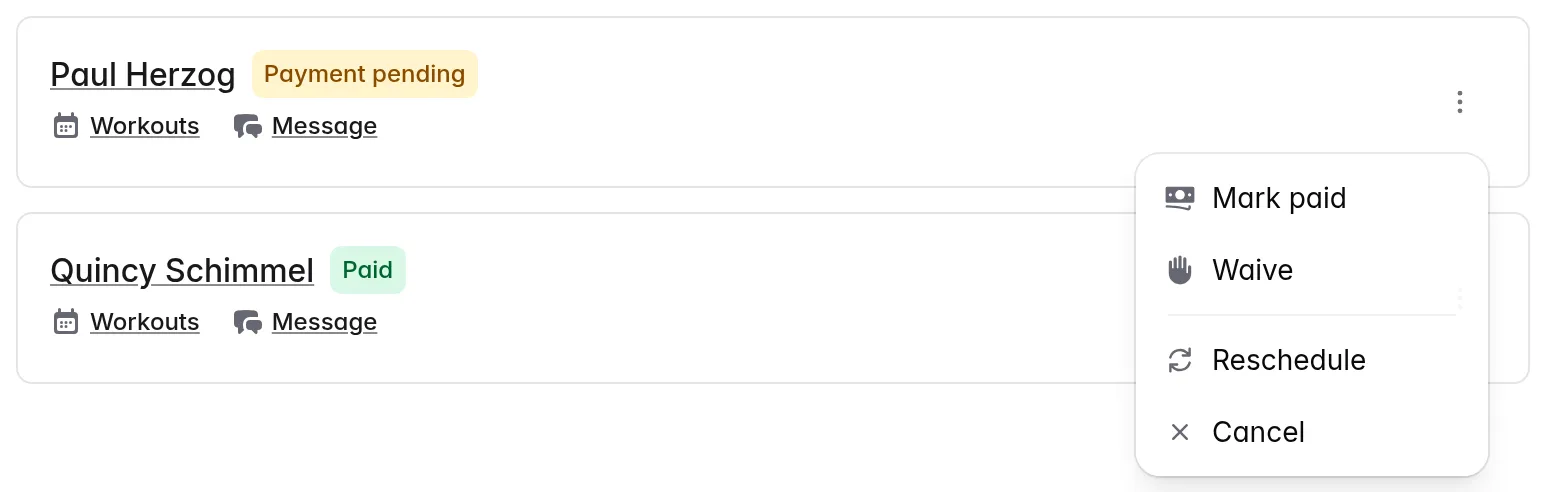
- Select the three-dot button on the person’s row.
- Select Mark paid or Waive.
- Confirm with Yes, mark paid or Yes, waive.
A drop-in paid online cannot be changed this way.
Move a booking to another class
- Select the three-dot button on the person’s row, then Reschedule.
- Find the new class. The page lists classes open for booking in the next two weeks.
- Select Reschedule here.
CoachSync shows “Booking rescheduled.” The person gets a cancellation email for the old class and a confirmation for the new one. A class pack credit moves with the booking. A drop-in keeps its payment status.
Cancel one booking
- Select the three-dot button on the person’s row, then Cancel.
- Read the dialog. It says whether the person’s class pack credit comes back. If cancellation has closed for the class, it says that too.
- Select Yes, cancel.
What happens next depends on how the person paid:
- Membership. The class no longer counts against the member’s sessions for the period.
- Class pack credit, before cancellation closes. The credit goes back to the person.
- Class pack credit, after cancellation closes. The credit stays spent. The person then appears under Cancelled with the credit kept. To give the credit back, select Return credit there, then Return credit in the dialog.
- Card. Cancelling does not refund the payment. Owners and admins see Refund in the person’s three-dot menu while the booking is on the roster. See Give a refund.
If someone’s card payment comes through after their booking was cancelled, the roster lists them under Paid after the booking was released. Owners and admins can refund them from there. The person can also move the payment to another date themselves. See Book a class as a member.
Cancel the whole class
- On the roster, select Cancel Class.
- Read the dialog. It says how many people CoachSync will notify.
- Select Yes, cancel class.
CoachSync shows “Class cancelled.” Then CoachSync does these things:
- cancels every booking, including spots held for a card payment
- returns class pack credits
- emails each person booked and notifies them in the app
- notifies the class’s coach in the app, unless the coach cancelled it
To give money back for card payments, see Give a refund.
Cancel a class nobody has booked
- On the Coach Calendar, select Cancel on the class’s card.
- Select Cancel class.
The card then shows Cancelled and an Un-cancel button. To bring the class back, select Un-cancel, then Un-cancel class. No one is emailed either way.
Get help
If something on this page does not match what you see, contact support.