Book a class as a member
Book a class from the Classes page, then move or cancel your booking from My Bookings.
If your gym runs its classes in CoachSync, you book a class from the Classes page. You move or cancel it from My Bookings.
You need to sign in with the email your gym has for you. If you booked from your gym’s link before and never set a password, select Forgot password? on the sign-in page. See Sign in and switch accounts.
Book a class
- Sign in to CoachSync.
- Open the CoachSync menu at the top of the page and select Classes.
- Find the class. The page shows two weeks of classes that are open for booking. Use the arrows to move two weeks at a time, and Today to come back.
- Select Book.
If your membership or a class credit covers the class, the button changes to Booked. If you pay a drop-in price, Book opens a card payment page. After you pay, CoachSync takes you to My Bookings.
CoachSync emails you a confirmation with a calendar invite. The email has a link to view or change the booking without signing in.
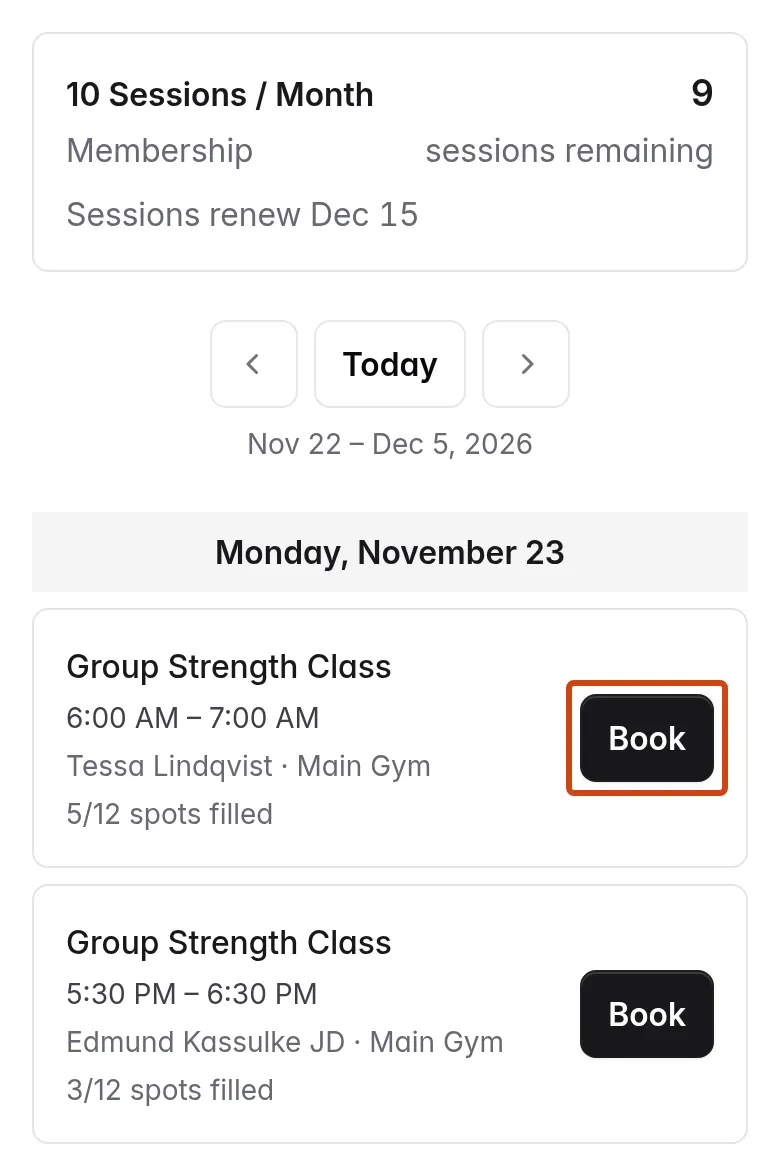
Each class shows its time, coach and location. When the class has a limit, it shows how many spots are filled. In place of Book, a class can show:
- Booked. You are already booked. Select it to open My Bookings.
- Full. Every spot is taken.
- Membership required. The class is for members. You have no membership on that date, and you have no credit for the class.
- Not on your plan. Your membership does not include this class, and you have no credit for the class.
- No sessions left. You have used this period’s sessions on your membership, and you have no credit for the class.
- No online drop-in. The class has a price, but your gym does not take payment for it online. Contact your gym.
- Finish paying. You started paying for this class and did not finish.
How your class is paid for
CoachSync uses the first of these that covers the class:
- Your membership. The box at the top of the Classes page shows your plan. It shows Unlimited, or the number of sessions you have left and the date they renew. Your gym can limit a plan to some classes.
- A class credit. If you have credits for the class, from a class pack or from your gym, the class shows “Uses 1 of your 4 credits” next to its time. A credit books the class even when the class is for members.
- A drop-in price. The class shows the price, for example “$20 drop-in”. You pay by card when you book. A class that your plan does not include can still offer a drop-in price.
To buy a class pack or a pass, open Credits from the CoachSync menu. It is in the menu when your gym has something on sale or you hold credits.
See your bookings
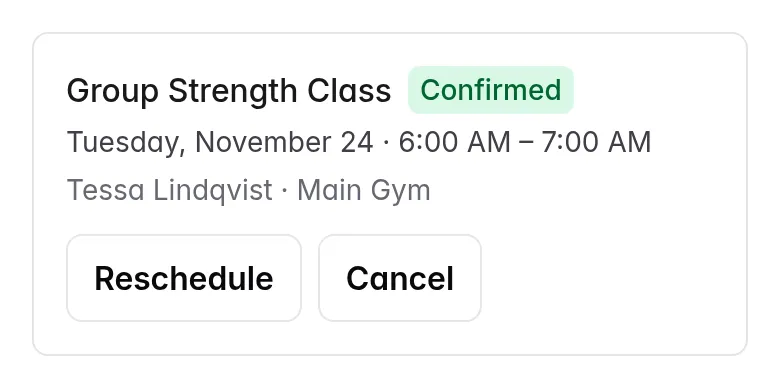
Open the CoachSync menu and select My Bookings. Each upcoming class shows Confirmed. A class you paid for also shows a badge such as Paid online or Credit spent.
Move a booking
- Open My Bookings.
- On the class, select Reschedule.
- Find the class you want and select Reschedule here.
CoachSync shows “Booking rescheduled.” The list shows classes in the next two weeks that your booking can move to. A booking paid with a drop-in or a class credit moves only to another date or time of the same class.
Cancel a booking
- Open My Bookings.
- On the class, select Cancel.
- Select Yes, cancel.
CoachSync shows “Booking cancelled.” If you paid with a class credit, the credit comes back. If your membership covered the class, it no longer counts against your sessions for the period.
If your payment arrives after the class fills
A card payment can go through after your 15-minute hold has ended. If someone took the last spot in the meantime, you are not booked. CoachSync emails you with the subject Class Full:, the class and the date.
My Bookings then shows the class with Not booked and the payment you made. To use the payment on another class:
- On the class, select Reschedule.
- Find the class you want and select Reschedule here.
The list shows only classes your payment can move to. To get your money back instead, ask your gym for a refund.
When you can change a booking
Each class has a cutoff for changes, set by your gym. Before it, you can move or cancel the booking. After it, CoachSync refuses with a message such as “Cancellation must be made at least 12 hours in advance.” To change a booking after the cutoff, contact your gym.
Get help
If something on this page does not match what you see, contact support.