Block time off
Stop clients booking 1:1 sessions while you are away, by adding time off or by connecting the calendar you already use.
There are two ways to keep clients from booking a time. Add time off in CoachSync, or connect your own iCloud, Google or Outlook calendar so its events block bookable times.
Add time off
- Open Availability from the menu.
- Under Time off, select Add time off. If you manage several coaches, use the button in that coach’s section.
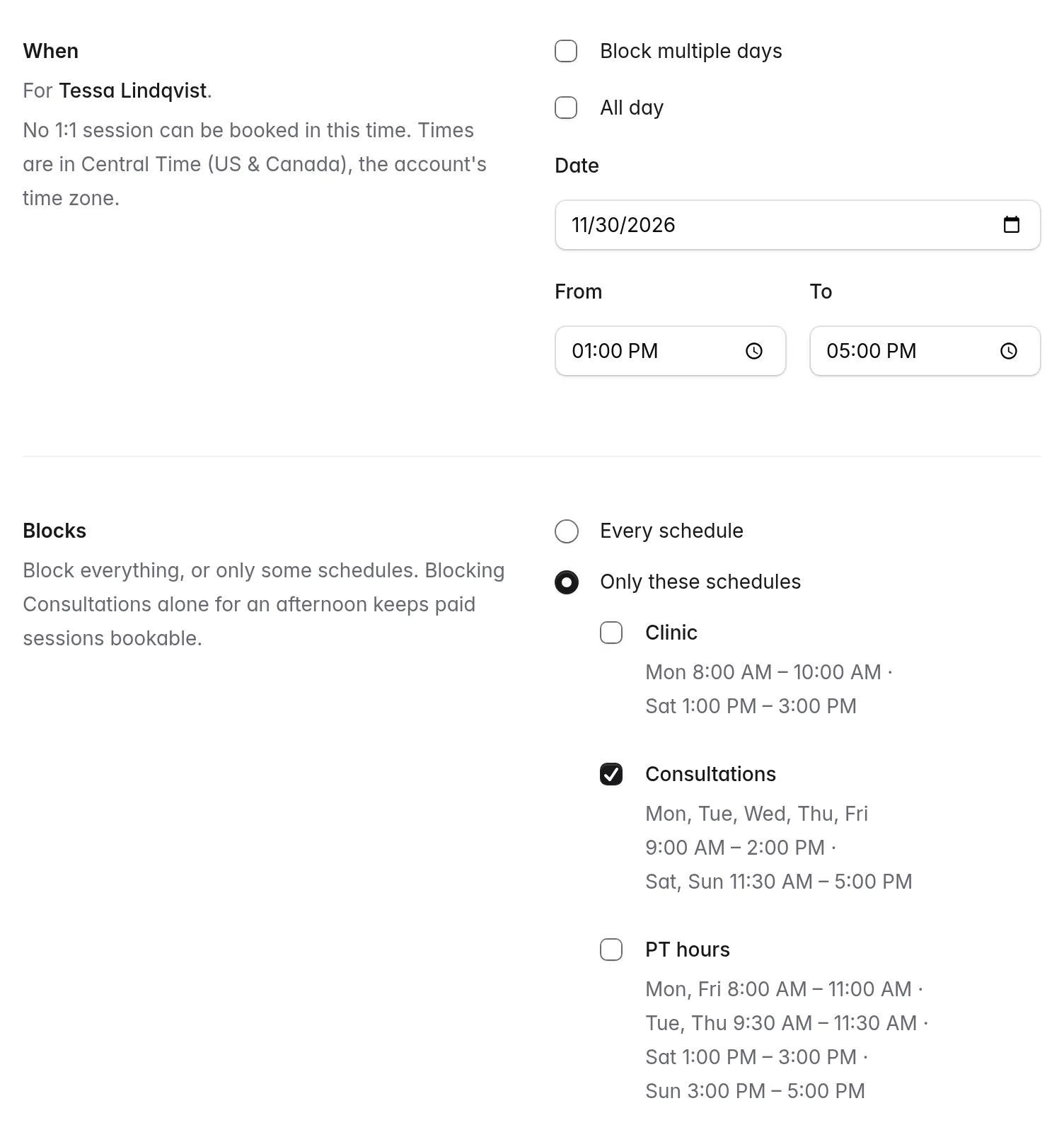
- Under When, enter the time:
- For part of one day, untick All day, then enter the Date, From and To.
- For a whole day, keep All day ticked and enter the Date.
- For several days in a row, tick Block multiple days, then enter the First day and Last day. Every day from the first through the last is blocked in full.
- Under Blocks, keep Every schedule, or choose Only these schedules and tick the schedules to block.
- To leave a note for other staff, add a Note. Only staff see it.
- Select Add time off.
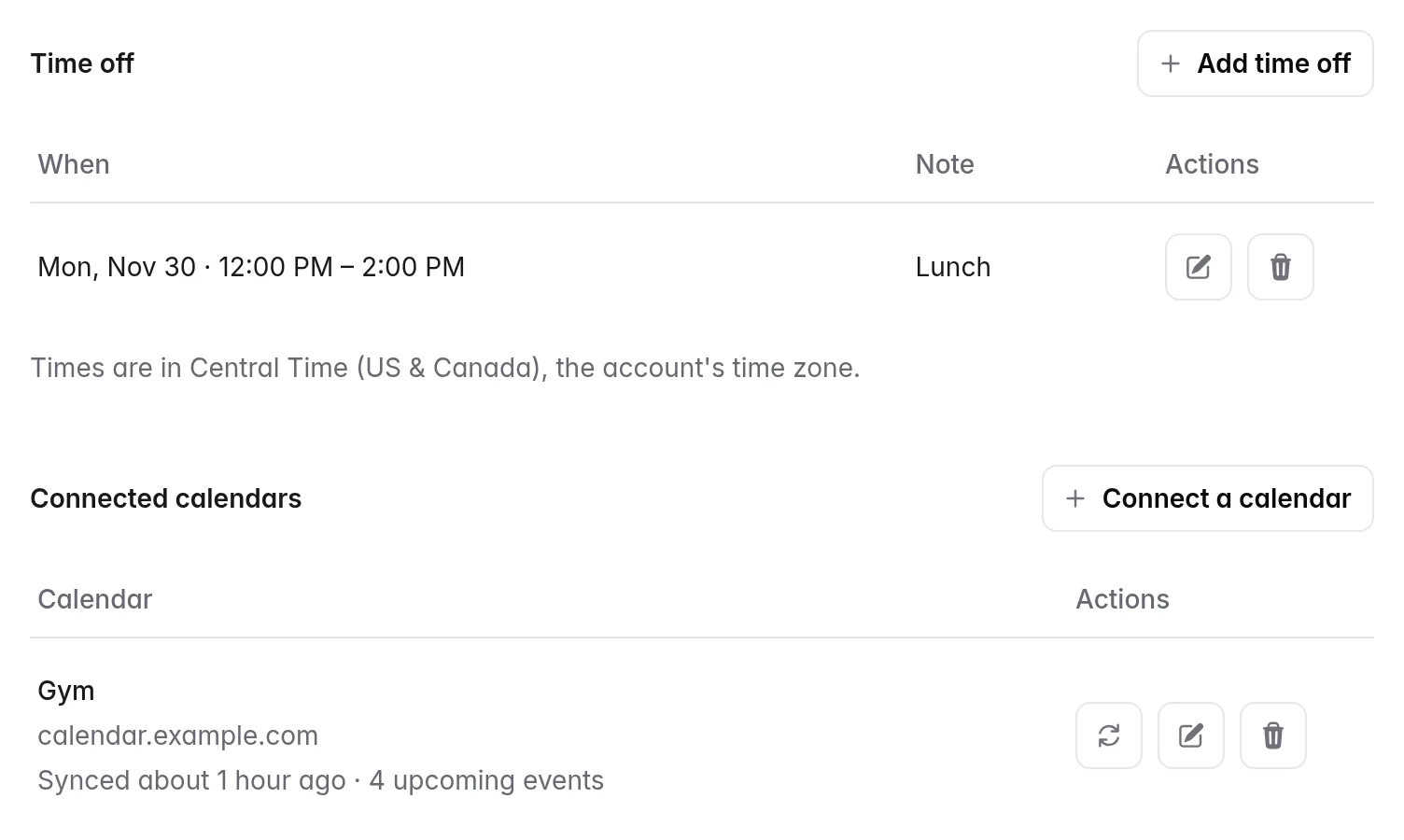
Times are in the account’s time zone. The Time off list on the Availability page shows the time off that has not ended yet.
To change time off, select the pencil button next to it. To remove it, select the trash button, then Remove. Sessions can be booked in that time again.
Connect your calendar
A connected calendar’s events block bookable times on every schedule of that coach. The event names show only on that coach’s own Coach Calendar. Everyone else sees the time as busy.
- In your calendar app, copy the calendar’s private address. The next section says where to find it.
- In CoachSync, open Availability.
- Under Connected calendars, select Connect a calendar.
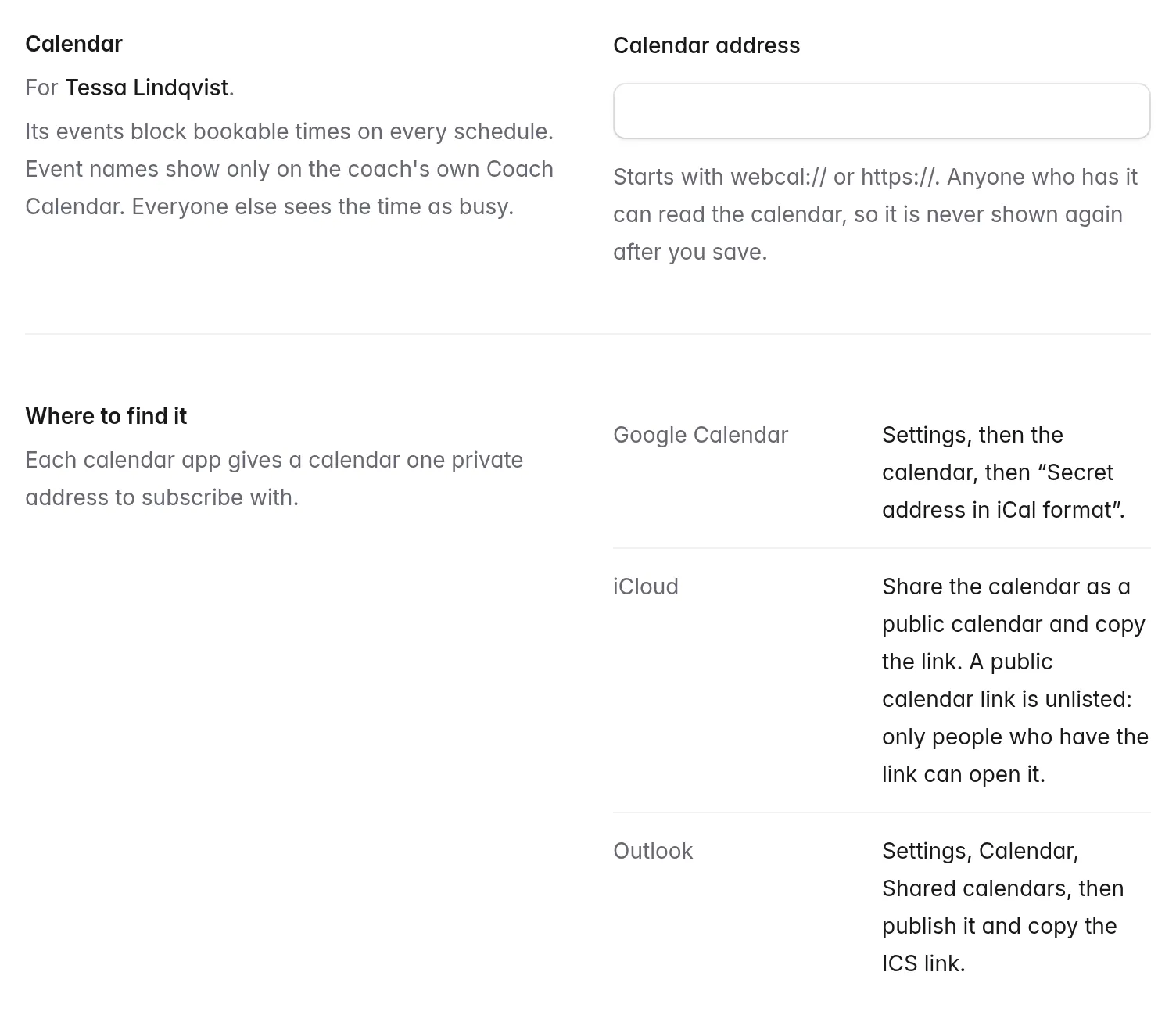
- Paste the address into Calendar address. It starts with
webcal://orhttps://. - Select Connect calendar.
Its events start blocking bookable times in a minute or so.
Where to find the address
- In Google Calendar, open Settings, then the calendar, then “Secret address in iCal format”.
- In iCloud, share the calendar as a public calendar and copy the link. Only people who have the link can open it.
- In Outlook, open Settings, Calendar, Shared calendars, then publish the calendar and copy the ICS link.
Anyone who has the address can read the calendar, so CoachSync never shows it again after you save. A coach can connect up to 10 calendars.
Events that your calendar marks as free do not block time. Cancelled events do not block time either.
Keep a calendar in sync
CoachSync reads each connected calendar again about every 15 minutes. The list on the Availability page shows when each calendar last synced and how many upcoming events block time.
- To read a calendar now, select the sync button next to it. On a phone, open the calendar’s menu and select Sync now.
- If a sync fails, the calendar shows Sync failed, the reason and the time of the last good sync. The events from the last good sync keep blocking time.
- To change the address, select the pencil button, or Replace address on a phone. Paste the new address and select Replace address.
Disconnect a calendar
- Select the trash button next to the calendar, or Disconnect on a phone.
- Select Disconnect to confirm.
The calendar’s events stop blocking bookable times.
Get help
If something on this page does not match what you see, contact support.