What a new client sees
Follow the booking pages your links open, from choosing a time or a class to the page where people move or cancel.
People do not need a CoachSync account to book with you. Your links open pages where they choose a time or a class, type their name and email, and pay by card when the booking has a price. Every page shows your business name at the top.
Booking a session
A session type’s link, or Book next to a session on your booking page, opens the session type’s page.
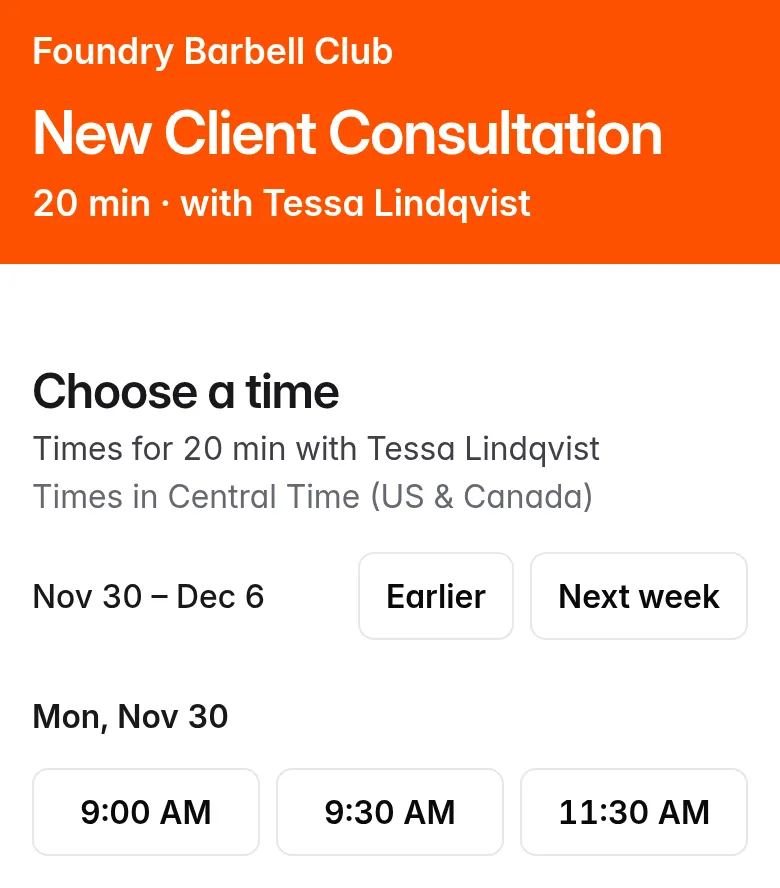
- The page shows the session type’s name and length, and the coach when only one coach offers it.
- If the session runs in more than one place, the client chooses one. If several coaches offer it, the client chooses a coach or leaves Any available coach selected. If the session type has add-ons, the client can tick them.
- Under Choose a time, the client selects an open time. Times come from the coach’s availability. Next week shows the following week.
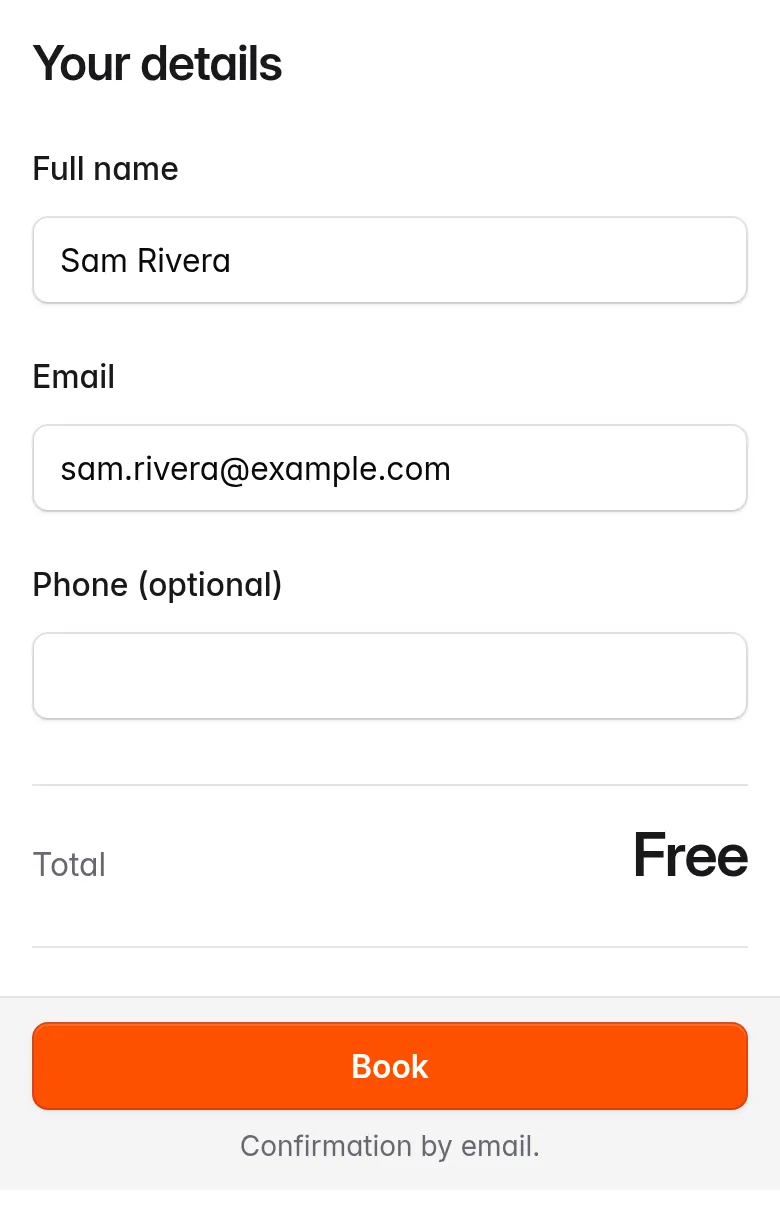
- Under Your details, the client enters Full name, Email and Phone (optional). For a session held as a phone call, the phone number is required. The client also answers any intake questions and agrees to your terms if you set them.
- The client selects the button at the bottom. It reads Book for a free session. For a paid session it reads Pay and the amount, such as Pay $60, and opens Stripe’s checkout page.
A free booking opens its own page with “Session booked.” A paid booking returns to that page after checkout. To change the time from the details page, the client selects Edit booking.
If you sell packs for that session type, the details page lets the client pay for This session or buy a pack and use one session from it. If no one can book the session type online, its page says “Not bookable online.”
Booking a class
A class’s link, or Book next to a class on your booking page, opens the class’s page.
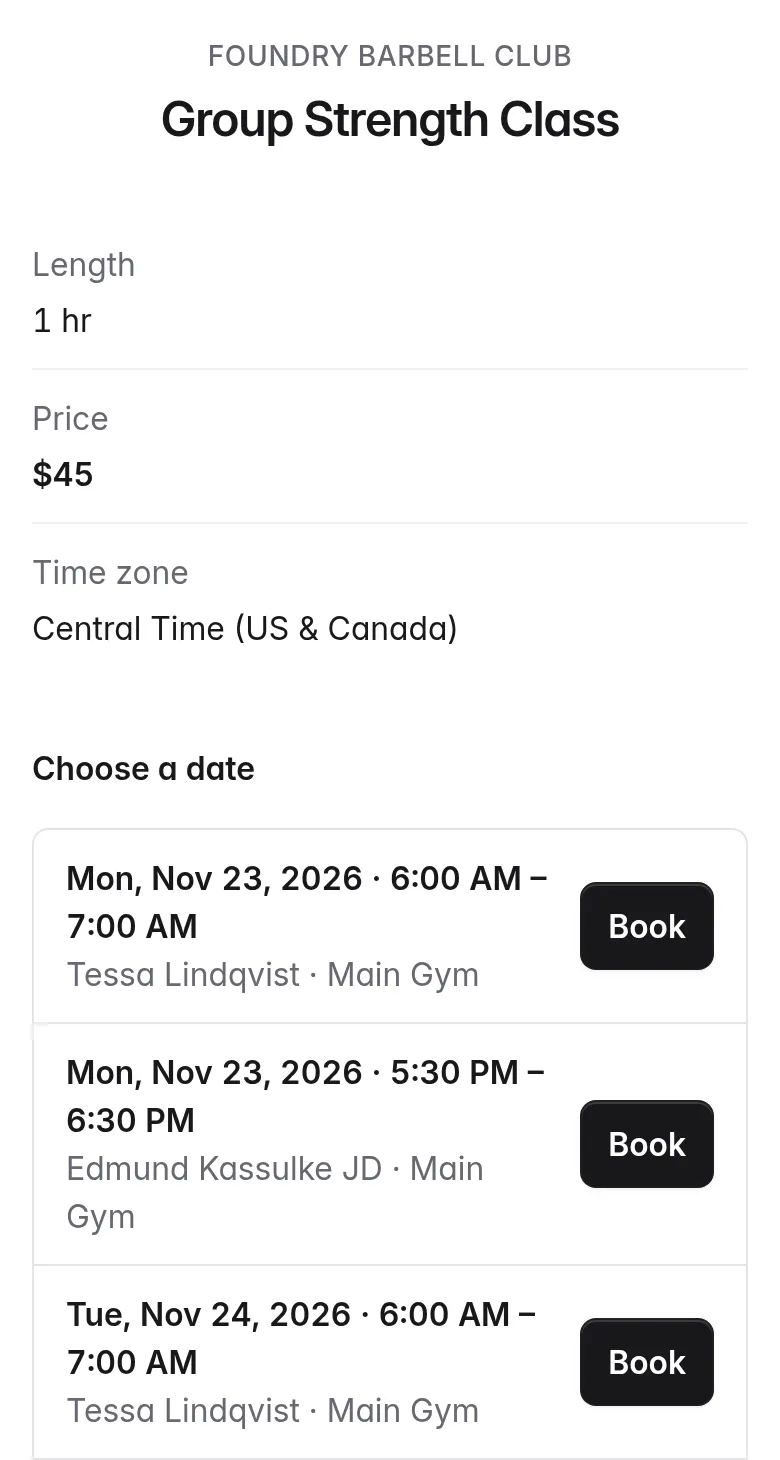
- The page shows the class’s Length and its Price, and the Time zone when all its classes are in one time zone. The price reads Members only for a class that needs a membership or a class credit. It reads Not sold online for a priced class you cannot take card payments for.
- Under Choose a date, the page lists every class open for booking in the next two weeks, with its coach and location. A full class shows Full.
- The client selects Book next to a date.
- The next page shows When, Where, the Coach and the Price.
- Under Your details, the client enters Full name, Email and Phone (optional).
- The client selects Book, or Continue when the class takes a card payment. Change date goes back to the list.
A booking with nothing to pay opens its own page with “Class booked.” A card payment goes through Stripe’s checkout page first, then returns to that page.
A Membership required class has no booking form on its page. The page lists its dates under Upcoming dates with no Book buttons, and says “Members book in the app.” with a Sign in link. Members book it from Classes. See Book a class as a member.
When the email already has sessions or a membership
Someone who already has sessions, a membership or a class pack with you can use it on your booking pages. First they prove the email is theirs.
- After they type the email, the page says “This email has sessions. Confirm it’s yours to use one.” On a class page it names the membership or class pack instead.
- They select Email me a code. CoachSync emails a 6-digit code from your business. The code works for 20 minutes.
- They type it into Code from the email.
The page then says “Email confirmed.” and the booking uses their sessions or membership. Without the code, the booking goes as it would for someone with none: they pay by card, or cannot book where you take no card. Someone who opened the link from Email me my link skips the code, and the browser remembers a confirmed email.
Paying by card
Card payments happen on Stripe’s checkout page. While the client pays, CoachSync holds the time or the class spot for 15 minutes.
If the client leaves the checkout page, the booking’s own page shows the hold with a Pay by time and a Finish paying button. Your link shows the same hold when the client opens it again on that device. If 15 minutes pass without payment, the hold ends and the time or spot goes back on offer.
The booking’s own page
Every booking has its own page. The confirmation email links to it, and nobody needs to sign in to open it. The bottom of the page says “Have an account?” with a Sign in link.
A session’s page has these parts:
- the session type, the time, the coach and the length
- Add to calendar, which downloads the session as a calendar file
- the Time zone, and under Changes, until when the client can reschedule or cancel
- where the session takes place, and how it was paid
- Reschedule and Cancel session, while the client can still use them
A class booking’s page has these parts:
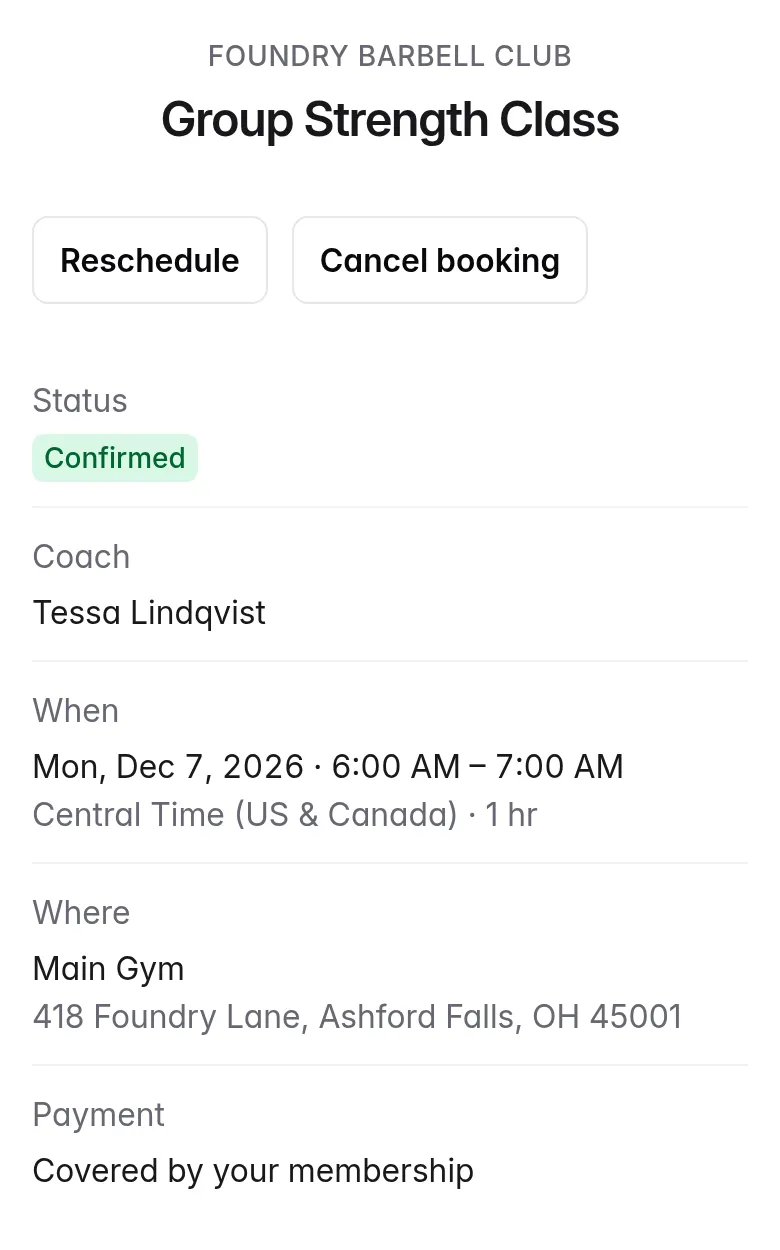
- Reschedule and Cancel booking, while the client can still use them
- the Status, Coach, When, Where and Payment
Moving and cancelling
A session’s page offers these changes:
- Reschedule opens Choose a new time. The client picks an open time and confirms it. This works until the session’s change window closes.
- Cancel session asks the client to confirm. Before the change window closes, a paid session comes back to the client as a prepaid session to book again. After it closes, the client can still cancel a paid session until it starts. The button then reads Cancel anyway, and the prepaid session does not come back.
A class booking’s page offers these changes:
- Reschedule lists the classes in the next two weeks the booking can move to. The client selects Reschedule here.
- Cancel booking asks the client to confirm with Cancel booking, or go back with Keep booking. If the client paid by card, the page says that cancelling does not refund it and that they should ask you.
Both buttons disappear once the class’s cancellation closes. To set the change windows, see Schedule a class and Reschedule or cancel a session.
Coming back later
- The browser remembers the client’s name and email for a year. Your pages then say “Booking as” and the client’s name, with Not you? to clear it.
- Under Already have sessions?, near the bottom of your booking pages, the client can enter their email and select Email me my link. If the email belongs to someone in your account, CoachSync emails them a link to a page that lists their upcoming bookings and the sessions and classes they have left.
- A client who has a CoachSync login can sign in instead. See Sign in and switch accounts.
What CoachSync does with the details
- A new email becomes a contact in your account. A contact is a person you do not coach, who can book and buy. See Manage your client list.
- An email that belongs to one of your coaches, or to an archived person, is refused with “This address can’t book online.” and the name of your business to contact.
Get help
If something on this page does not match what you see, contact support.