Sell session packs and manage credits
Sell packs of 1:1 session credits, see each client's balance, and grant or remove credits by hand.
A credit pays for one session of one session type. Clients get credits when they buy a package, or when staff grant them. Booking a paid session spends a credit, and cancelling in time gives it back.
Create a session pack
- Open Packages from the menu.
- Select Add Package. On the Gym plan, choose Credits.
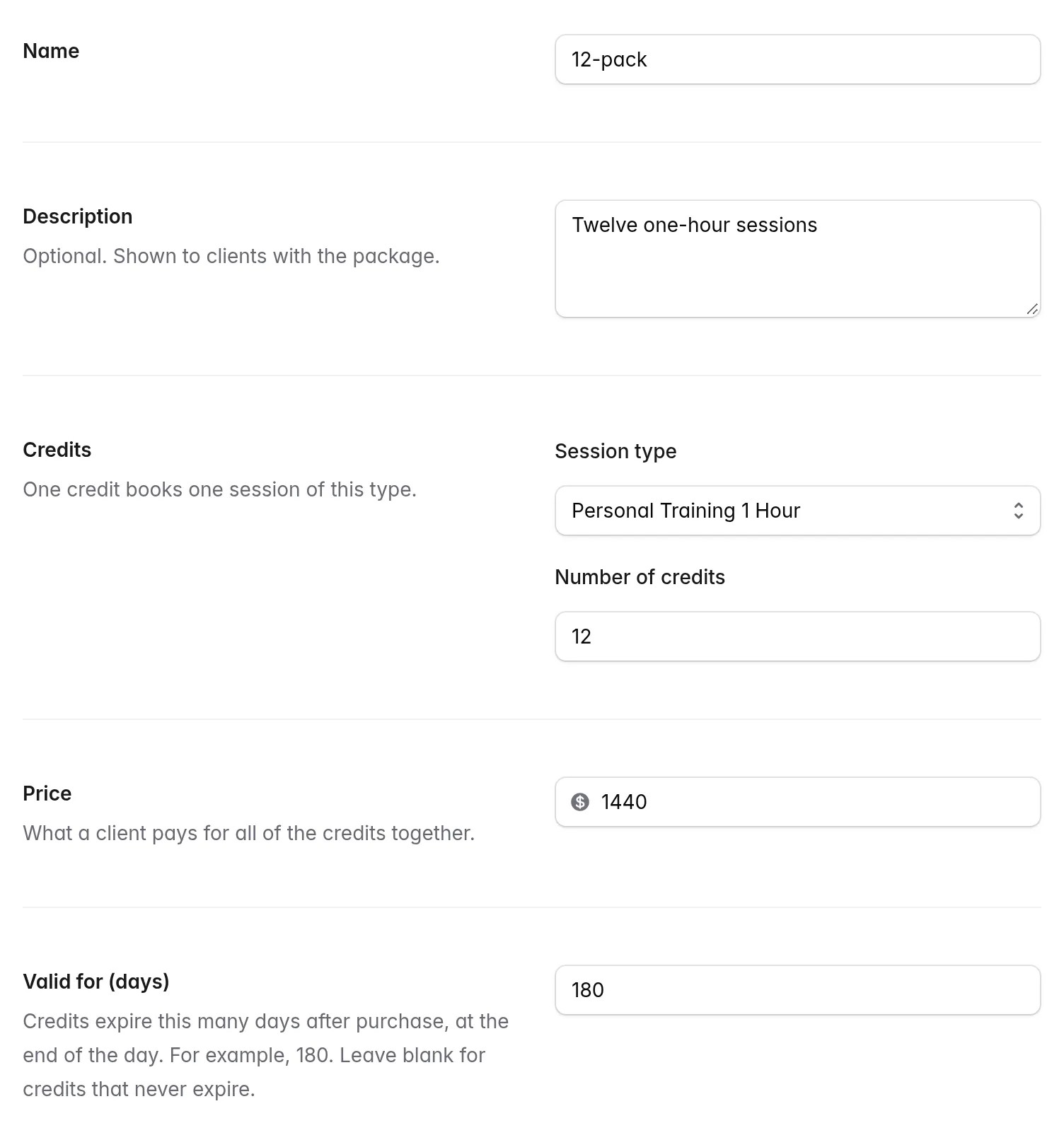
- Enter a Name, such as “12-pack”, and an optional Description. Clients see both.
- Under Credits, choose the session type and enter the Number of credits.
- In Price, enter what a client pays for all the credits together.
- To make the credits expire, enter a number of days in Valid for (days), such as 180. Credits expire that many days after purchase, at the end of the day. Leave it blank for credits that never expire.
- If the pack has terms, add them under Terms.
- Under Visibility, choose Public to show the pack with your other packages, or Private to leave it off that list.
- Keep Active ticked.
- Select Save changes.
The list of packages opens with the message “Package created.”
Once the pack is for sale, its page shows a Purchase link. Anyone with the link can buy the pack, including a private one. The same form makes class packs. See Drop-ins, class packs and passes.
How clients buy credits
A signed-in client opens Credits from the menu. The page shows their balance and your public packs. They select Buy and pay on Stripe’s checkout. The credits go on their balance once the payment goes through.
People without an account buy from the pack’s purchase link.
How credits are spent
- Booking a paid session spends one credit for that type.
- CoachSync spends the credits that expire soonest first.
- A credit must still be valid on the day of the session.
- When a client gets new credits, CoachSync spends them on their sessions that were booked without a credit, earliest first.
What happens to the credit when a session is cancelled depends on who cancels and when. See Reschedule or cancel a session.
See a client’s credits
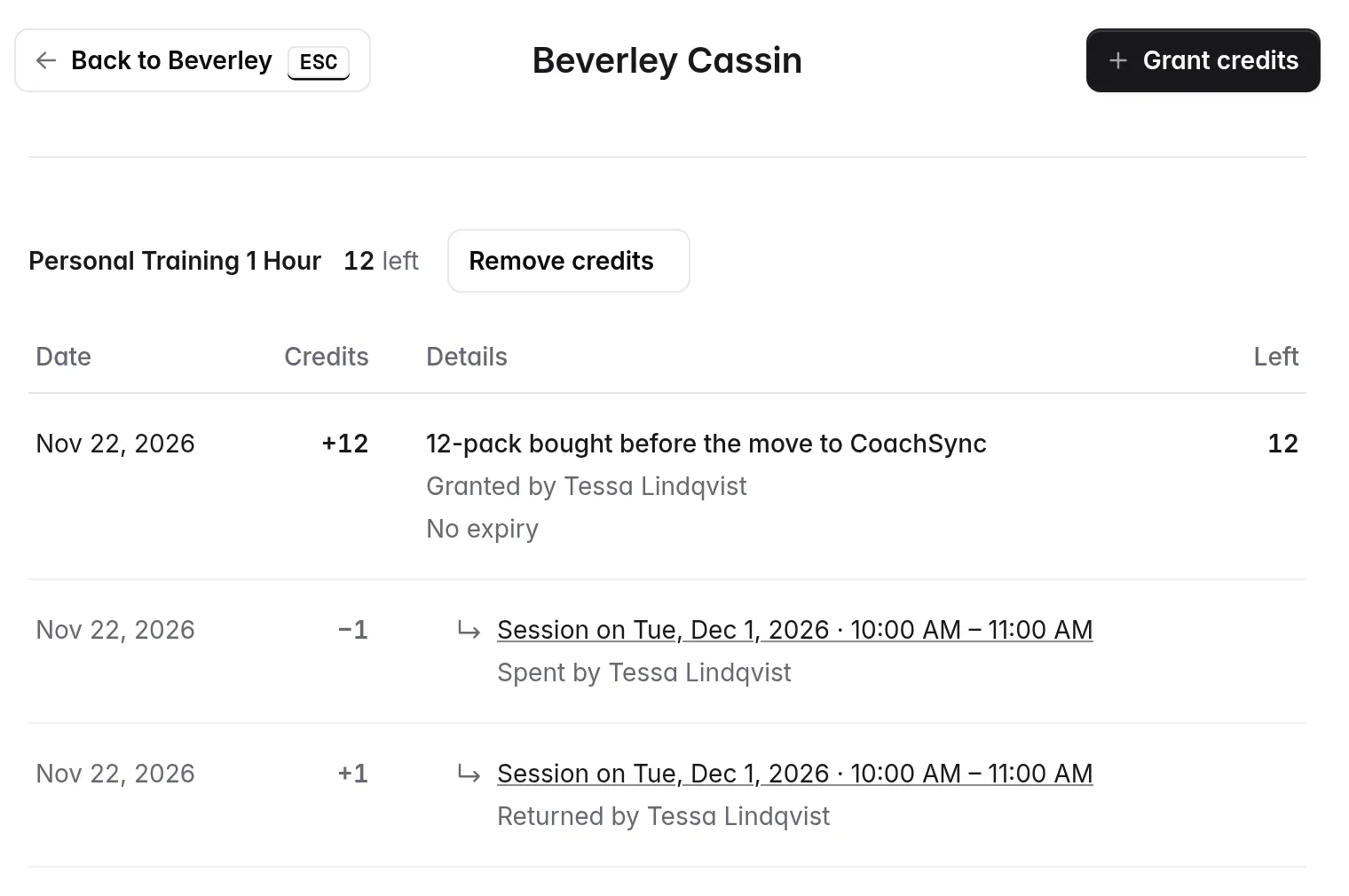
Open the client and select Credits. The page shows, for each session type:
- how many credits are left, and when the next ones expire
- each grant and purchase, with its expiry date and the credits left in it
- each session that spent a credit, and each credit that came back
A Purchases list at the bottom shows what the client bought.
Grant credits
Grant credits to enter a balance someone already holds, such as sessions bought before you moved to CoachSync, or to give credits without a payment.
You can grant credits for any active session type or class type, Membership required classes included. Packs cannot be sold for a Membership required class, so granting is the only way to give credits for one.
- On the person’s Credits page, select Grant credits.
- Choose the session type or class type, and enter the Number of credits.
- To make the credits expire, choose an Expiry date. The credits can be used through the end of that day.
- In Note, say where the credits come from. Staff see the note in the credit history.
- Select Grant credits.
The message says the person’s new balance. If the new credits paid for sessions that were booked without one, the message says so too.
Remove credits
- On the person’s Credits page, select Remove credits next to the session type.
- Enter the Number of credits.
- In Note, say why you are removing them.
- Select Remove credits.
Credits come off the ones that expire soonest. The removal stays in the credit history with your note.
Refund a pack
To give back money for a pack, refund the purchase from the client’s Credits page. See Give a refund.
Stop selling a pack
Edit the pack and untick Active. Nobody can buy it after that. Credits people already hold stay with them. A pack that has been bought cannot be deleted.
Get help
If something on this page does not match what you see, contact support.