Sell drop-ins, class packs and passes
Charge for single classes, sell packs of class credits and sell passes that cover classes for a set number of days.
Members book classes on their membership. For everyone else, and for classes outside a membership, CoachSync sells classes three ways. A drop-in price pays for one class at booking. A class pack sells a number of credits for one class type. A pass covers classes for a set number of days.
What pays for a class
When someone books a class, CoachSync covers it with the first of these that applies:
- A membership with sessions left this period, when its plan includes the class. A membership does not cover a Payment required class.
- A credit for that class type.
- The class’s drop-in price, paid by card at booking.
If none applies, the class cannot be booked online. A Membership required class refuses people with no membership, members whose plan does not include it, and members with no sessions left this period, unless they have a credit for it. On the Classes page these people see Membership required, Not on your plan or No sessions left. Your booking pages show the class as Members only, and its own page lists its dates with no Book buttons.
Set a drop-in price
The access policy and drop-in price are on the class type. Open Appointment Types, select the pencil button on the class type’s row and set these two fields:
- Access policy. One of the choices below.
- Drop-in price. The price charged by card at booking.
The access policy decides who pays:
- Membership required. Only members and people with a credit for it can book, and they book in the app. Class packs cannot be sold for it, so credits for it come only from Grant credits.
- Payment required. Everyone pays, with a class pack credit or the drop-in price. A membership does not cover it.
- Membership or drop-in payment. Members whose plan includes the class book on their membership. Everyone else uses a class pack credit or pays the drop-in price.
The last two choices need a drop-in price above zero. To create a class type, see Schedule a class.
When someone books a class with a drop-in price, CoachSync holds their spot for 15 minutes while they pay on Stripe. If they do not pay in that time, the spot goes back on offer.
Drop-ins you add yourself
When you add someone to a class from its roster and nothing covers them, CoachSync adds them as a drop-in with Payment pending. When they pay you outside CoachSync, select Mark paid on the roster. To let them in free, select Waive. See Manage a class roster.
Sell a class pack
A class pack is a number of credits for one class type. One credit books one class of that type.
- Open the CoachSync menu and select Packages.
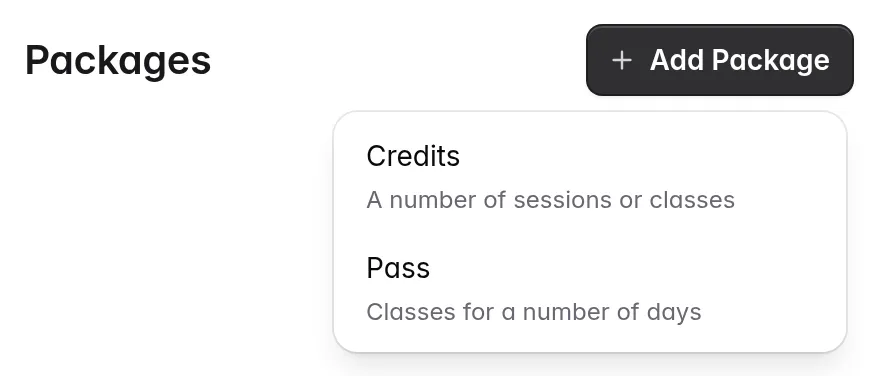
- Select Add Package, then Credits.
- Enter a Name, and a Description if you want one.
- Under Credits, choose the class type and enter the Number of credits.
- Enter the Price for all of the credits together.
- Under Valid for (days), enter how many days after purchase the credits last. Leave it blank for credits that never expire.
- Add Terms if buyers must agree to them.
- Choose Public or Private under Visibility.
- Select Save changes.
The class type list shows only active class types whose access policy is Payment required or Membership or drop-in payment. The same form sells packs of 1:1 sessions. See Session packs and credits.
Credits expire at the end of their last day. A credit pays only for a class that starts before it expires.
Sell a pass
A pass covers classes for a set number of days, starting on a date the buyer picks. It works like a membership for those days, so it needs a membership plan. To create one, see Create a membership.
- Open the CoachSync menu and select Packages.
- Select Add Package, then Pass.
- Enter a Name, and a Description if you want one.
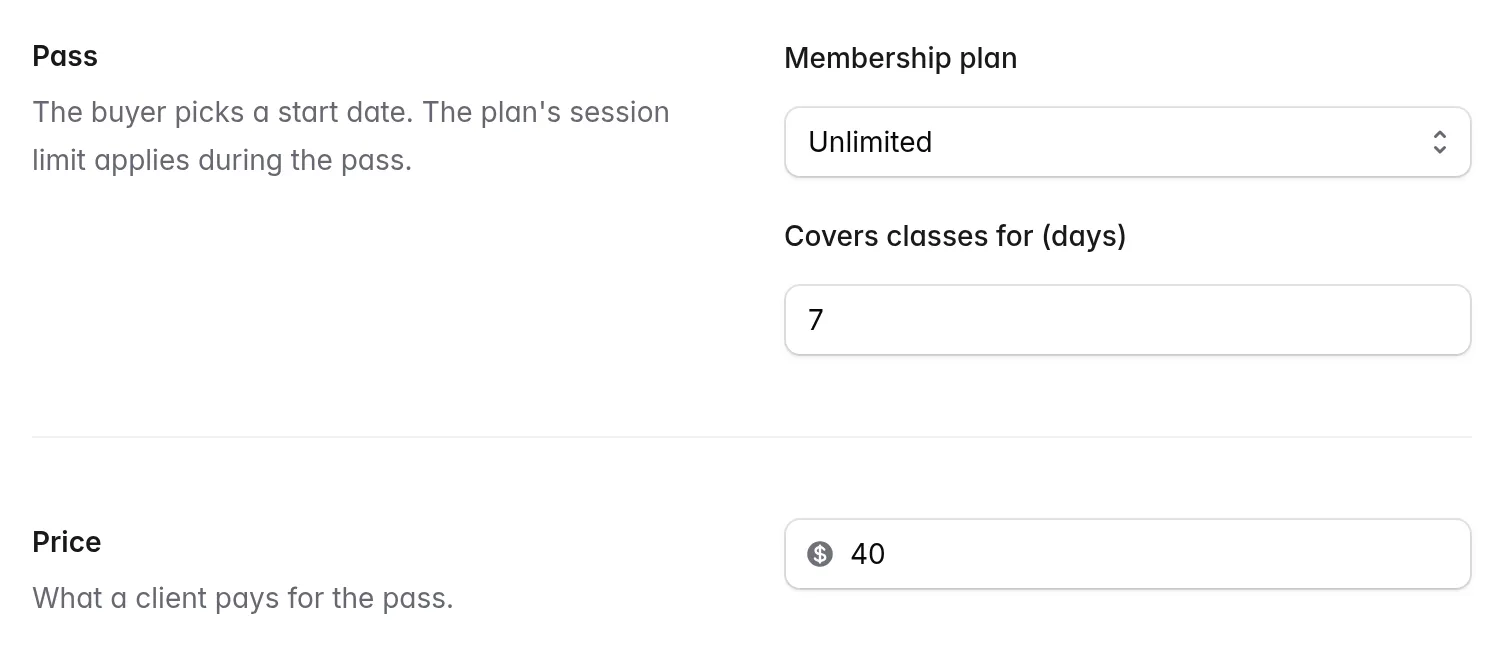
- Under Pass, choose the Membership plan.
- Enter the number of days in Covers classes for (days).
- Enter the Price of the pass.
- Add Terms if buyers must agree to them, and choose Public or Private.
- Select Save changes.
The buyer picks a start date between today and 60 days from now. The pass covers classes from that date for the number of days you set. The membership plan’s session limit and its classes apply during the pass. A pass does not cover Payment required classes.
Where people buy
People buy packs and passes in three places. Each one ends on Stripe’s checkout page, and CoachSync emails a receipt after the payment goes through.
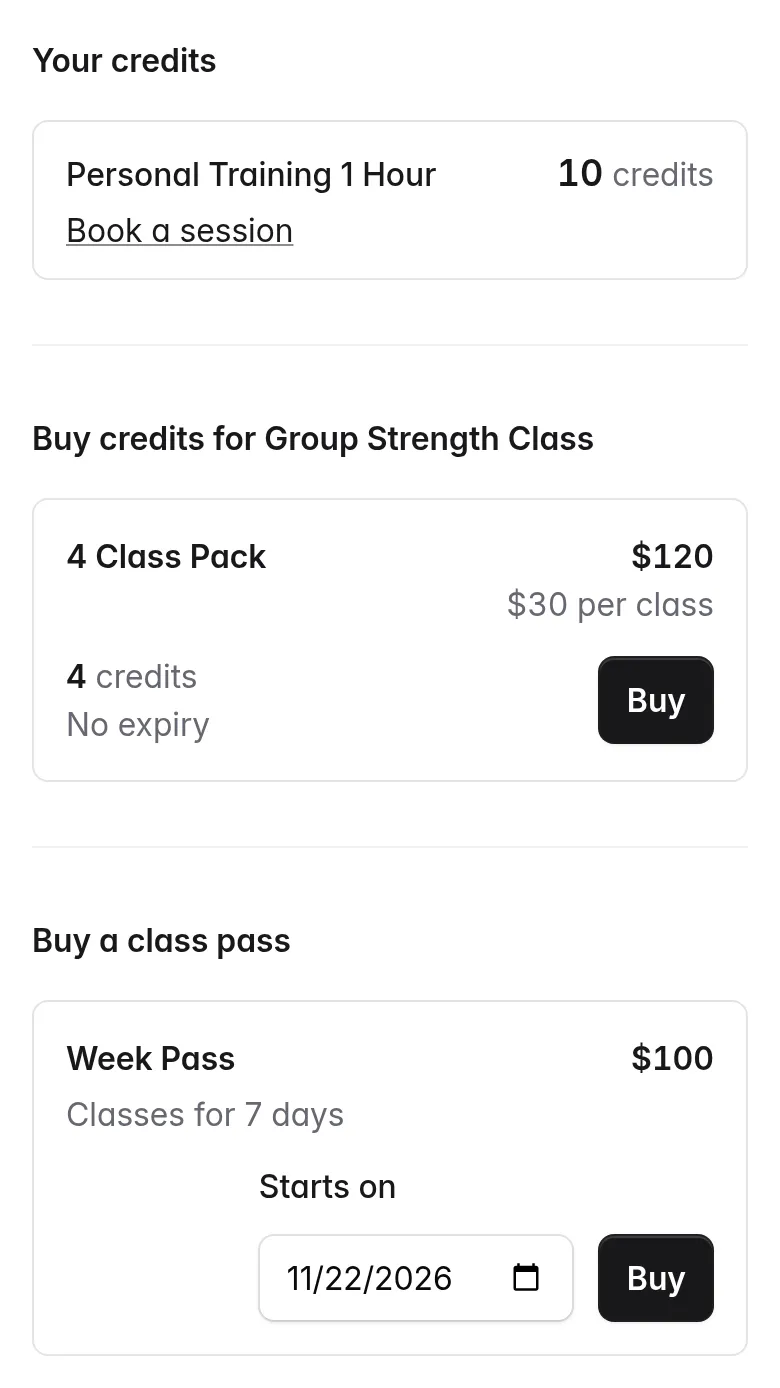
- The Credits page. Signed-in clients and members see Credits in the CoachSync menu when a package is on sale or when they hold credits. It lists your public packs under Buy credits for and the class type’s name, and your public passes under Buy a class pass.
- The purchase link. Each package’s page has a Purchase link with a Copy button. Anyone can buy from it without signing in. The link works for private packages too.
- Your booking page. Public packs and passes appear under Packs, or Packs and passes when a pass is on sale. See Share your booking page.
How credits are spent
When a person books a class that their membership does not cover, CoachSync spends one of their credits for that class type before it asks for a card. The class card shows “Uses 1 of your 4 credits”, or “Uses your last credit”.
If the person cancels before the class’s cancellation closes, the credit comes back. After that, only a coach can cancel, and the credit stays spent unless the coach returns it from the roster.
To add credits to someone’s balance without a sale, see Session packs and credits.
Stop selling a package
To stop selling a package, edit it and clear Active. Credits and passes people already bought stay with them.
You can delete a package only while it has no purchases. Open the package, select Delete, then Delete. This cannot be undone.
To refund a purchase, see Give a refund.
Get help
If something on this page does not match what you see, contact support.