Reschedule or cancel a session
Move or cancel a 1:1 session, decide what happens to the client's credit, and end a weekly series.
Staff can reschedule or cancel any booked session, even one that has started. Clients can reschedule their own sessions until the cancellation window, and cancel them at any time before the start.
Reschedule a session
- Open the session from the Coach Calendar.
- Select Reschedule.
- If the form shows Where, choose the place.
- Under New time, leave Open time selected and select one of the coach’s open times. To move it to a time that is not listed, select Other time and enter the Date and Start time.
- Select Reschedule session.
The session’s page shows “Session rescheduled.” The credit is not touched.
Open time and Other time work as they do when you book. Other time can be any time that does not overlap another of the coach’s sessions, including times outside their hours. See Book a session for a client.
A session that was paid for after its held time went to someone else has no time. Its Reschedule Session page shows Needs a time and strikes through the lost time. Pick a new time the same way. Today lists these sessions under Paid sessions without a time.
Cancel a session
- Open the session from the Coach Calendar.
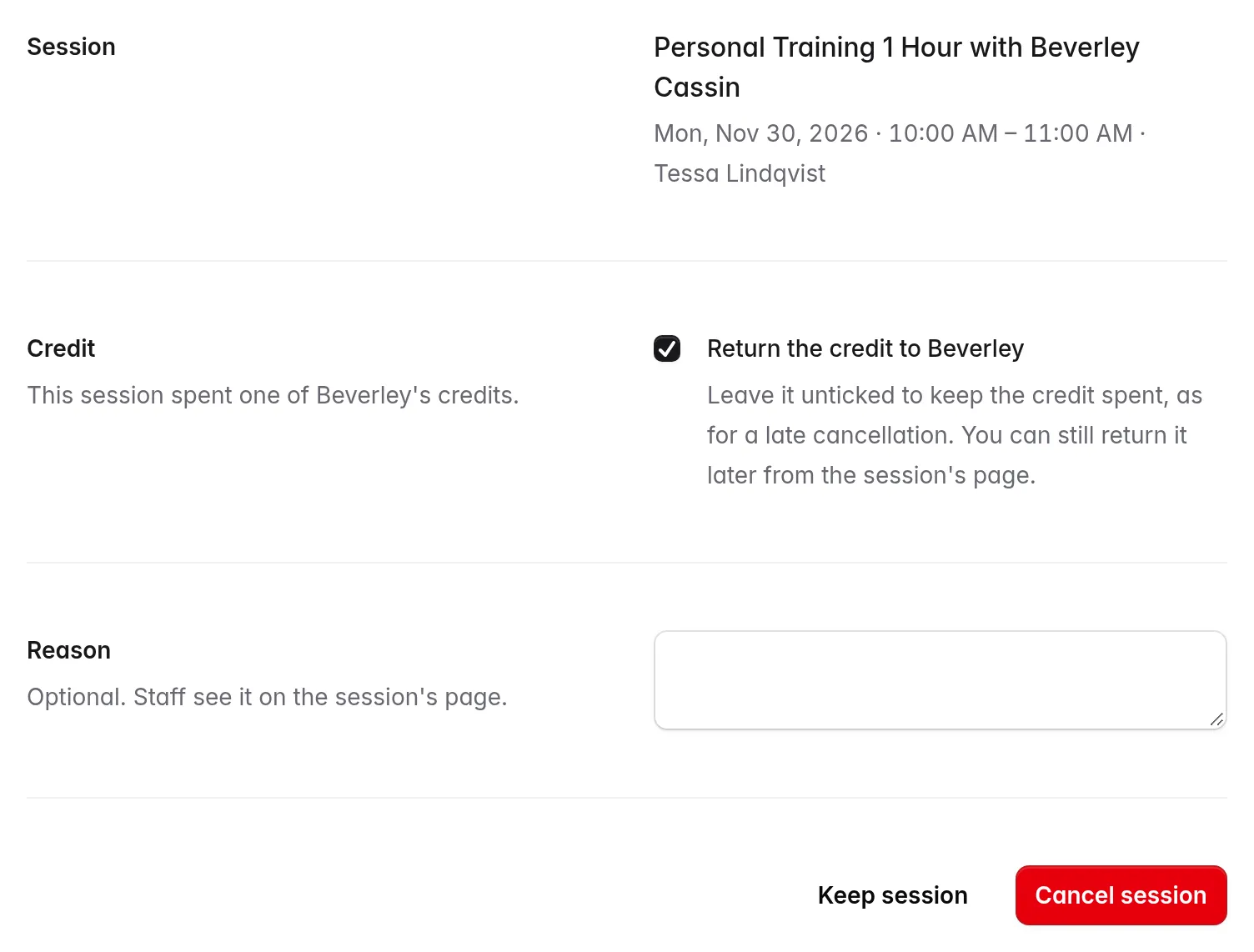
- Select Cancel session.
- If the session spent a credit, decide what happens to it. The box that returns the credit to the client starts ticked. Untick it to keep the credit spent, as for a late cancellation.
- To record why, add a Reason. Staff see it on the session’s page.
- Select Cancel session.
The session’s page shows “Session cancelled.”
Sessions paid by card
When the client paid for the session by card, an owner or admin sees a Payment section in place of the credit box. Choose one:
- Return the credit to the client, so they can book another session with it.
- Refund the amount to the client’s card. No credit is left, and the client gets an email.
- Keep the credit spent, or give no refund. You can still return the credit or refund later.
See Give a refund for how refunds work.
Return a credit later
If you kept the credit when you cancelled, you can still give it back.
- Open the cancelled session.
- Select Return credit.
- Select Return credit again to confirm.
End a weekly series
Ending a series cancels every session in it that has not started. Past sessions stay as they are.
- Open any session in the series and select See the series.
- Select End series.
- Check the list of sessions that will be cancelled.
- If any of them spent a credit, decide about the credits. The box that returns them starts ticked. Untick it to keep them spent.
- Select End series.
The client gets one email about the whole series. So does the coach, if someone else ended it. To cancel one week only, cancel that session from its own page.
What clients can change
A client opens the session from My Bookings or from the link in a booking email. The session’s page says how long they can still change it.
- Until the cancellation window, the client can select Reschedule and tap another open time. Cancelling returns their credit.
- Inside the cancellation window, the client can no longer reschedule. They can still cancel, but the credit stays spent. If a credit paid for the session, the button reads Cancel and lose credit, and the page tells them to ask you to return it.
- Once the session starts, the client cannot change it.
A client can also end their own weekly series with End weekly sessions. Sessions inside the cancellation window that a credit paid for stay booked, and the client can cancel each one from its own page.
You set the cancellation window under the booking rules. See Add locations and set booking rules.
People who booked without an account change their sessions from the link in their booking email. See What a new client sees.
Get help
If something on this page does not match what you see, contact support.