Share your booking page
Copy the links to your booking page, your location and category pages, and each session type, class and package.
Your booking page lists what people can book and buy from you, and nobody needs an account to use it. Each location, session category, session type, class type and package also has its own link. Send people the link that fits, or put it on your website.
Copy your booking page link
- Open the CoachSync menu at the top of the page and select Appointment Types.
- Under Booking page, select Copy.
The link looks like https://app.coachsync.io/schedule/ followed by a code. It stays the same when you change what you offer.
To open the booking page in a new tab, select View booking page at the top of Appointment Types.

What the booking page shows
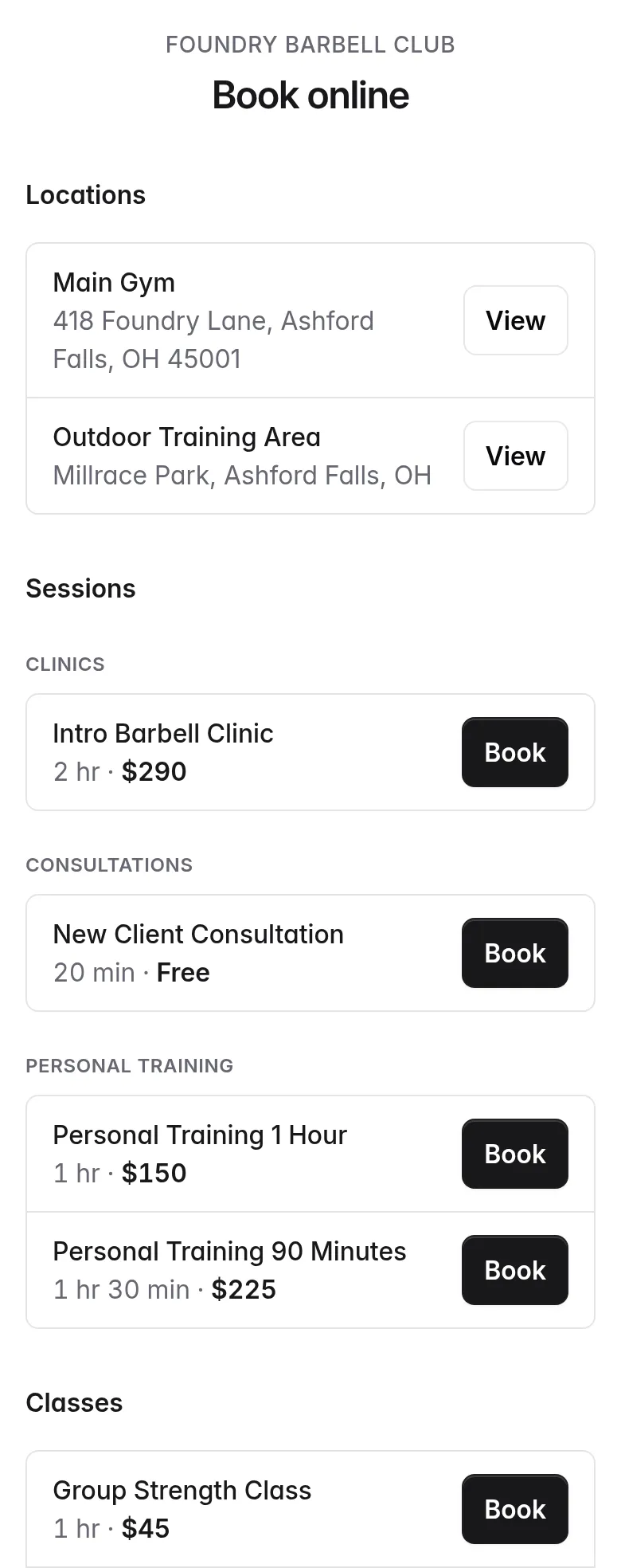
The page shows your business name, the heading Book online, and these sections:
- Locations. Shown when more than one location has something to book. View opens that location’s own page.
- Sessions. Your active, Public 1:1 session types. CoachSync groups them by category when they have different categories.
- Classes. Your active, Public class types with a class open for booking in the next two weeks. Each shows its length and its price, Members only or Not sold online.
- Packs or Packs and passes. Your active, Public packages for the session types and classes on the page. They appear only when you take card payments through Stripe. Passes appear when a class on the page accepts memberships.
- Already have sessions? People enter their email and select Email me my link to get a link to their bookings and the credits they have left.
Each item has a Book or Buy button. When you offer no sessions and no classes, the page says “None right now.” under Sessions.
To see what happens after someone selects Book, read What a new client sees.
Location and category pages
A location page shows the location’s name, address and directions with links to Google Maps and Apple Maps. It lists the sessions and classes held at that location. Copy a location page link in either place:
- Appointment Types, under Location pages. This section appears when more than one location has something to book.
- Locations. Open the location and copy its Booking page link.
A category page lists the session types in one category. CoachSync makes a category page when you give a session type a category. Copy its link from Appointment Types, under Category pages, or from the session type’s page, under Category.
Copy the link to one session type, class or package
Each of these links opens a page for that one item.
- Session type. Open Appointment Types, select the session type and copy its Booking link. The link starts with
https://app.coachsync.io/book/. - Class type. Open Appointment Types, select the class type and copy its Booking link. The link starts with
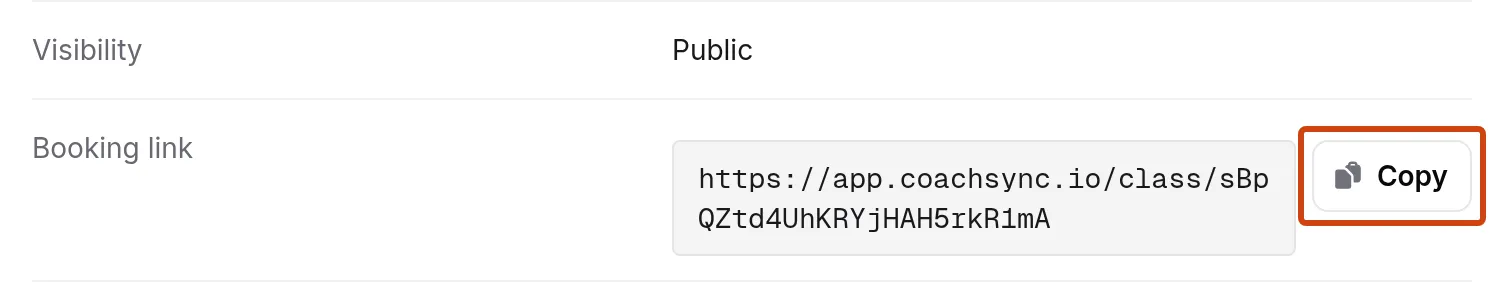
https://app.coachsync.io/class/. - Package. Open Packages, select the package and copy its Purchase link. The link starts with
https://app.coachsync.io/buy/.
A session type or class type shows its Booking link only while it is active. A package shows its Purchase link only while it can be sold. That means the package is active, its session type, class type or membership plan is active, and Stripe is connected.
Public and private
Session types, class types and packages are Public or Private. You set this on each one under Visibility.
- Public items appear on your booking pages.
- Private items stay off your booking pages. People reach them from the item’s own link, or a session type from its category’s link when every session type in the category is private.
- A new class type starts Private. A new session type or package starts Public.
- Signed-in clients see every class on their Classes page, public or private.
- Private packages are not listed on the Credits page that signed-in clients see.
To set up what you offer, see Create a session type, Schedule a class and Sell drop-ins, class packs and passes. Your waiver has its own link too. See Set up your waiver.
Get help
If something on this page does not match what you see, contact support.