Schedule a class
Create a class type and put it on a weekly schedule so members can book it.
A class in CoachSync has two parts. The class type says what the class is, how many people fit and who can book it. The class schedule puts that class on the calendar on set days, at a set time, with a coach and a location.
Before you start
Every class schedule needs a location and a coach.
- To add a location, see Locations and booking limits.
- To add a coach, see Add coaches and staff. You can coach the class yourself.
Create a class type
- Open the CoachSync menu at the top of the page and select Appointment Types.
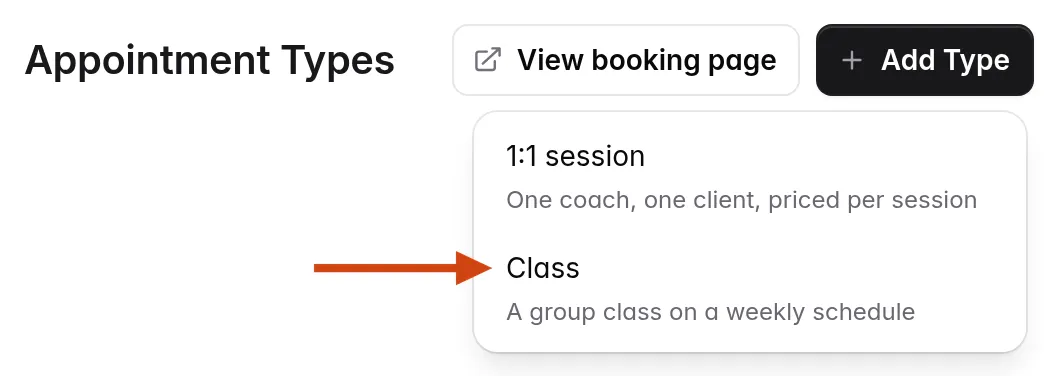
- Select Add Type, then Class.
- Fill in the form. Each field is described below.
- Select Save changes.
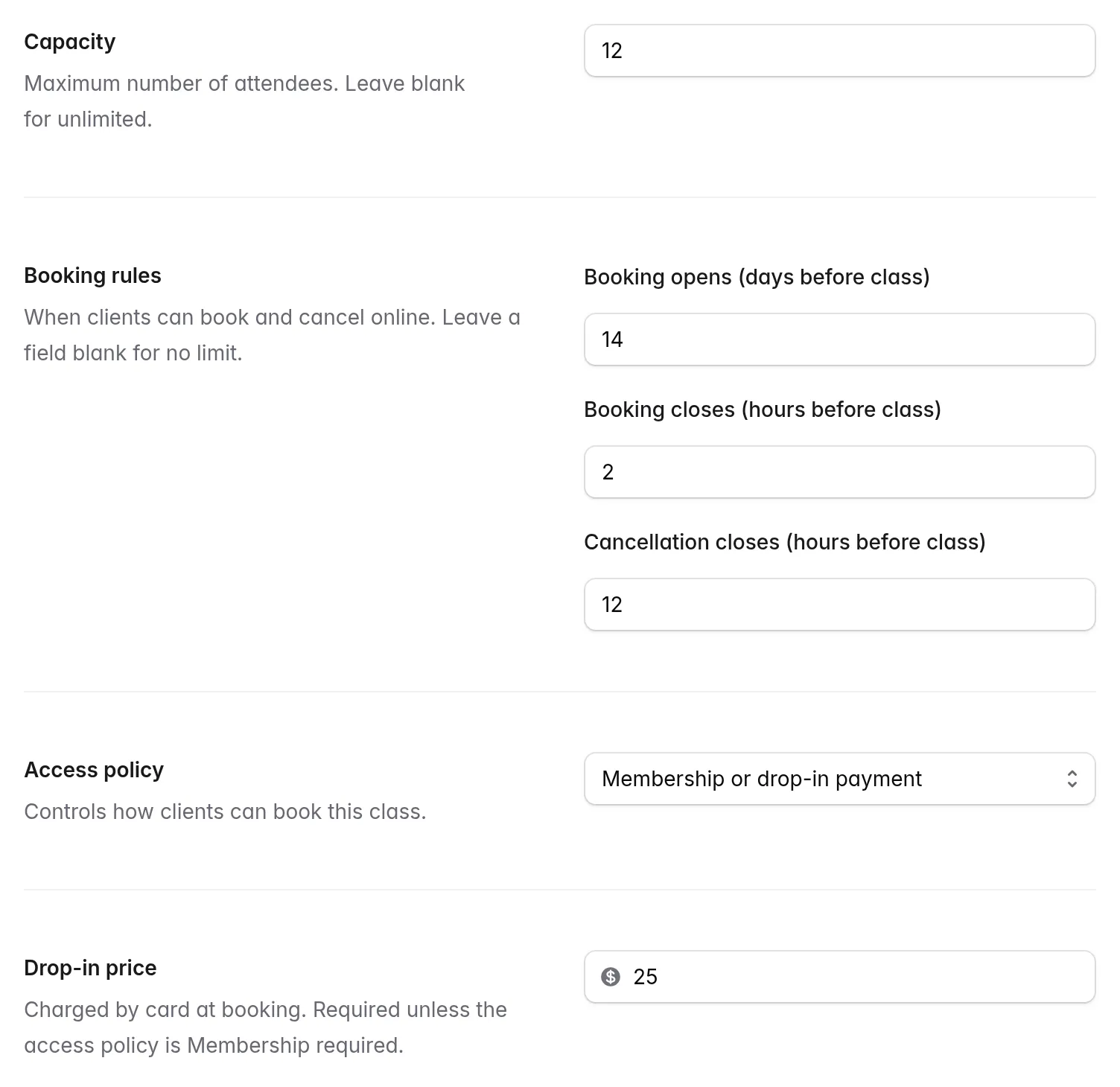
A new class type starts as Membership required, Private and Active. The form has these fields:
- Name. The name members see when they book.
- Description. Optional. Shown to clients when they book.
- Duration. The length of the class in minutes.
- Capacity. The most people who can book one class. Leave it blank for no limit.
- Booking opens (days before class). How many days ahead a class opens for booking. Leave it blank for no limit.
- Booking closes (hours before class). How many hours before the class starts that booking stops. Leave it blank to allow booking until the class starts.
- Cancellation closes (hours before class). After this point, members can no longer cancel or move their booking. Coaches still can. Leave it blank for no limit.
- Access policy. Who can book and how they pay. The choices are Membership required, Payment required and Membership or drop-in payment. Sell drop-ins, class packs and passes explains each one. A class that a membership plan names cannot be changed to Payment required.
- Drop-in price. The price charged by card at booking. It is required unless the access policy is Membership required.
- Visibility. Public lists the class on your booking page. Private keeps it off your booking pages, and people book it from its own link. Signed-in clients see every class on their Classes page either way.
- Active. Clear it to stop selling the class type. Its link stops taking bookings, it leaves your booking page and its class packs go off sale. Classes already on a schedule stay on the calendar, and members can still book them from their Classes page. To retire a class, end its schedule first, as described below, then clear Active.
- Ask for a signed waiver. Emails your waiver to anyone who books and has no waiver on file. See Collect signatures.
- Reminders. Emails sent before each class. A new class type has none. Select Add a reminder to add one. See Booking emails and reminders.
The booking rules apply to members and to people booking from your links. They do not apply when you add someone to a class yourself.
Put the class on a schedule
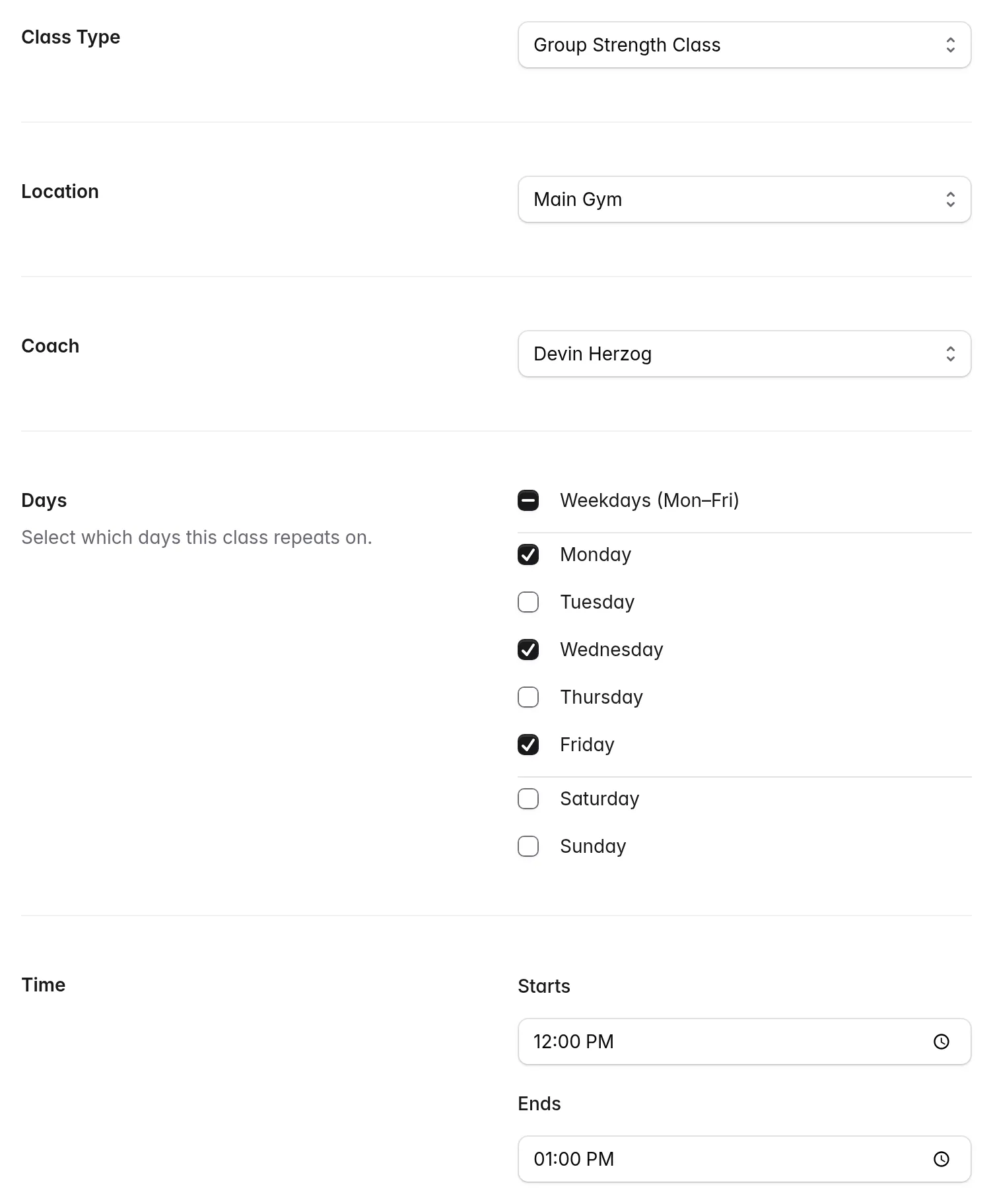
A class schedule repeats one class type at one time on the days you choose. To run the same class at a second time, add a second schedule.
- Open the CoachSync menu and select Class Schedules.
- Select Add Schedule.
- Choose the Class Type, Location and Coach. The list of class types shows only active ones.
- Under Days, tick each day the class runs. The weekdays box at the top ticks Monday through Friday at once.
- Under Time, set Starts and Ends.
- Under Effective Dates, set From to the first date the schedule runs. Set Until (optional) only if the schedule has a last date.
- Select Create schedule.
Class times are in the time zone of the class’s location.
Where the class appears
After you save the schedule, the class appears in these places:
- The Coach Calendar of every coach in the account, on every date it runs.
- The Classes page of your signed-in clients and members, once a class is open for booking. See Book a class as a member.
- Your booking page, when the class type is Public and has a class open for booking in the next two weeks. A new class type is Private until you change it. See Share your booking page.
A class also blocks its coach’s time for 1:1 sessions. Clients cannot book that coach for a session during the class. A cancelled class does not block the time.
Change a schedule
- Open Class Schedules and select the pencil button on the schedule’s row.
- Change what you need.
- Select Save changes.
Bookings that already exist take the new time, coach and location. CoachSync does not tell the people booked.
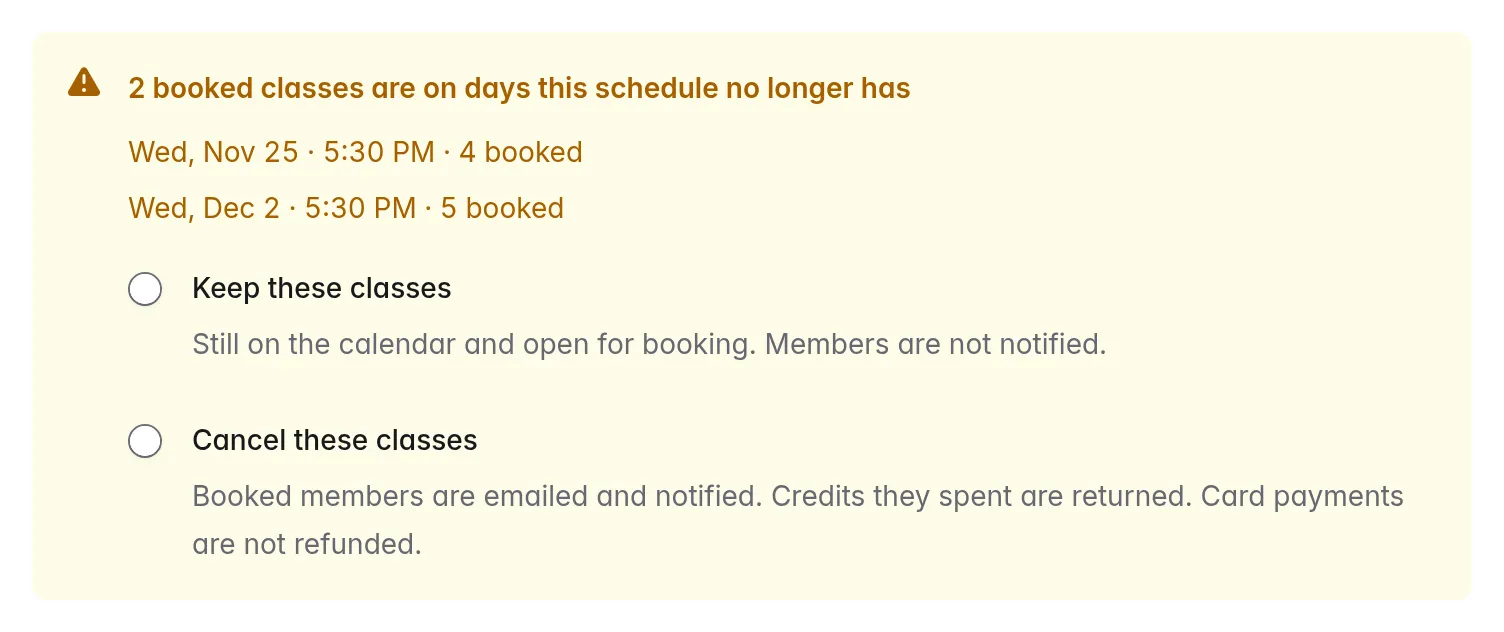
If the change removes a day that still has booked classes coming up, CoachSync lists those classes and asks what to do with them.
- Keep these classes. They stay on the calendar and open for booking. Members are not notified.
- Cancel these classes. Booked members are emailed and notified. Credits they spent are returned.
Choose one and select Save changes again. With one class affected, the choices read Keep this class and Cancel this class.
End or delete a schedule
To stop a schedule from a date on, edit it and set Until (optional) to the last date the class runs. If booked classes fall after that date, CoachSync asks whether to keep or cancel them, as above.
To delete a schedule, open it from Class Schedules, select Delete, then Delete schedule. This cannot be undone. CoachSync deletes a schedule only when none of its classes has ever had a booking, including cancelled ones. Otherwise CoachSync keeps the schedule and says how many bookings it has. If the schedule has no end date, the message suggests setting one.
CoachSync does not delete a class type that a class schedule, a package, credits or a purchase uses, or that a membership plan names. Clear Active instead.
Cancel one class
To cancel a single date, use the class’s card on the Coach Calendar or its roster. See Manage a class roster.
Get help
If something on this page does not match what you see, contact support.