Create a session type
Set up a 1:1 session that clients can book, with its length, price, coaches, hours and reminders.
A session type is what a client books. It sets the length and price of a session with one coach and one client. CoachSync calls it a 1:1 session type and keeps it under Appointment Types, next to your class types.
Create the type
- Open Appointment Types from the menu.
- Select Add Type. On the Gym plan, choose 1:1 session.
- Fill in the form. The sections below explain each part.
- Select Save changes.
The list of types opens with the message “Appointment type created.”
Name, description and category
- Name is what clients see when they choose a session, such as “Personal Training 1 Hour”.
- Description is optional. Clients see it when they book.
- Category groups session types on your booking page, which is part of the Gym plan. Pick a category you have used, or choose New category and type its name.
Where it is held
Under Held, choose In person, Phone call or Online.
- An in-person session shows the address of its location.
- A phone call or online session shows no address. Use Note for people who have booked to tell them what happens, such as “We call the number you gave.”
- A phone call asks for the client’s phone number when they book.
Length and buffers
- Session (minutes) is how long the session runs. Clients see only this length.
- Buffer before (minutes) and Buffer after (minutes) keep time free before and after the session. Clients cannot book another session into that time.
Price and add-ons
Price is what a client pays for one session. Enter 0 for a free session such as a consultation. How clients pay explains what happens at booking.
Add-ons are extras a client can choose when booking, like a 30-minute extension. Select Add an add-on, then enter its Name, Price, Extra minutes and Extra people. Extra minutes make the session longer and block that time on the coach’s calendar too.
Coaches and hours
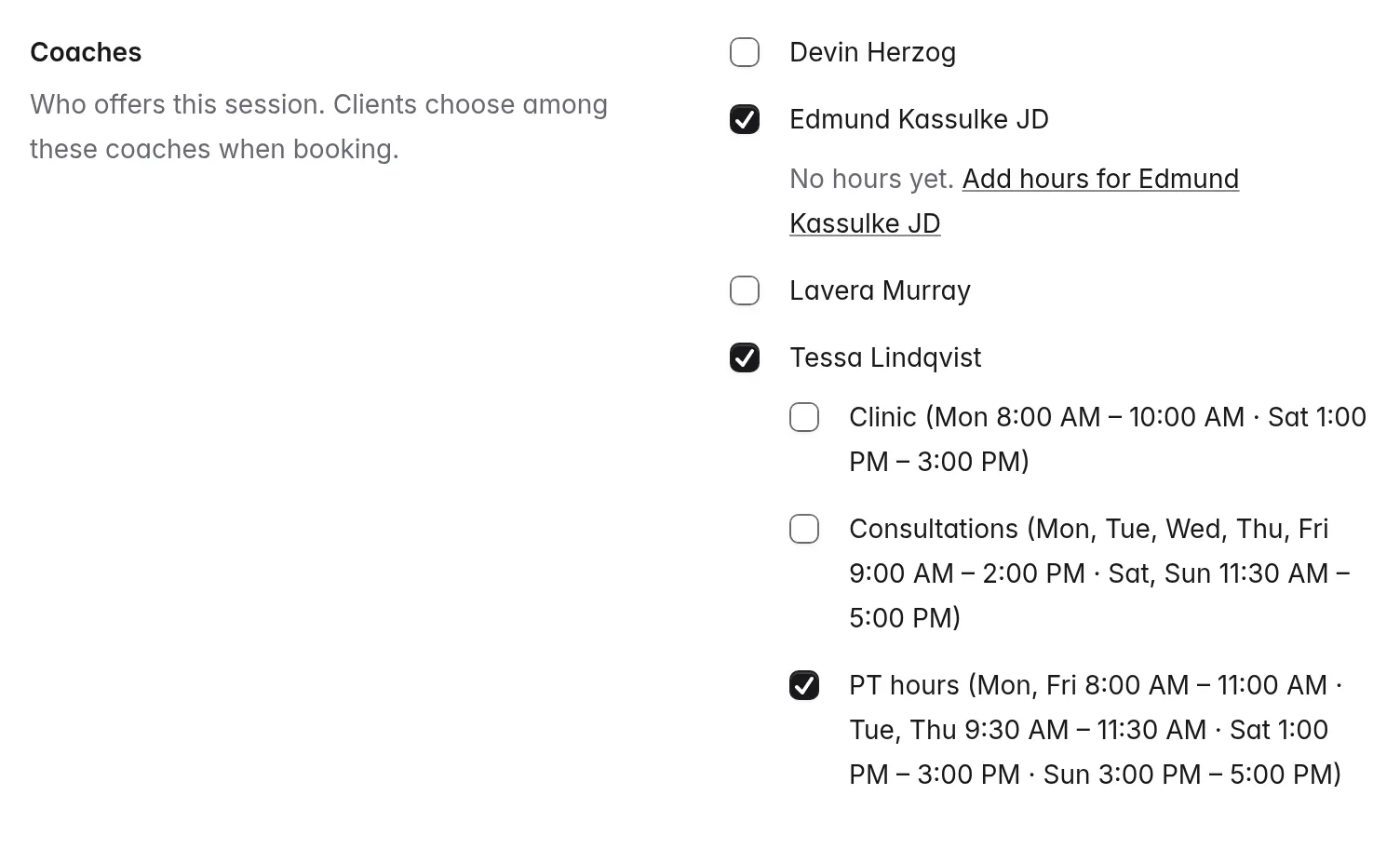
Under Coaches, tick each coach who offers this session. Clients choose among these coaches when they book.
Under each ticked coach, tick the availability schedules that give that coach’s hours for this type. Until you pick hours, clients cannot book that coach, and the form shows a warning. If a coach has no schedules yet, the form shows a link under their name to add hours for them. See Set your weekly hours.
Questions and terms
- Questions holds up to 5 questions for the person booking, one per line.
- Terms holds text that people must agree to before they book.
People who book from your public booking pages answer the questions and agree to the terms. Their answers and the agreed terms show on the session’s page.
Visibility and options
Under Visibility, choose:
- Public to list the type on your booking page and in the list signed-in clients book from.
- Private to keep it off both. People book a private type from its own link, or from its category’s link when every type in that category is private.
Staff can book any active type, public or private.
Under Options:
- Untick Active to hide the type and stop all bookings for it.
- On the Gym plan, tick Ask for a signed waiver to email your waiver to people who book.
Reminders
Under Reminders, set when CoachSync emails the client before each session. A new session type starts with two reminders, 1 day and 4 hours before. See Booking emails and reminders.
How clients pay
When a client books a paid session type, CoachSync uses the first of these that applies:
- A credit the client holds for this type pays for the session. See Sell session packs and manage credits.
- When Stripe is connected, the client pays the price by card at booking. See Connect Stripe.
- Otherwise the client cannot book it themselves, and staff book it for them. See Book a session for a client.
An add-on with a price can only be booked by a client when Stripe is connected.
Share the type’s booking link
Open the type from Appointment Types. While the type is active, its page shows a Booking link. Anyone with the link can book this type without an account. See What a new client sees.
The page also shows the type’s coaches and their hours, and the open times over the next 7 days.
Stop offering a type
To stop new bookings and keep the type’s history, edit the type and untick Active. Sessions already booked stay booked.
To delete a type, open it and select Delete, then confirm. If packages, purchases or credit grants use the type, CoachSync refuses and asks you to make it inactive instead.
Get help
If something on this page does not match what you see, contact support.