Connect Stripe
Connect your own Stripe account so clients can pay you by card through CoachSync.
CoachSync takes card payments through your own Stripe account. Connect it once, and clients can pay you for subscriptions, packs, passes, class drop-ins and sessions. The money goes into your Stripe account, and Stripe pays it out to you.
Before you start
- You must be the owner of the CoachSync account. Admins cannot connect Stripe.
- You need a Stripe account. You can also create one on Stripe’s screen while you connect.
Connect your Stripe account
- Select CoachSync at the top of any page to open the menu.
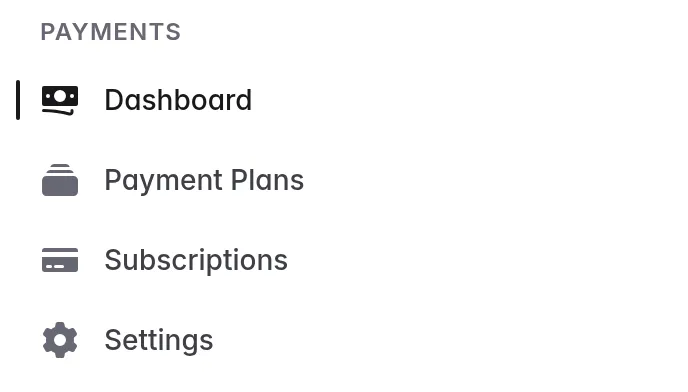
- Under Payments, select Dashboard. Until Stripe is connected, every page under Payments opens Connect Stripe Account instead.
- Select Connect with Stripe.
- On Stripe’s screen, sign in to your Stripe account or create one.
- Approve the connection.
Stripe sends you back to the Payments Dashboard, which shows “Stripe account connected successfully.”
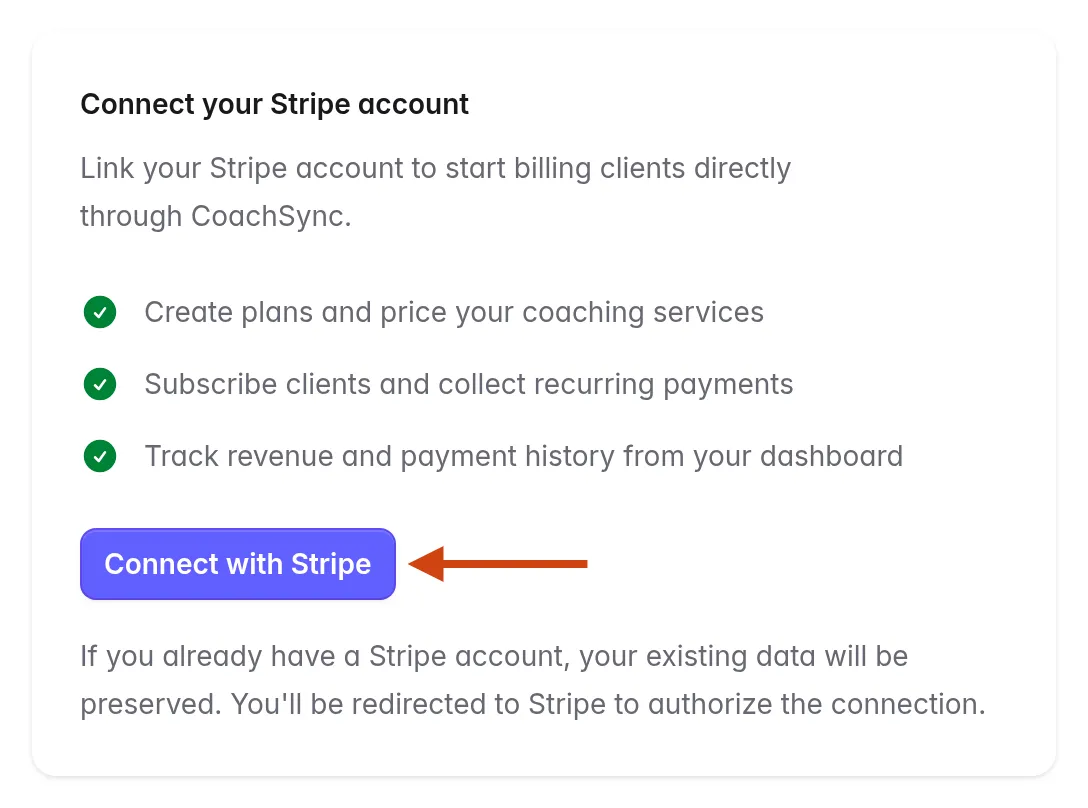
If you leave Stripe’s screen without approving, CoachSync shows “Stripe Connect setup was cancelled.” Select Connect with Stripe to start again.
If CoachSync asks you to connect again
Stripe can ask you for more details before it accepts payments for your account. Until Stripe reports that your account is ready, the pages under Payments keep opening Connect Stripe Account. Give Stripe the details it asks for in your Stripe account. CoachSync opens the Payments Dashboard once Stripe tells it your account is ready.
What connecting turns on
With Stripe connected:
- You can create payment plans, subscribe clients to them and share each plan’s signup link. See Create a membership and Sign up a member.
- Subscriptions already in your Stripe account can move to CoachSync billing. See Move a subscription to CoachSync.
- Clients can pay for priced sessions by card. See Create a session type.
- Packs go on sale. See Session packs and credits.
- Class drop-ins, class packs and passes go on sale online. See Drop-ins, class packs and passes.
CoachSync takes 1% of these payments, on top of Stripe’s fees. See Payment fees.
The Payments menu
Owners and admins see these pages under Payments:
- Dashboard. Your recurring revenue and recent subscriptions. See See your payments.
- Payment Plans. Your payment plans and their signup links. See Create a membership.
- Subscriptions. Each member’s subscription. See Pause, change or cancel a membership.
- Settings. Only the owner sees it. It opens Payment Settings, where you choose what happens when a client’s payment fails, choose which payment emails you get, and copy signup links.
Change the connected Stripe account
CoachSync has no button to disconnect Stripe or to switch to another Stripe account. Contact support if you need to change it.
Get help
If something on this page does not match what you see, contact support.