Create a membership
Set up what a member may book and what they pay, then link the two so class access follows payment.
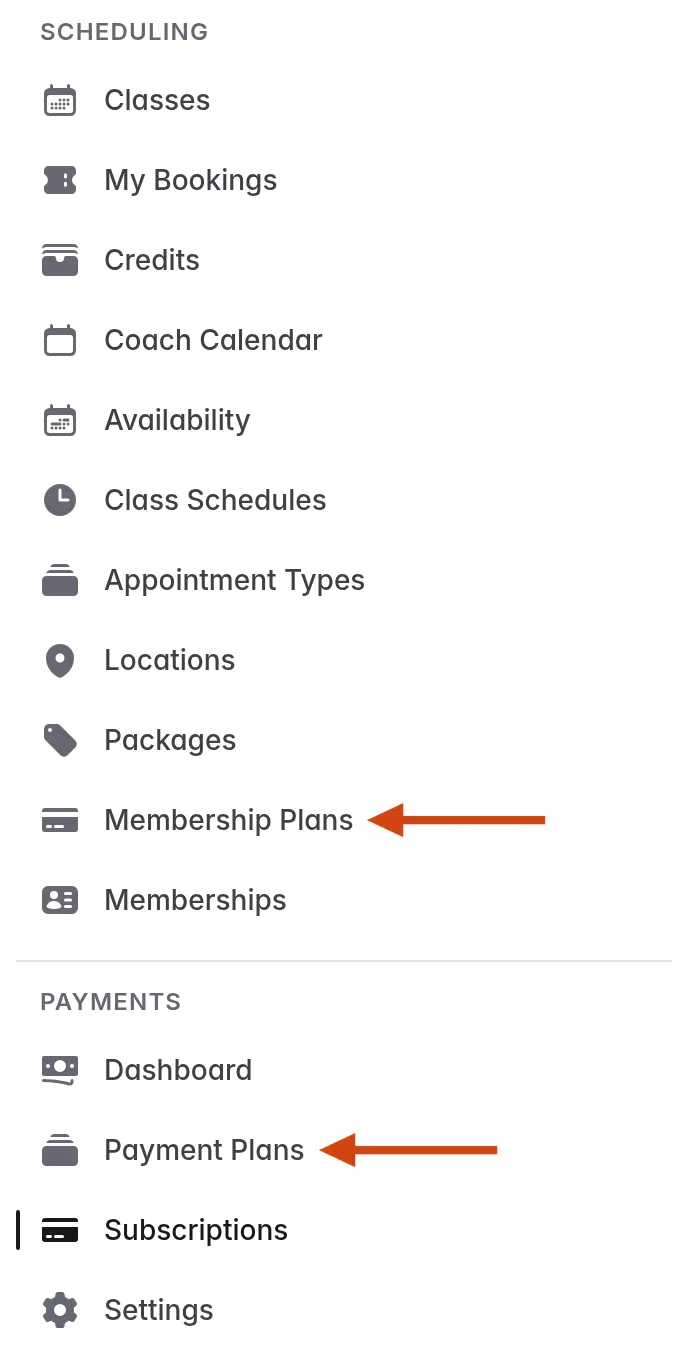
A membership in CoachSync has two parts, and each part has its own page in the menu. A membership plan sets how many classes a member may book, and which ones. A payment plan sets what they pay and how often. Link the two, and everyone who pays for the payment plan gets the membership.
Membership plans and payment plans
| Membership plan | Payment plan | |
|---|---|---|
| What it sets | How many classes a member may book each month, or unlimited, and which classes | A price, charged by card on a schedule |
| Price | None. It charges nothing. | Charged through your Stripe account |
| Where in the menu | Scheduling, then Membership Plans | Payments, then Payment Plans |
| One person’s record | A membership, under Scheduling, Memberships | A subscription, under Payments, Subscriptions |
| CoachSync plan needed | Gym | Coach or Gym |
Some screens call a payment plan a billing plan. It is the same thing.
A payment plan’s Class access setting names a membership plan. Everyone who subscribes to that payment plan gets a membership on it. The membership then follows the subscription.
Before you start
- You must be an owner or admin.
- To create payment plans, connect Stripe first. See Connect Stripe.
Create a membership plan
- Select CoachSync at the top of any page to open the menu.
- Under Scheduling, select Membership Plans.
- Select Add Plan.
- Enter a Name, such as “Unlimited” or “8 classes a month”.
- In Sessions per Month, enter how many classes a member may book each month. Leave it blank for unlimited.
- Under Classes, tick the classes the plan covers. Leave all unchecked to cover every class.
- Select Save changes.
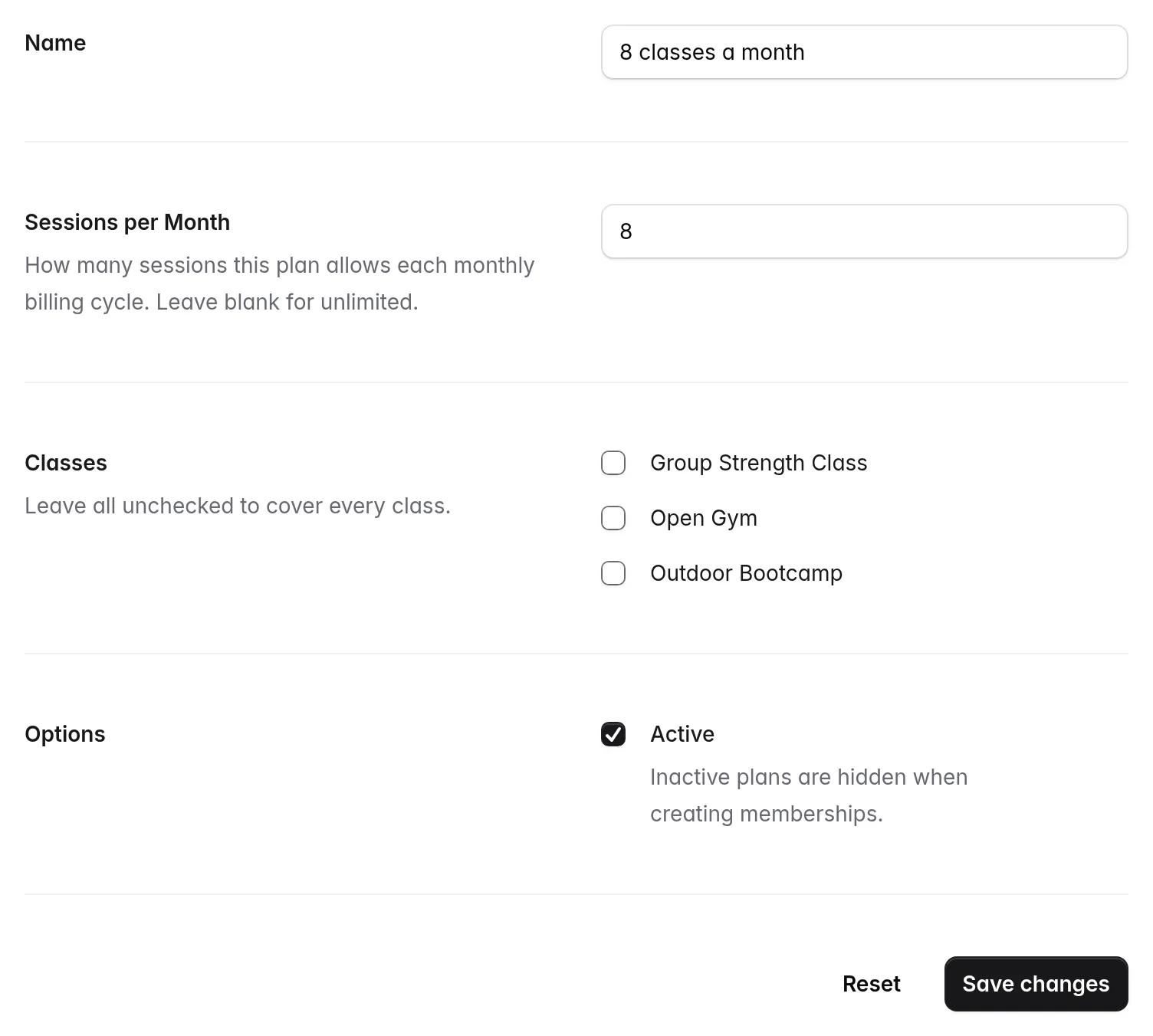
Each class booked on the membership uses one session. A cancelled booking gives the session back. The count starts again each month on the membership’s billing day. A subscription sets that day, or you set it as the Billing Cycle Anchor on a membership you add by hand.
When a member has used every session for the month, the membership stops covering classes until the count starts again. Until then, they can book with a credit for the class type. On a class set to Membership or drop-in payment, they can also pay the drop-in price.
The Classes section lists your active class types whose access policy is Membership required or Membership or drop-in payment. It appears once you have one. A plan with no classes ticked covers every class, including classes you add later. A plan with classes ticked covers only those. The plan’s page shows Classes as All classes or the names it covers.
A class type that a plan names cannot be deleted or changed to Payment required. Untick it on the plan first.
A membership covers group classes only. It does not cover 1:1 sessions. Each class type’s Access policy decides whether a membership covers it:
- Membership required. Members whose plan covers the class book on their membership. Anyone else needs a credit you granted. A member whose plan leaves the class out sees Not on your plan.
- Membership or drop-in payment. Members whose plan covers the class book on their membership. Anyone else uses a class pack credit or pays the drop-in price.
- Payment required. A membership does not cover the class.
See Schedule a class.
Create a payment plan
- In the menu, under Payments, select Payment Plans.
- Select Add Plan.
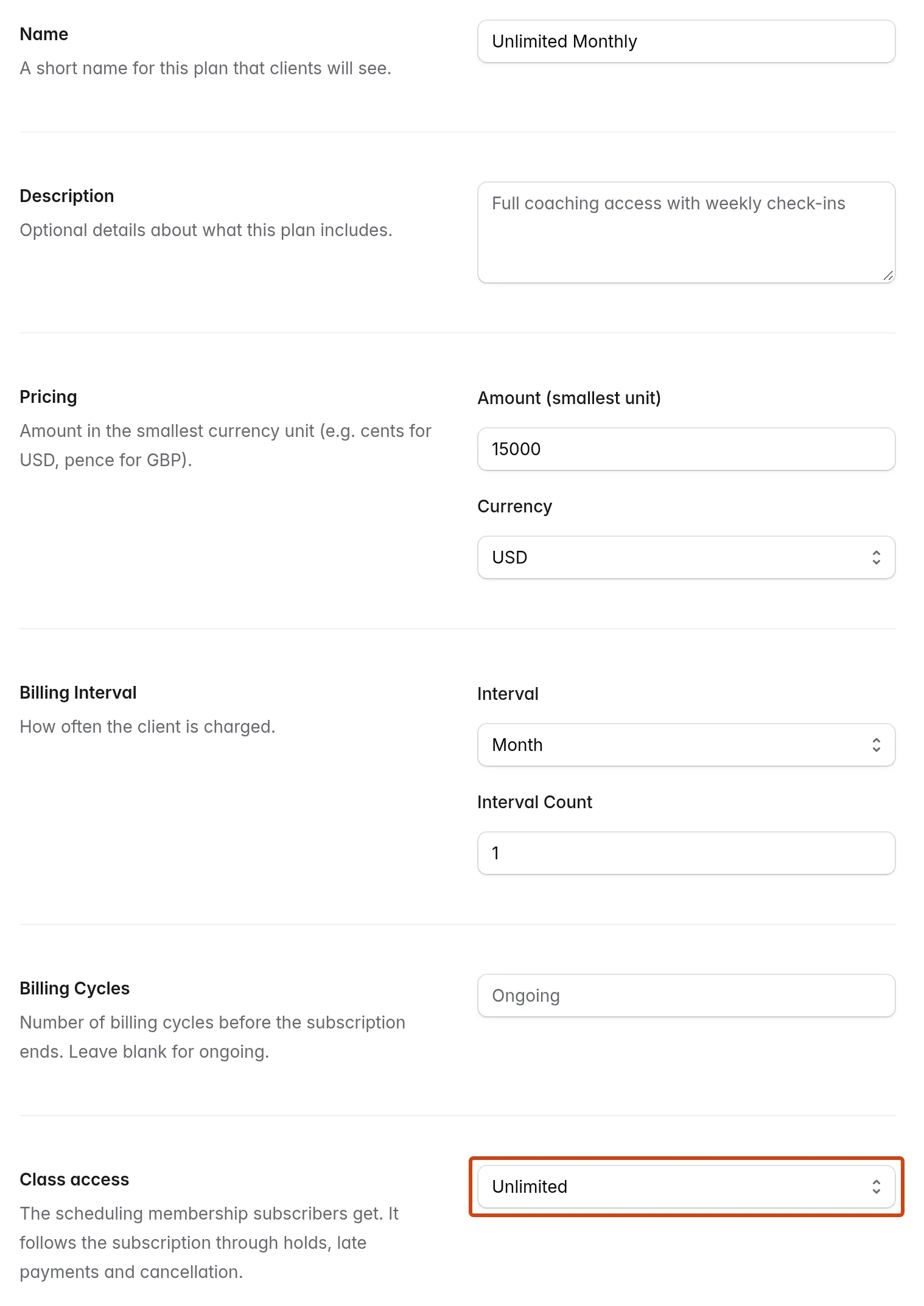
- Fill in the form. Each field is described below.
- Select Save changes.
These are the fields:
- Name. Members see it on the plan’s signup page and at checkout.
- Description. Optional notes on what the plan includes. The plan’s signup page shows them.
- Amount (smallest unit) and Currency. The price in cents, and USD, EUR or GBP.
- Interval and Interval Count. How often Stripe charges. Month and 1 charges every month. Week and 2 charges every two weeks.
- Billing Cycles. The number of payments before the subscription ends. Leave it blank to charge until the subscription is cancelled. A subscription that starts from Subscribe Client or a signup link ends after that many payments.
- Class access. The membership plan that subscribers get, or None. Only the Gym plan shows this field.
CoachSync creates the payment plan as a product in your Stripe account, in the background. If Subscribe Client says the plan is not ready for checkout, wait a moment and try again. Until then, the plan’s signup link shows a page-not-found error.
How class access follows payment
With Class access set, a subscriber’s membership:
- starts when the subscription starts
- goes on hold when you put the subscription on hold
- shows Past Due and still covers classes while a payment is late
- ends when the subscription ends, or when the member moves to a payment plan with no class access
If you set Class access on a payment plan that already has subscribers, each of them gets the membership at once. If you change it back to None, the memberships it gave end.
Change a plan later
- To edit a membership plan, select the pencil button on its row under Scheduling, Membership Plans. Untick Active to hide it when you create memberships.
- To edit a payment plan, select its name under Payments, Payment Plans. Untick Active to hide it when you subscribe clients. Its subscriptions continue, and its signup link shows “No longer sold.”
To delete a payment plan, select the trash button on its row. A payment plan with subscriptions is made inactive instead, and its subscriptions continue.
To delete a membership plan, select its name, then Delete. CoachSync refuses while memberships or payment plans use it. Make it inactive instead.
Next step
Get help
If something on this page does not match what you see, contact support.