Sign up a member
Share a payment plan's signup link, send a checkout link, or add a membership by hand.
You can sign up a member in three ways:
- Share a payment plan’s signup link. Anyone with the link can subscribe on their own, without an account.
- Send a checkout link to someone already in CoachSync. It starts a subscription to a payment plan.
- Add a membership by hand when the member pays you some other way. It gives class access and charges nothing.
If the payment plans and membership plans are new to you, read Create a membership first. To bring over subscriptions you already have in Stripe, see Move a subscription to CoachSync.
Share a signup link
Each active payment plan has its own signup link, which starts with https://app.coachsync.io/join/. Put it on your website, in an email or wherever new members find you.
Copy a plan’s link
- Select CoachSync at the top of any page to open the menu.
- Under Payments, select Payment Plans.
- Under the payment plan’s name, select Copy beside the link.
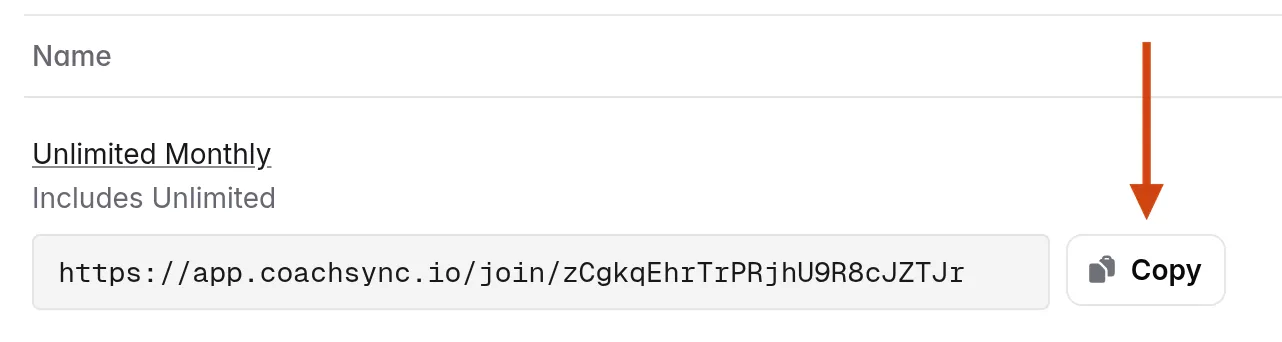
A membership plan’s page also lists the payment plans that grant it, under Used by, Payment plans. Each active one shows its signup link with a Copy button. The owner also finds every link on Payment Settings, in the Signup links section.
Choose the new client’s coach
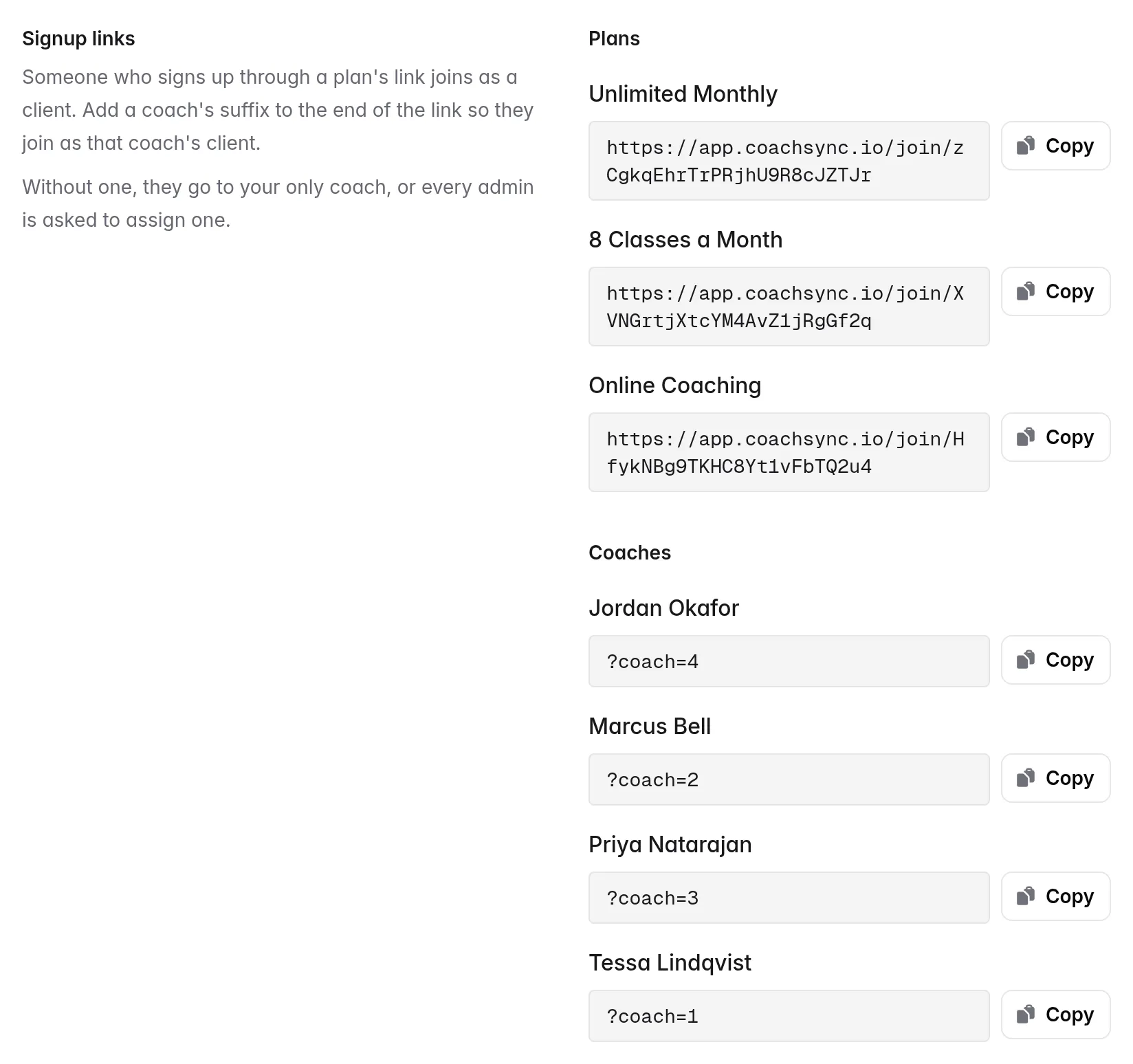
Someone new to your account joins as a client. To make them a particular coach’s client, add that coach’s suffix to the end of the link. Only the owner sees the suffixes.
- In the menu, under Payments, select Settings.
- Under Signup links, find the coach under Coaches. Each coach has a suffix such as
?coach=12. - Select Copy beside the coach’s suffix, and paste it at the end of the plan’s link, with no space.
The finished link looks like https://app.coachsync.io/join/ followed by the plan’s code and ?coach=12.
Without a suffix, the new client goes to your only coach when your account has one. Owners and admins count as coaches here. Otherwise, every owner and admin gets a Client Needs Coach notification and an email. See Clients without a coach.
Someone who is already in your account keeps their coach.
What the person sees
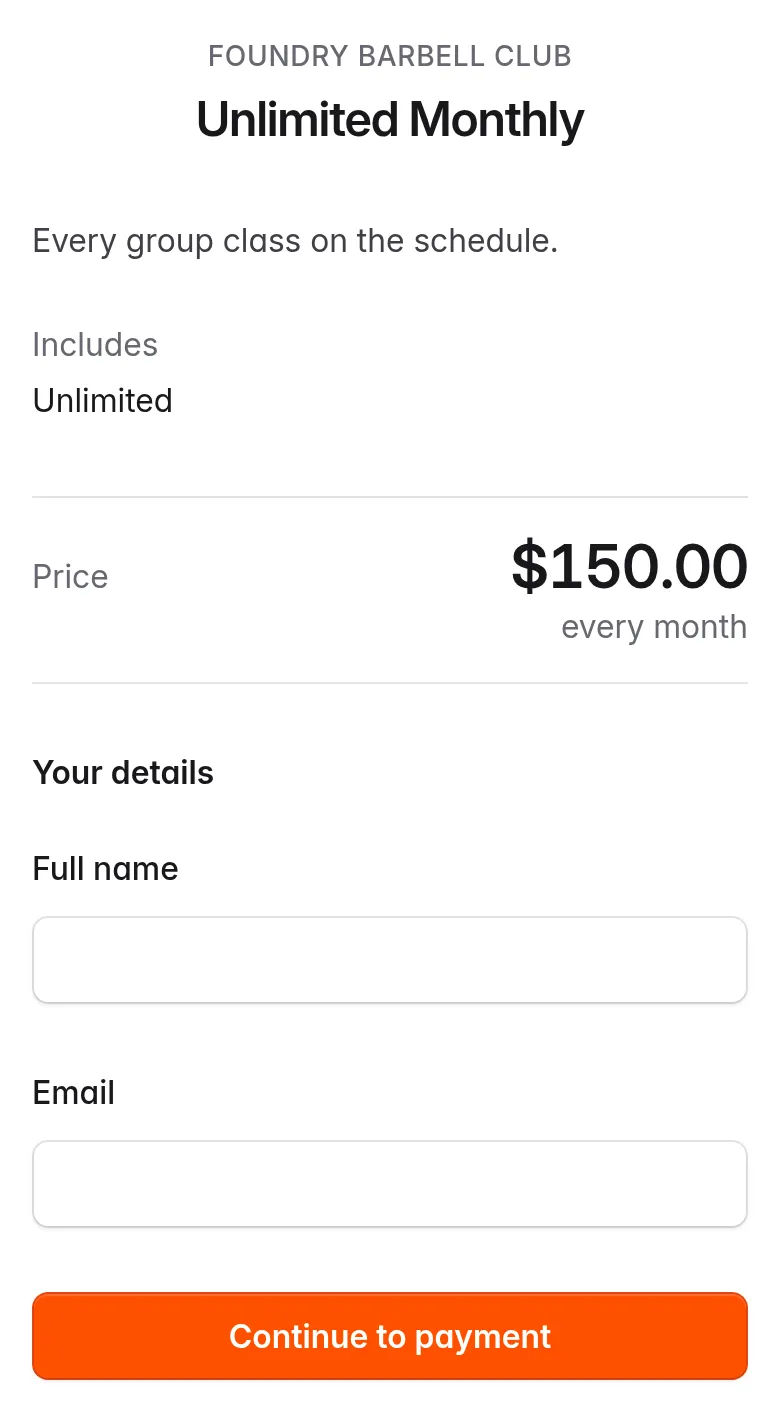
- The signup page shows your business name, the payment plan’s name and description, and its price and how often it charges. A payment plan with a set number of billing cycles also shows Length. A payment plan with class access shows Includes, followed by the membership plan’s name.
- The person enters their Full name and Email, then selects Continue to payment.
- On Stripe’s checkout page, they enter their card and subscribe.
- Stripe sends them back to a page headed You’re signed up. It lists the payment plan and says “New members get an email to set up their account.”
After the person subscribes
When Stripe confirms the payment, the subscription appears on Subscriptions. If the payment plan has class access, the membership appears under Scheduling, Memberships at the same time.
CoachSync finds the person by the email they entered:
- If someone in your account has that email, the subscription goes to them. They get no invitation.
- Otherwise, CoachSync adds the person as a client and emails them an invitation to set a password. See Set up your account.
If you connected Kit, CoachSync also records the purchase in Kit. See Connect Kit.
A subscription started from a signup link carries CoachSync’s 1% fee from its first payment. See Payment fees.
If a link does not open
- The link of a payment plan that is not active shows “No longer sold.”
- Every link shows a page-not-found error until Stripe reports that your account is ready to take payments. See Connect Stripe.
- Every link also shows a page-not-found error while your CoachSync plan does not include payments.
- A new payment plan’s link shows a page-not-found error until CoachSync has created the plan in your Stripe account. Wait a moment and try again.
Send a checkout link
Before you start, create the payment plan, and add the person to CoachSync. See Add a client.
- Select CoachSync at the top of any page to open the menu.
- Under Payments, select Subscriptions.
- Select Subscribe Client.
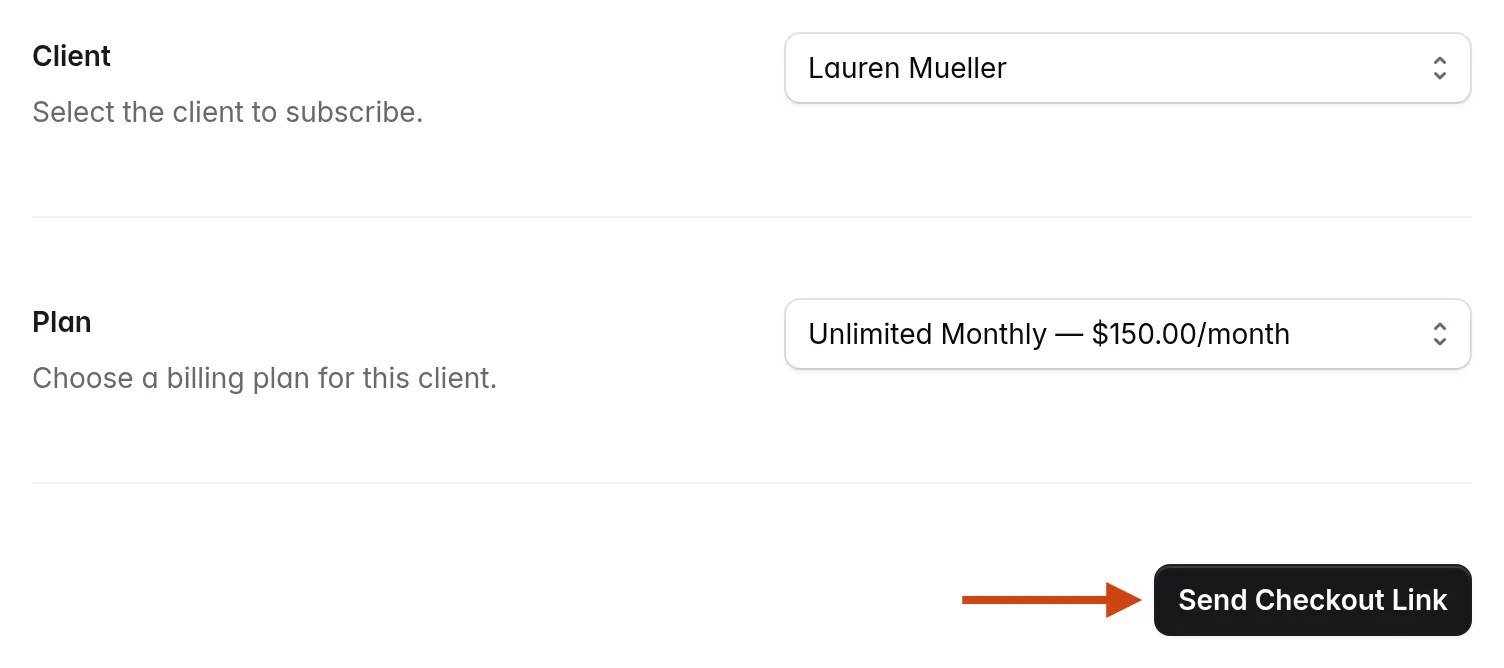
- Under Client, choose the person.
- Under Plan, choose the payment plan.
- Select Send Checkout Link.
CoachSync posts a message from you in your conversation with the person. It names the payment plan and its price, and links to Stripe’s checkout page. They open the link, enter their card and subscribe. Clients read messages in CoachSync. See Message your coach.
When Stripe confirms the payment, the subscription appears on Subscriptions. If the payment plan has class access, the membership appears under Scheduling, Memberships at the same time.
Stripe closes a checkout link 24 hours after CoachSync creates it. If the person misses it, send a new one.
If you connected Kit, CoachSync also records the purchase in Kit. See Connect Kit.
Add a membership by hand
Use this for a member who pays you outside CoachSync, or whom you give class access for free. CoachSync charges nothing for it.
- In the menu, under Scheduling, select Memberships.
- Select Add Membership.
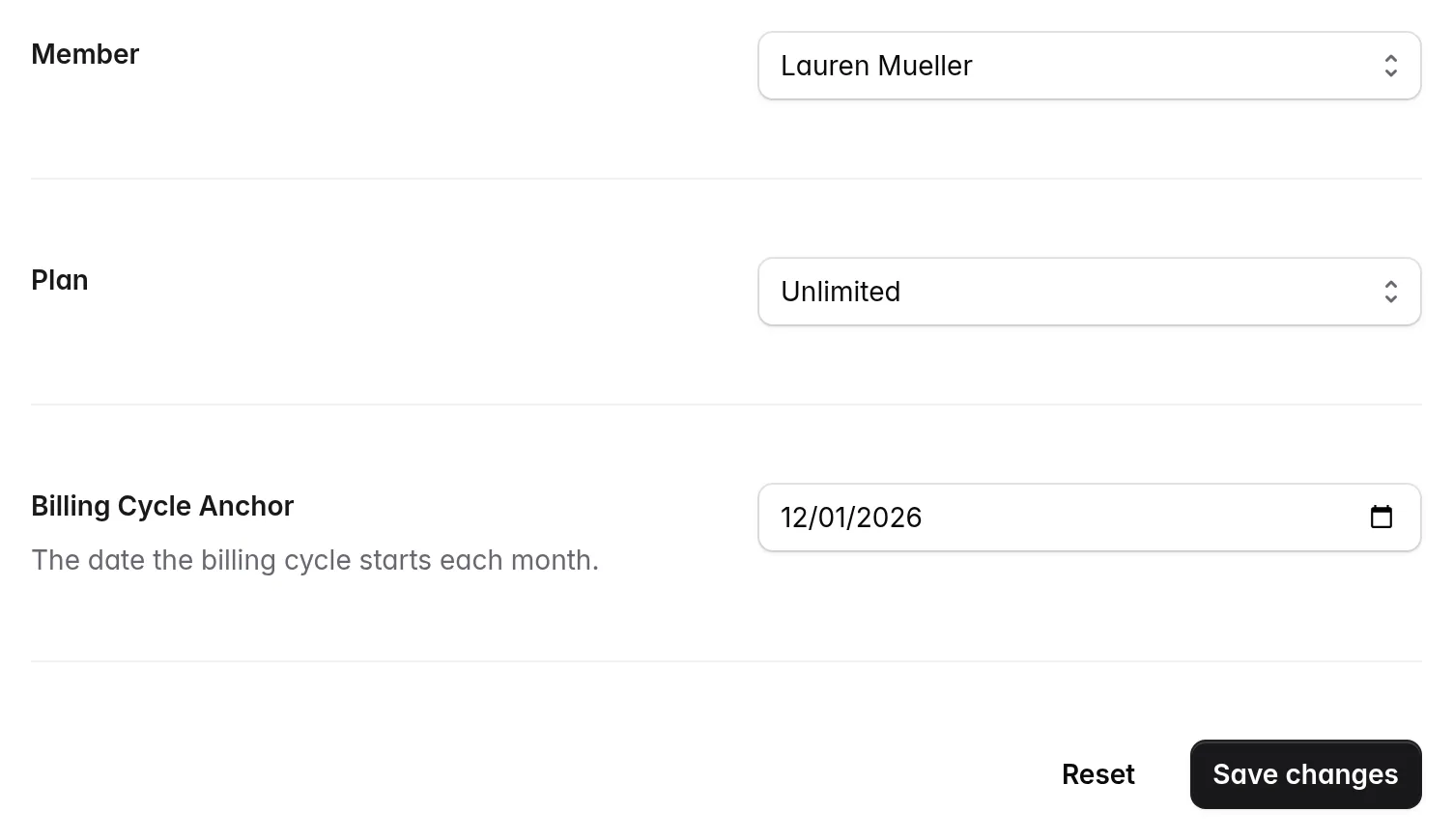
- Under Member, choose the person.
- Under Plan, choose the membership plan.
- In Billing Cycle Anchor, choose the day the member’s monthly count of sessions starts. It starts again on that day each month. A date in the future starts the membership on that date.
- Select Save changes.
The membership starts as Active.
Passes
A pass, bought for a set number of days, also gives its buyer a membership. It shows Pass under Memberships. See Drop-ins, class packs and passes.
Get help
If something on this page does not match what you see, contact support.