Signed copies
Find and download the signed PDF of a waiver, and see what its audit trail and trusted timestamp record.
When a waiver is complete, CoachSync makes a PDF of it, emails it to the signers and keeps it with the waiver. The PDF holds the text as signed, every signature, and a record of each step with the time it happened.
What signers receive
When the waiver is complete, CoachSync emails the participant, and the parent or guardian if there is one. The email attaches the PDF. It also links to the online copy, which opens the same record whenever the signer needs it. The online copy has its own Download PDF button.
Download a signed copy
- Select CoachSync at the top of any page to open the menu.
- Under Management, select Waivers.
- Select the person’s waiver.
- Open the three-dot menu at the top right.
- Select Download PDF.
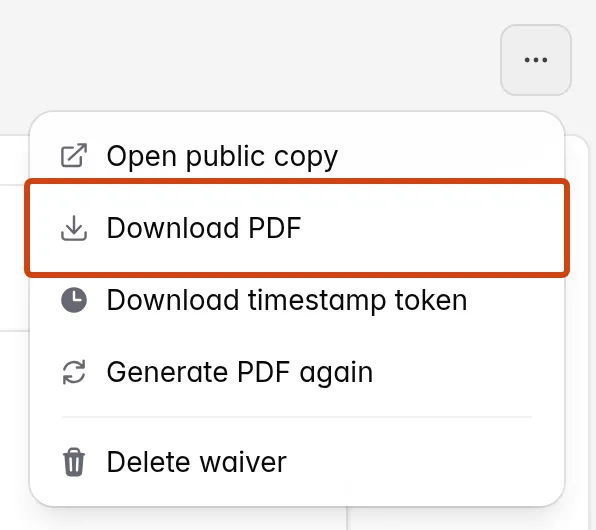
The same menu has these items:
- Open public copy. Opens the online copy the signers have.
- Download timestamp token. Downloads the trusted timestamp as a
.tsrfile. - Generate PDF again. Makes the PDF again from the stored record, for when a copy went missing.
- Remind, followed by an email address. Shows while someone still has to sign.
- Delete waiver.
What the PDF holds
- your business name and the waiver title
- the participant’s name, email address and date of birth, and the parent or guardian if there is one
- the version of the waiver and the document ID
- the waiver text, and the guardian clause for a minor, exactly as signed
- the consent to sign electronically that each signer gave
- each signature, with the signer’s name, role, time and IP address
- a Signature Certificate page
- the timestamp audit, which lists every recorded step in UTC
Every page’s footer carries the document ID, the SHA-256 fingerprint and the link to the online copy.
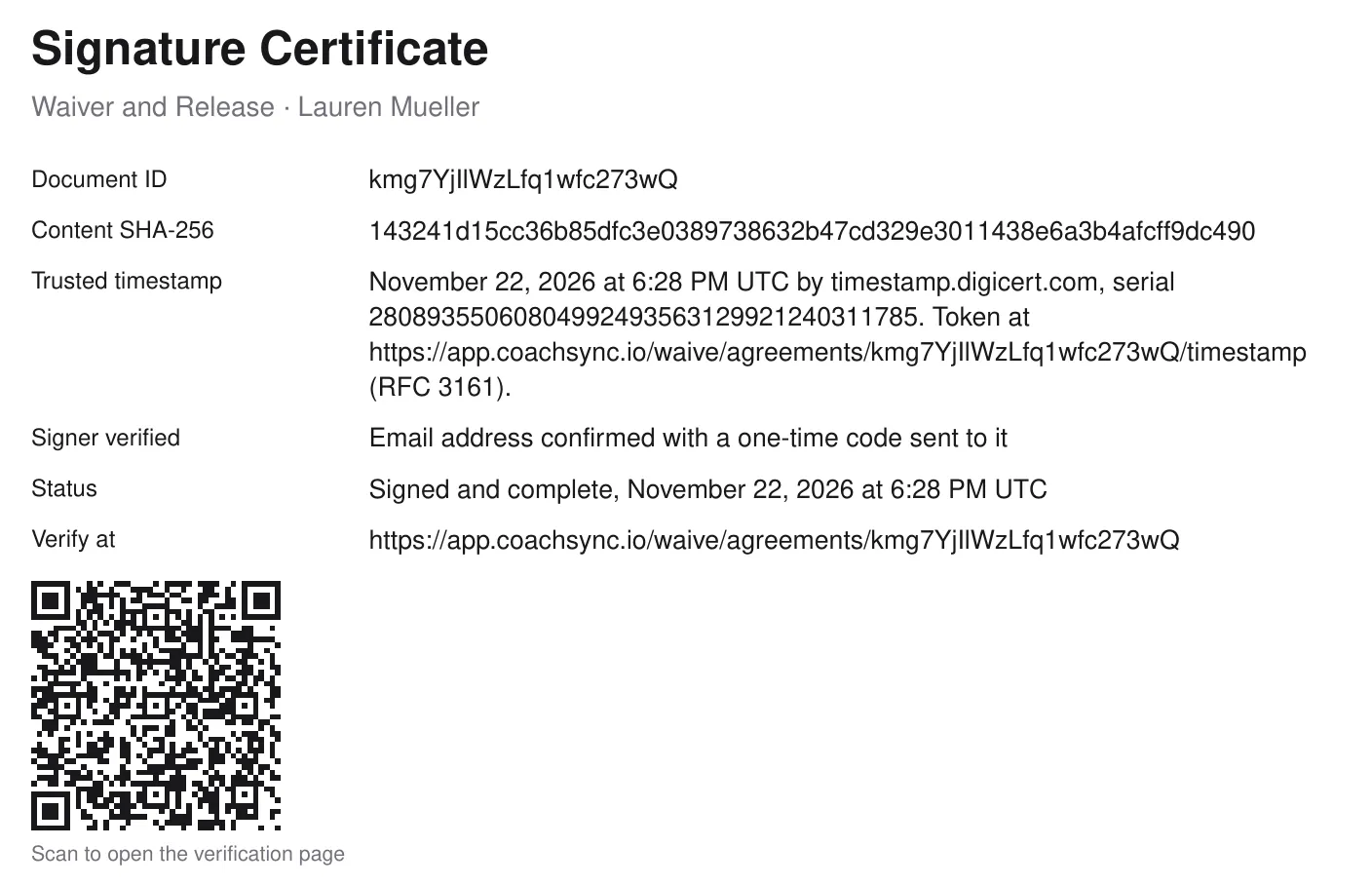
The Signature Certificate page lists:
- Document ID
- Content SHA-256, a fingerprint of the signed content
- Trusted timestamp, with the timestamp authority and serial number
- Signer verified, which says whether the signer confirmed their email with an emailed code, signed from an invitation link, or signed in person with a named witness
- Status
- Verify at, the link to the online copy, with a QR code
The trusted timestamp
When a waiver completes, CoachSync works out a SHA-256 fingerprint of the signed content. The fingerprint covers the text as signed, the consent, the people and every signature. A timestamp authority outside CoachSync then signs that fingerprint with the time. This shows that the content existed in exactly this form at that moment. Any change to it changes the fingerprint.
The certificate names the authority. Anyone with the .tsr file can check it against the authority’s certificate chain with standard tools such as OpenSSL.
If CoachSync cannot reach the authority when a waiver completes, the copy goes out with the timestamp marked as pending. CoachSync asks the authority again in the background. When the timestamp arrives, the PDF on the waiver’s page updates. The copy already emailed does not change.
The audit trail
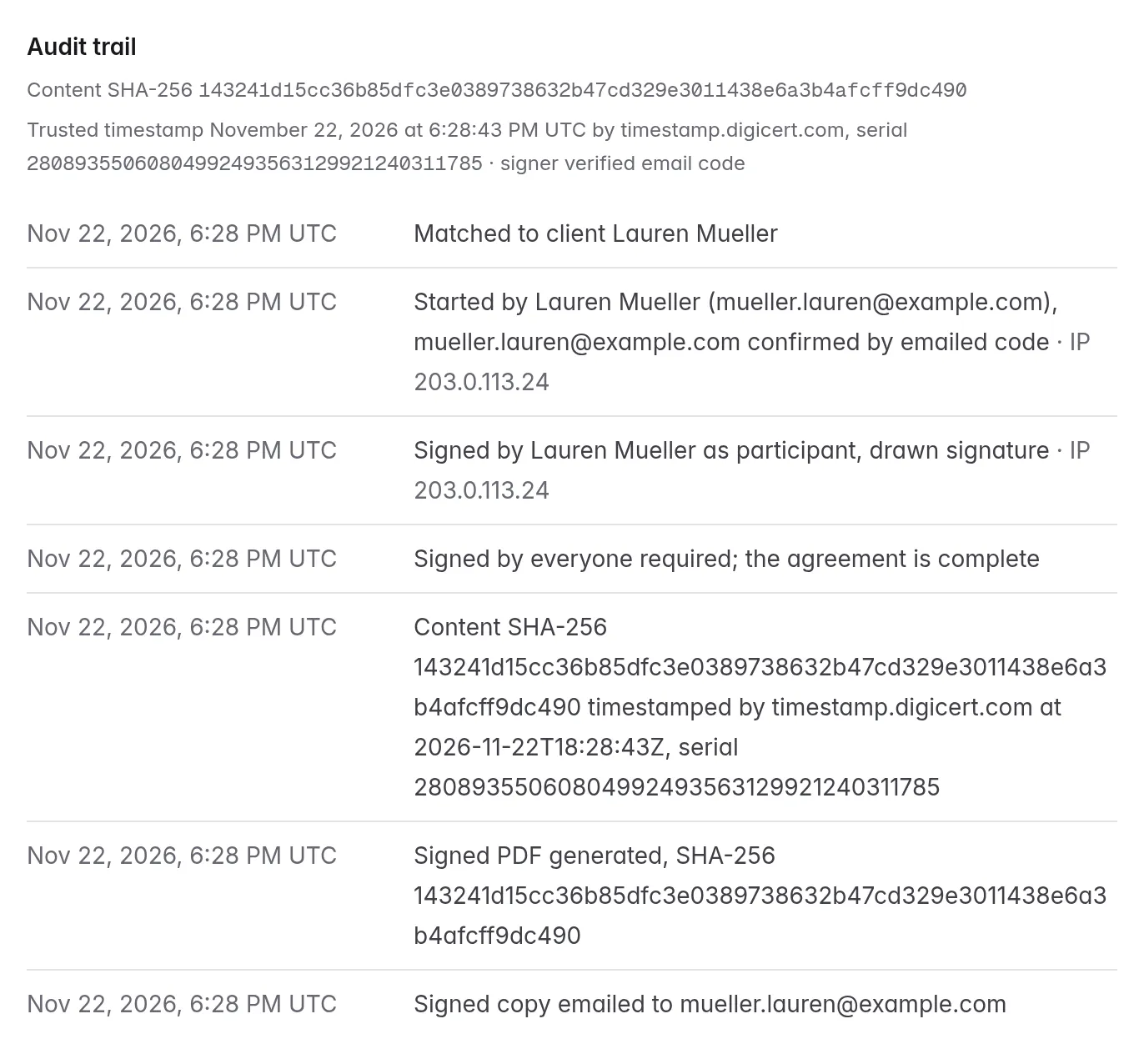
The waiver’s page in CoachSync shows the same record under Audit trail. It lists each step with its time in UTC, such as:
- when the waiver was started, and how the signer was verified
- each signature
- when the waiver was complete and the copies were emailed
- when it was matched to a client
- when a parent or child first opened a link CoachSync emailed them
- the timestamp and each time the PDF was made
When the email service reports it, the trail also shows when a signed copy was delivered, first opened or bounced.
Delete a waiver
- Open the waiver.
- In the three-dot menu, select Delete waiver.
- Confirm with Delete.
Waivers signed before CoachSync
A waiver marked Imported was signed before CoachSync. Its page links to the original document with Open the original document, and Download PDF gives you that original.
Get help
If something on this page does not match what you see, contact support.