Collect signatures
Send your waiver to clients, ask for it when people book, have people sign at the gym, and follow up on missing signatures.
People sign your waiver on its signing page. You can share the link, send it to a client, ask for it whenever someone books, or have someone sign on a device at the gym. CoachSync matches each signed waiver to a client by email address.
Send the waiver to a client
- Open the client’s page.
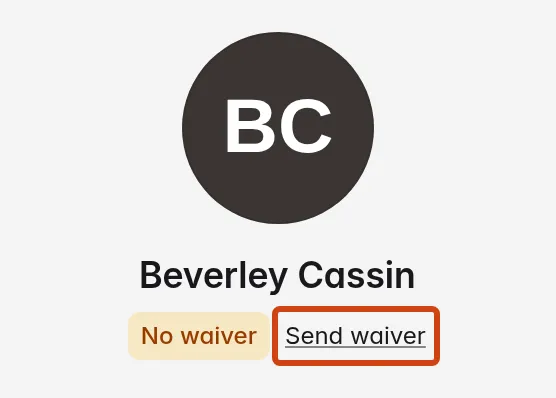
- Find the waiver badge under the client’s name. It says No waiver.
- Select Send waiver.
CoachSync emails the client a link to the signing page, with the subject “Please sign the” followed by your business name and “waiver”. The link fills in the client’s name, email and date of birth from their profile. For 30 days, it also confirms their email address, so they need no code.
Coaches can send the waiver to their own clients. Owners and admins can send it to any client.
Ask for the waiver when people book
On a session type or class type, tick Ask for a signed waiver under Options. When someone books that type and has no signed waiver on file, CoachSync emails them the signing link. See Create a session type and Schedule a class.
- Someone with a signed waiver gets nothing.
- A reschedule or a cancellation sends nothing.
- If the person’s waiver is waiting for a parent or guardian, the parent or guardian gets their signing link again.
Sign in person at the gym
For someone signing on a tablet or phone at the front desk:
- Open the Waiver page. From Account Settings, select Manage waiver.
- Select Sign in person on this device.
The signing page opens in a new tab, with a line naming you as the witness. For 12 hours, nobody who signs on it needs an email code. Only owners and admins see the Waiver page.
What the signer does
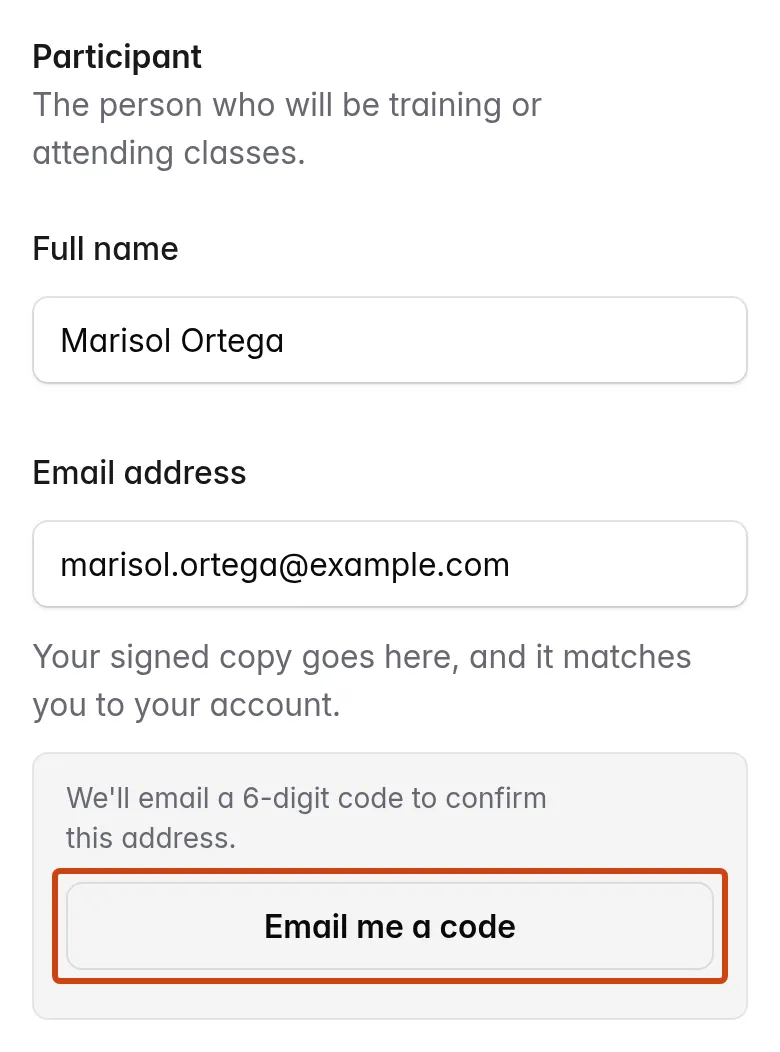
- Enter their Full name and Email address.
- Select Email me a code, then type the 6-digit code from the email into Code from the email. The code works for 20 minutes. Someone who opened a link you sent, or who signs in person, skips this step.
- Enter their Date of birth. For someone under 18, a parent or guardian signs. See Parents and children.
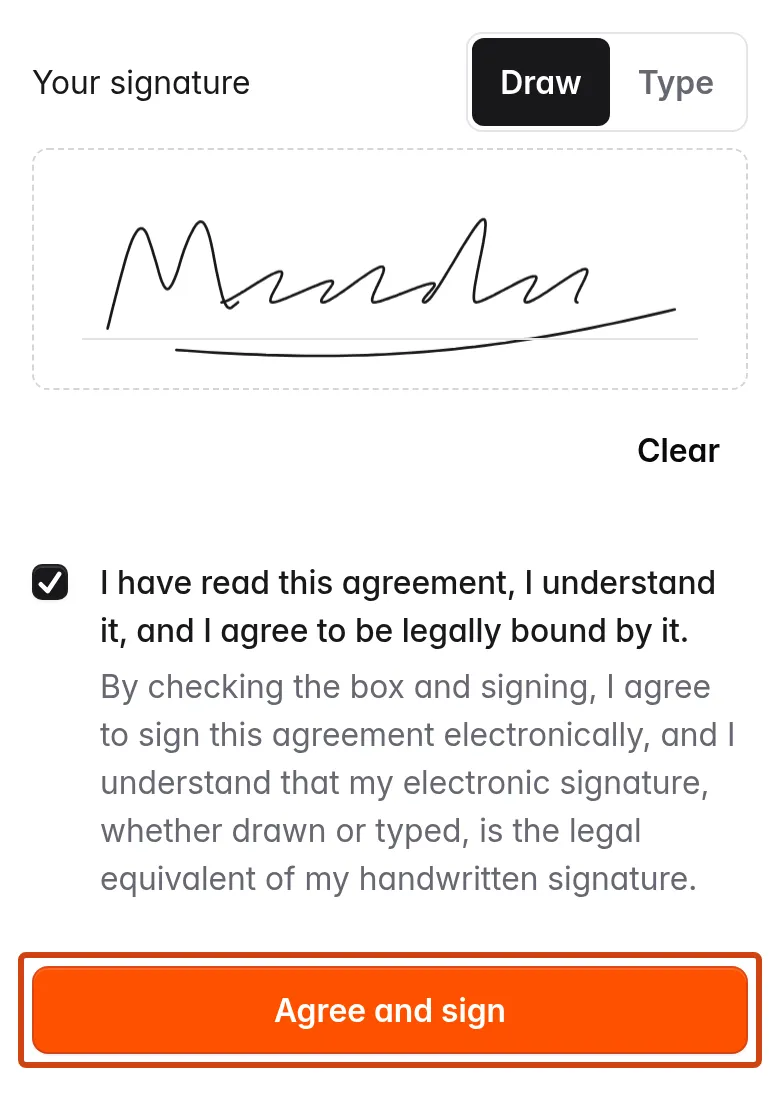
- Draw their signature in the box with a finger, or select Type and type their full name.
- Tick I have read this agreement, I understand it, and I agree to be legally bound by it.
- Select Agree and sign.
The page then shows “Signed on” with the date, and CoachSync emails the signed copy. See Signed copies.
Follow up on missing waivers
- On a client’s page, the waiver badge shows the client’s status, with a link to act on it:
- No waiver, with Send waiver.
- Waiver signed and the date, with View.
- A red badge saying the waiver is not valid until a guardian signs, with Remind.
- Waiver signed as a minor, with Send waiver. The client has turned 18 since a parent signed for them.
- On My Clients, select Filters, then choose No waiver or Awaiting guardian under Waiver.
- In the menu, under Management, Waivers lists every waiver. Choose All, Awaiting guardian or Not matched to a client at the top.
In the Waivers list, each waiver shows one of these statuses:
- Signed.
- Awaiting guardian. A parent or guardian has not signed yet. The waiver is not valid.
- Signed · child’s acknowledgment pending. A parent signed, and you asked minors to sign too. See Parents and children.
- Imported. The waiver was signed before CoachSync.
Match a waiver to a client
A waiver signed with an email address that nobody in your account has shows “no matching client”. It links itself when a client with that email address joins. To link it now:
- In the menu, under Management, select Waivers.
- Select Not matched to a client.
- Select the waiver.
- Search for the client and choose them.
- Select Attach.
When a waiver links itself to a client whose profile has no date of birth, CoachSync fills it in from the waiver. Attaching it by hand does not.
Get help
If something on this page does not match what you see, contact support.