Set up your waiver
Publish your liability waiver in CoachSync so clients and members can read and sign it on their phones.
CoachSync hosts your liability waiver on its own signing page. Anyone with the link can read it and sign on their phone. CoachSync keeps each signed copy with its signatures and a record of every step.
Write and publish the waiver
- Select CoachSync at the top of any page to open the menu.
- Under Account, select Settings to open Account Settings.
- In the Waiver box, select Set up waiver.
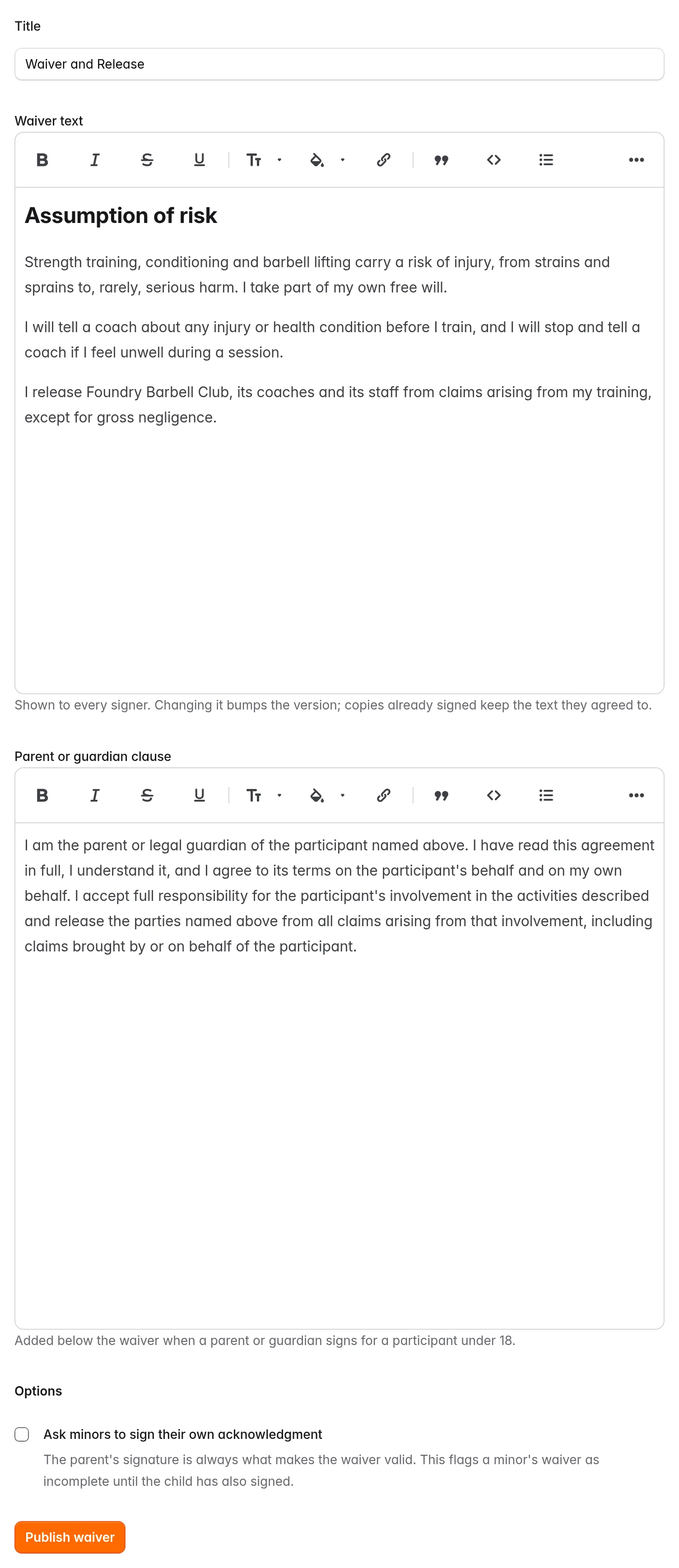
- Check the Title. It starts as “Waiver and Release”.
- Paste your waiver into Waiver text. Headings, bold and lists come across.
- Read the Parent or guardian clause. CoachSync adds it below the waiver when a parent or guardian signs for someone under 18. It starts with sample wording. Change it to suit your waiver.
- To mark a minor’s waiver as pending until the child signs too, tick Ask minors to sign their own acknowledgment. The parent’s signature still makes the waiver valid. See Parents and children.
- Select Publish waiver.
CoachSync shows “Your waiver is live.” and opens the Waiver page.
You can also reach the Waiver page from the menu. Under Management, select Waivers, then Settings.
Share the signing link
The Waiver page has:
- the signing link, with a button to copy it. Put it on your website or in your welcome email.
- Open signing page, to see the page signers see.
- a QR code marked Scan to sign. Print it for the front desk.
- Sign in person on this device, for someone signing at the gym with you as witness. See Collect signatures.
- All signed waivers, the list of everyone who has signed.
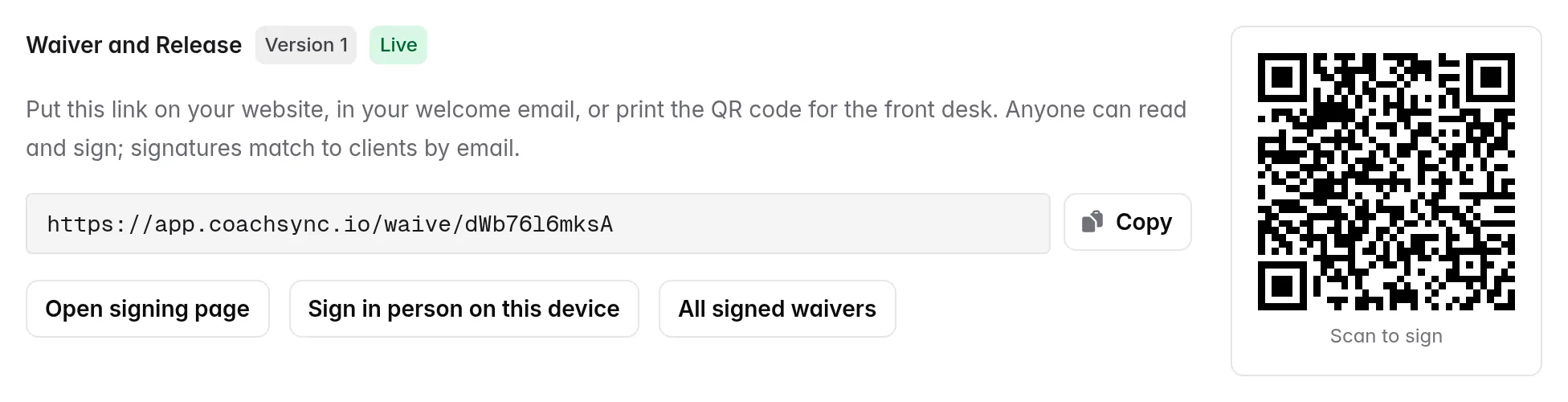
Below these, the page counts Waivers, Awaiting guardian and Not matched to a client, and lists Recent signatures.
Edit the waiver
- On the Waiver page, select Edit.
- Make your changes.
- Select Save changes.
A change to the waiver text or the guardian clause raises the version number on the Waiver page. Waivers already signed keep the text their signers agreed to. Someone who was signing while you saved sees a message asking them to read the new text and sign again.
Turn the signing link off
- On the Waiver page, select Edit.
- Untick Public link is live.
- Select Save changes.
The Waiver page shows Link off. The signing page stops taking new signatures. Send waiver and bookings stop emailing the signing link. Signed waivers stay. A parent or guardian who was already emailed a link can still sign with it, and Remind still sends it. Tick Public link is live again to turn the link back on.
Get help
If something on this page does not match what you see, contact support.