Manage your client list
Find clients, keep private notes, archive and restore clients, and move people between clients and contacts.
My Clients is where you find the people you coach. Owners and admins can also see every client in the account, archive clients they no longer coach, and turn contacts into clients.
See your clients or every client
My Clients lists the clients you coach. Coaches see only their own clients.
Owners and admins can list every client in the account:
- On My Clients, select Filters.
- Under Scope, select All.
- Select Apply filters.
The filters you applied show above the list. Select Reset filters in the dialog to go back.
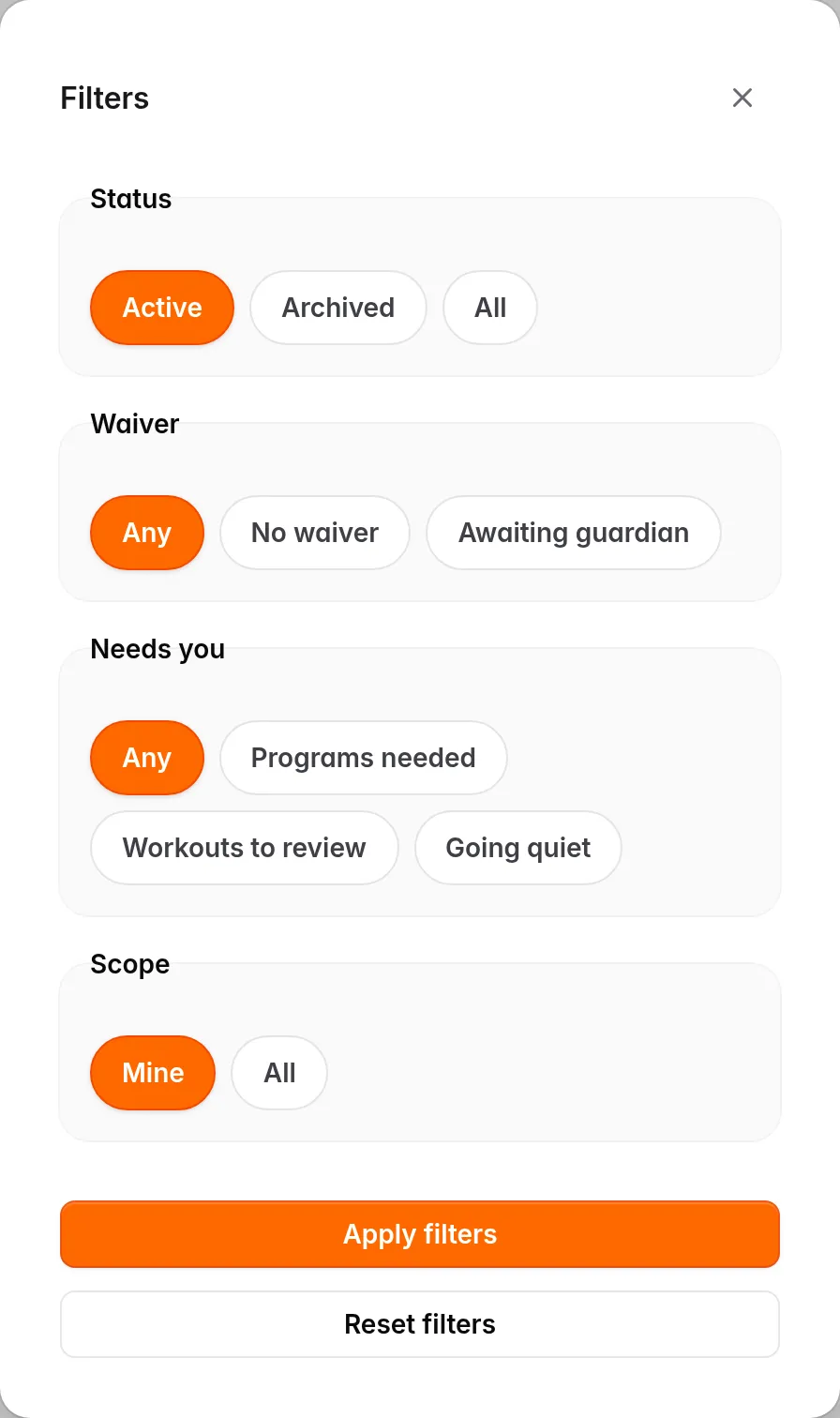
The Filters dialog has these sections:
- Status, with Active, Archived and All.
- Waiver, on the Gym plan, with Any, No waiver and Awaiting guardian. See Collect signatures.
- Needs you, with Any, Programs needed, Workouts to review and Going quiet. These are the same lists as on Today, and View all there opens My Clients with this filter set. See See your day on Today.
- Scope, for owners and admins, with Mine and All.
To find one client, type their name in Search clients at the top of the list. On a keyboard, press K to jump to it.
Each row can show badges next to the client’s name:
- No coach. Nobody coaches the client yet. Owners and admins see an Assign link that opens the client’s Edit User page.
- The invitation badge. See Fix an invitation.
- The client’s waiver status, on the Gym plan once your waiver is set up.
A number at the end of a row counts the things on that client that need your attention. See Review finished workouts.
Keep notes on a client
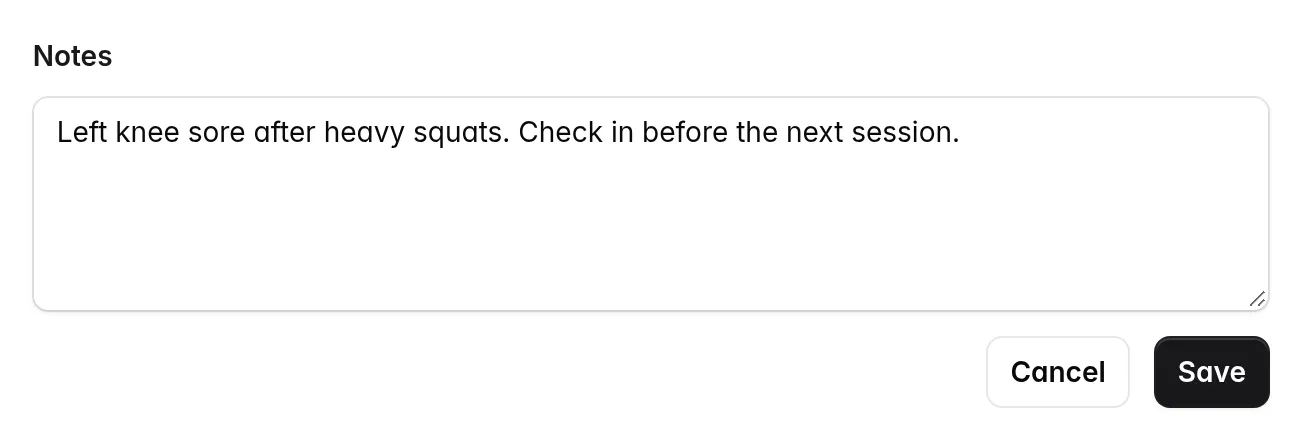
Notes are private to staff. Clients never see them. Owners, admins and the client’s coach can edit them.
- Open the client’s page.
- Next to Notes, select the pencil button.
- Type your notes.
- Select Save.
Archive a client
Archiving takes a client off your active lists and frees their place under your plan’s client limit. Their workouts and history stay in CoachSync. An archived client can no longer open your account.
Only owners and admins can archive and restore clients.
- Open the client’s page.
- Select Edit Client.
- Under Danger Zone, select Archive.
- Select Archive user to confirm.
CoachSync shows Client archived.
You can also archive from the Users page. Select the three-dot button at the end of the client’s row, select Archive, and confirm.
Restore an archived client
- On My Clients, select Filters.
- Under Status, select Archived. If someone else coached the client, also select All under Scope.
- Select Apply filters.
- Open the client’s page.
- Select Unarchive.
CoachSync shows Client restored. On Starter with five clients already, the Client Limit page opens instead. See Choose your plan.
Clients and contacts
CoachSync keeps two kinds of members:
- A client has a coach and a training program, and counts toward your plan’s client limit. Clients appear on My Clients.
- A contact books sessions and classes, or buys from you, but has no coach and no training program. Contacts don’t count toward the client limit and don’t appear on My Clients.
Someone who books or buys on one of your booking pages without an account becomes a contact. To list your contacts, open Users, select Filters, select Contacts under Relationship, then select Apply filters. Each contact has a Contact badge. Owners and admins can also select Users in the line “Contacts are on Users.” under My Clients, which opens Users with that filter on.
Start coaching a contact
Owners and admins can turn a contact into a client.
- On the Users page, select the three-dot button at the end of the contact’s row.
- Select Edit.
- In the box that says the person is a contact, choose their coach under Coach.
- Select Start coaching.

CoachSync shows the coach’s name followed by is now coaching and the client’s name. The client now appears on that coach’s My Clients, and you can invite them. See Add a client.
Stop coaching a client
Owners and admins can turn a client back into a contact.
- Open the client’s page.
- Select Edit Client.
- In the box that says when coaching started, select Stop coaching.
- Select Stop coaching in the dialog to confirm.
The person keeps their bookings and membership. They lose their coach and leave the client lists.
Clients without a coach
Some clients join without a coach. Owners and admins get a Client Needs Coach notification and an email.
To assign a coach, list every client with Scope set to All. Select Assign next to the No coach badge, choose a coach under Assigned Coach, and select Save changes. The client’s page shows the same badge and Assign link.
Delete a client
- On the Users page, select the three-dot button at the end of the client’s row.
- Select Delete.
- Select Delete user to confirm.
CoachSync can’t delete a client who has bought anything through CoachSync, such as a session, a drop-in, a pack or a pass. Archive them instead.