Review finished workouts
Find the workouts your clients finished, read what they logged, reply, and mark each one reviewed.
When a client finishes a workout, CoachSync tells their coach and lists the workout under Needs Attention on the client’s page. The workout stays there until you review it.
Where finished workouts show up
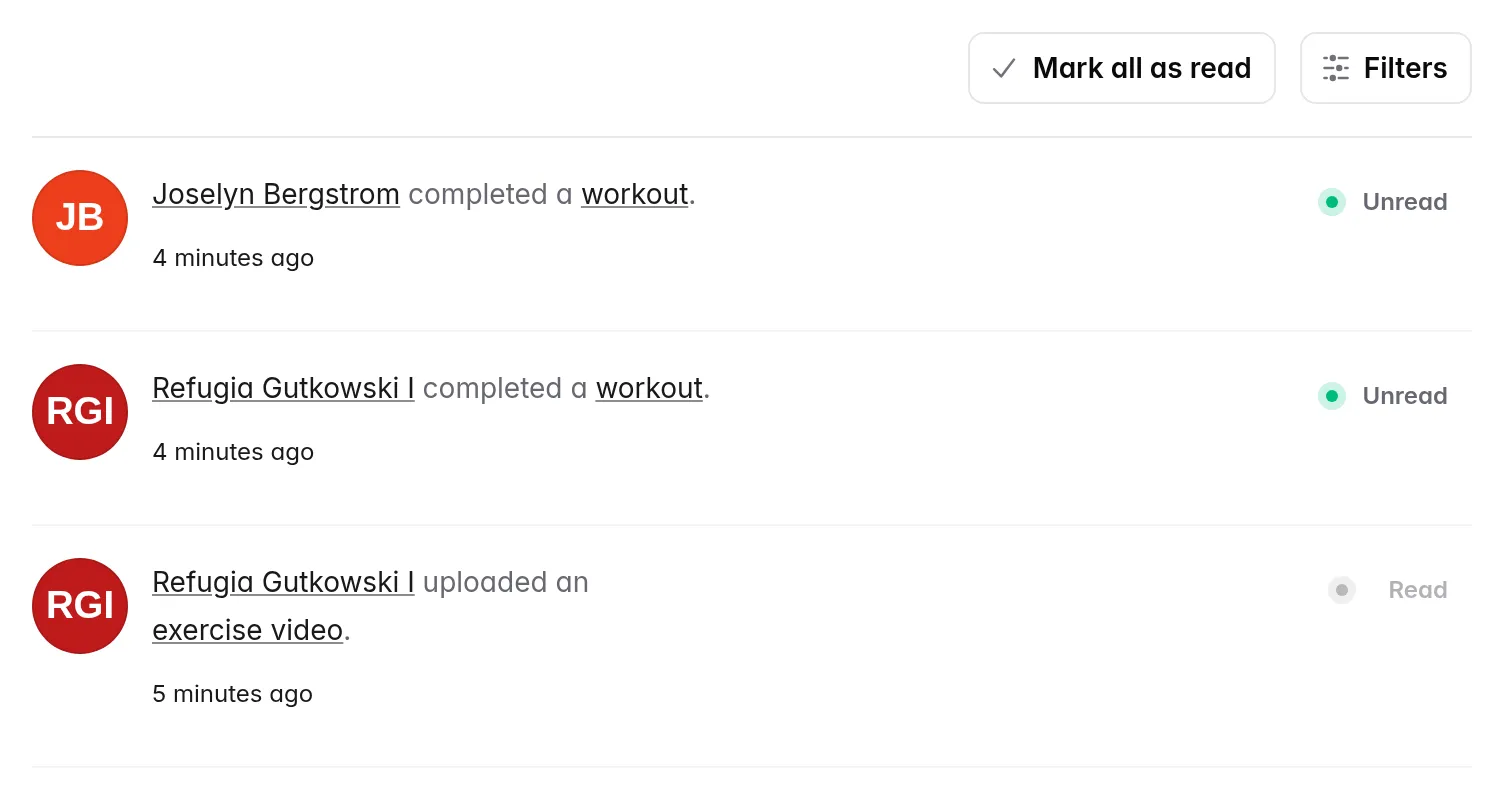
- Notifications. The client’s coach gets a notification that the client completed a workout. Open the CoachSync menu at the top of the page and select Notifications.
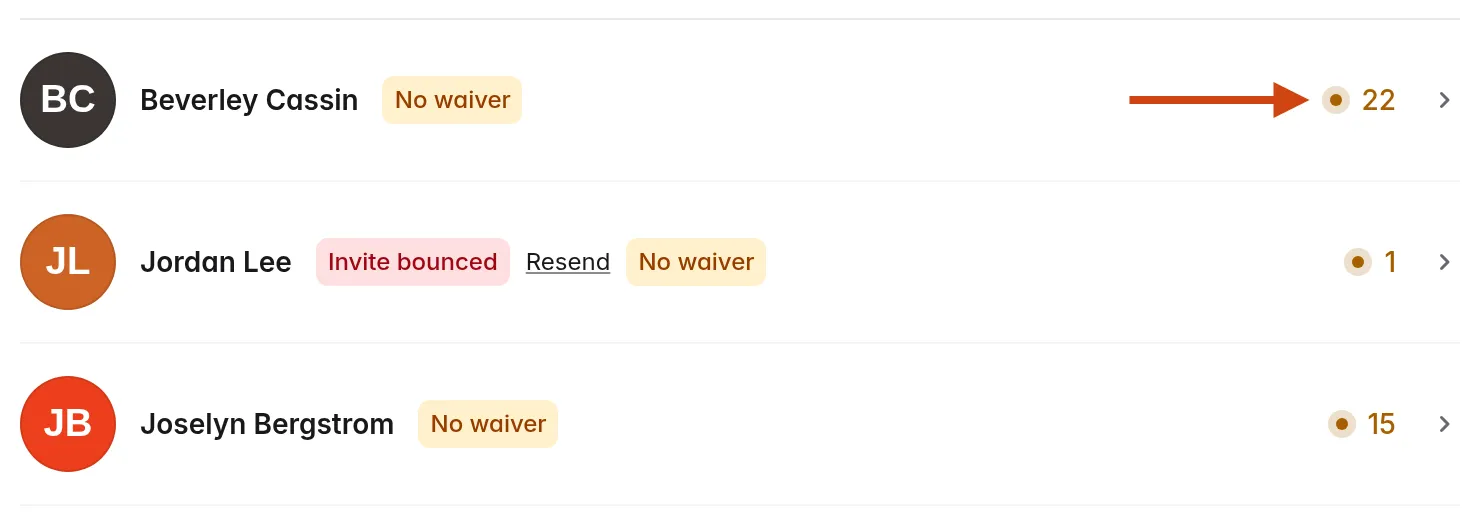
- My Clients. A number beside a client’s name counts what needs your attention for that client.
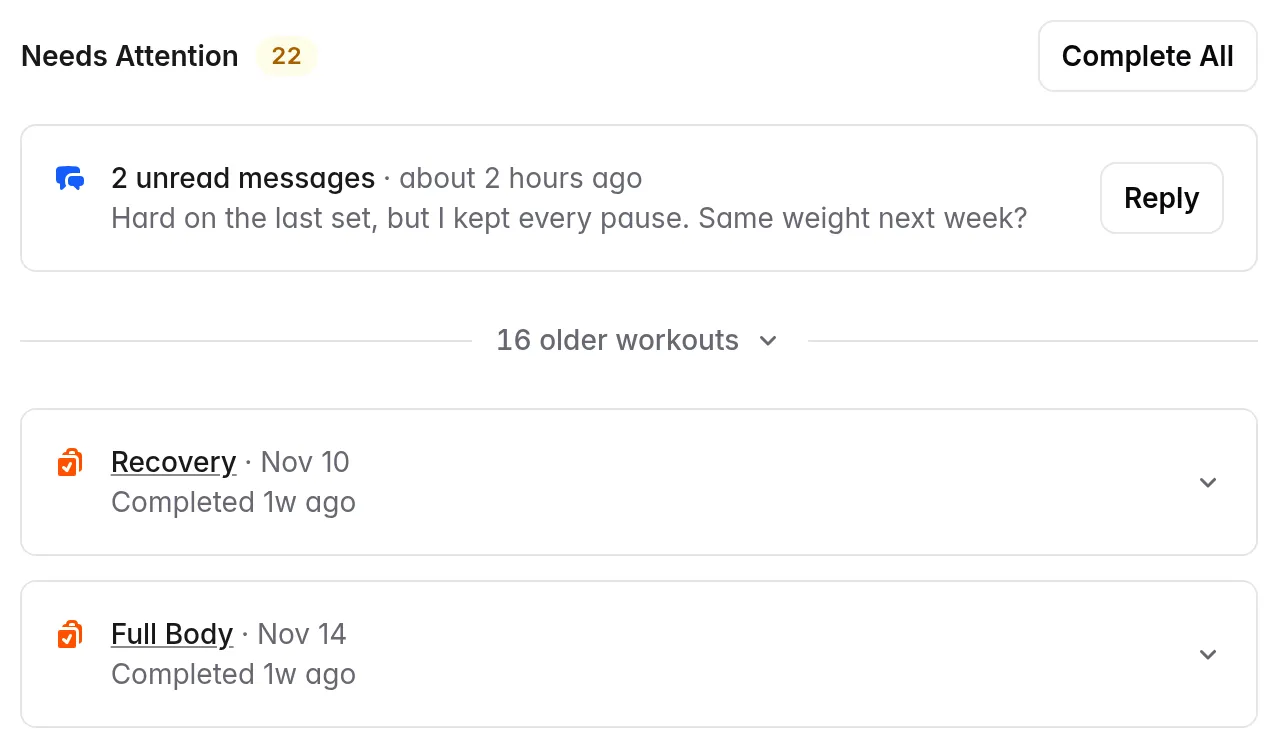
- Needs Attention. On the client’s page, this list holds each workout to review, with the time it changed.
- Today. Under Waiting on you, Workouts to review lists the same workouts across your clients. Review opens a workout in a panel beside the page, where you reply and select Complete Review or Dismiss without leaving Today. See See your day on Today.
What Needs Attention lists
- A workout the client completed that you have not reviewed. It reads Completed with how long ago.
- A workout with a comment or video from the client that you have not cleared. It reads Commented or Video uploaded.
- Needs programming, when the client has no workout they can see dated three or more days from today. Schedule opens their workouts.
- Unread messages from the client. The client’s coach sees Reply, which opens the conversation.
The list shows the five most recent workouts. Older ones fold into a line such as “3 older workouts”. Select it to show them.
When nothing is left, the list says you are all caught up.
Review a workout
- Open My Clients and select the client.
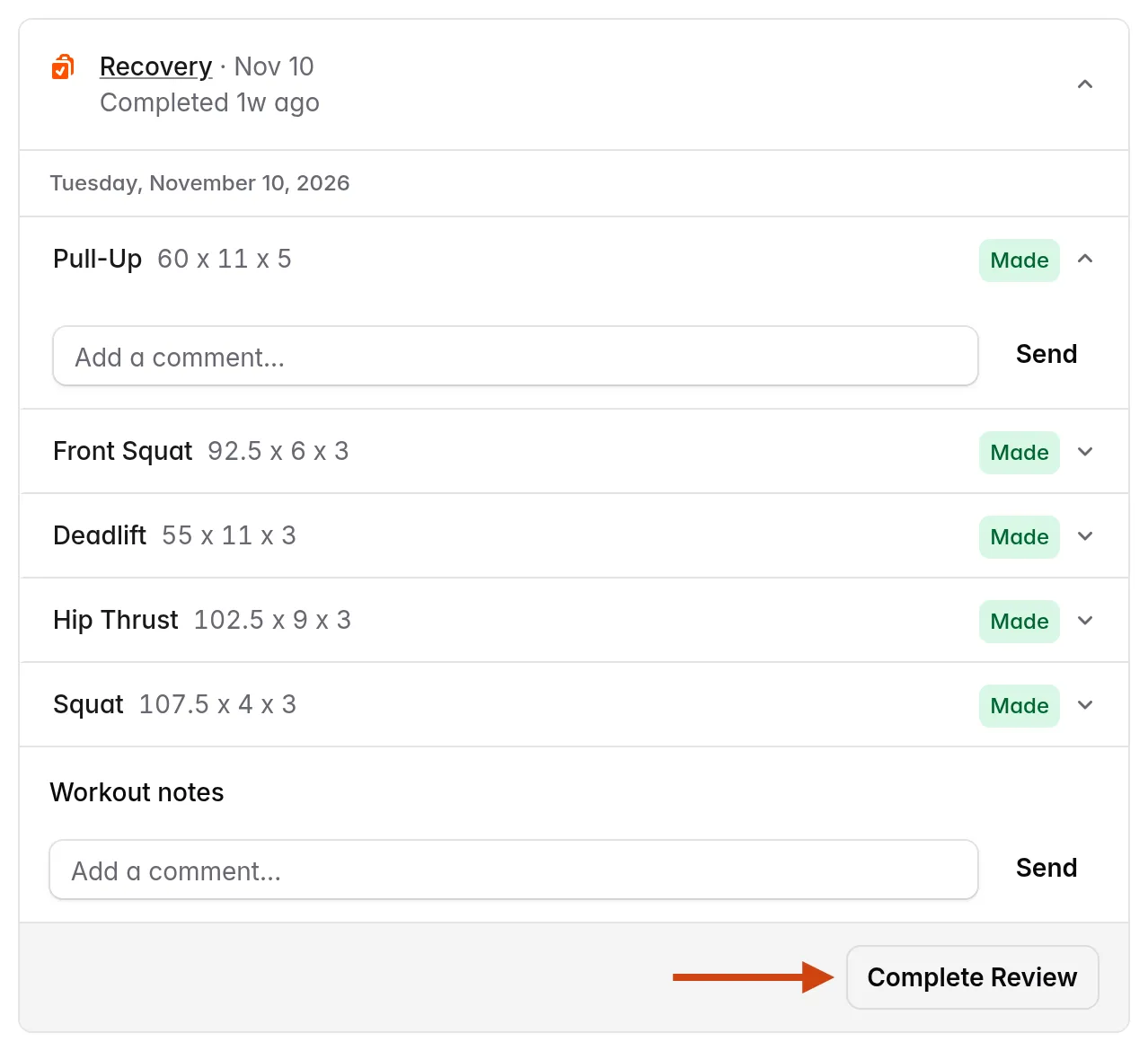
- Under Needs Attention, select the workout to expand it. You see its date, and each exercise with a status of Made, Missed or Pending.
- Select an exercise to see its prescription and the client’s comments and videos on it.
- To reply about one exercise, type in the comment box under it and select Send. To reply about the whole workout, use the box under Workout notes.
- Select Complete Review.
The workout leaves the list. It comes back if the client finishes the workout again, or posts a new comment or video on it.
To see the weight and reps the client logged, select the workout’s title. The workout’s page lists each exercise’s sets under Set details. On a completed workout, Show summary opens the summary the client saw when they finished.
Dismiss new comments or videos
A workout you already reviewed comes back when the client adds a comment or a video. Its button is then Dismiss. Select it to clear the workout from the list.
Replying also clears comments and videos. When you post a comment on an exercise, CoachSync clears the client’s earlier comments and videos on that exercise. The workout leaves the list once nothing on it needs attention.
Review several workouts at once
When two or more workouts need review, Complete All appears beside Needs Attention.
- Select Complete All.
- CoachSync asks you to confirm and warns that this also dismisses the workouts’ comments and videos. Select Complete All.
Read and clear notifications
On the Notifications page, select a notification’s link to open the workout. Opening a workout marks its notifications read.
- Select Unread on one notification to mark it read.
- Select Mark all as read to clear them all.
- Select Filters to show only some types, such as Workout Completed, Video Uploaded or Workout Feedback.
For videos, see Watch and reply to form-check videos.
Get help
If something on this page does not match what you see, contact support.