Duplicate and hide workouts
Copy a workout to start the next one, keep workouts from the client until they are ready, and delete workouts you no longer need.
Duplicate a workout to reuse its exercises and prescription. Hide a workout to keep it from the client while you finish it.
What a hidden workout does
A hidden workout stays on your side only.
- The client does not see it in their training log and cannot open it.
- It does not count when CoachSync checks whether a client needs programming.
- You still see it. The workouts list marks it with a crossed-out eye, the calendar shows a Hidden label, and the workout’s page shows Unpublished.
New workouts start visible to the client unless you select Unpublish in the form. Workouts you duplicate or paste on the calendar start hidden. Workouts you import start visible.
Hide or show one workout
On the client’s workouts list, each card has a button for this.
- Open My Clients, select the client, then select Programming Calendar.
- On the workout’s card, select Hide from client, the button with a crossed-out eye. On a hidden workout, the button is Show to client.
The card updates in place.

On a phone, open the card’s Workout actions menu and select Hide from client or Show to client.
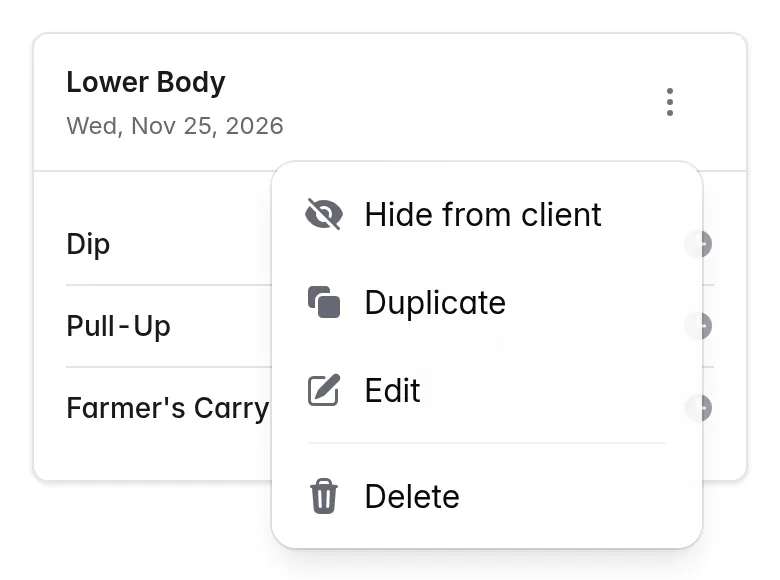
You can also change it from these places:
- On the workout’s page, open Workout actions and select Unpublish or Publish.
- In the workout form, select Unpublish or Publish in the bar above Save workout, then save.
To hide or show many workouts at once, select them on the calendar. See Program on the calendar.
Duplicate a workout
- On the workout’s card, select Duplicate workout. On a phone, open Workout actions and select Duplicate.
- CoachSync asks “Duplicate this workout?” Confirm.
- The copy opens in the edit form, dated today, with its title selected. Change the date and anything else you need.
- If the client should see the copy, select Publish in the bar above Save workout.
- Select Save workout.
You can also duplicate from the workout’s page. Open Workout actions and select Duplicate.
The copy has the original’s title, exercises, prescription modes, rows and notes. It does not copy the client’s logged sets, comments or videos.
To copy a workout straight to another date, or to copy several workouts at once, use copy and paste on the calendar.
Delete a workout
- On the workout’s card, select Delete workout. On a phone, open Workout actions and select Delete.
- CoachSync asks you to confirm. Select Delete workout.
The workout’s page and the edit form have a Delete option too.
Get help
If something on this page does not match what you see, contact support.