Watch and reply to form-check videos
Find the videos your clients upload from their workouts, watch them, and send feedback on the same exercise.
From the screen where they log a workout, a client can upload a video of a set on any exercise. You watch it in CoachSync and reply on that exercise, so the video and your feedback stay with the lift.
For how clients record and upload, see Record a form check.
Know when a video arrives
- Notifications. The client’s coach gets a notification that the client uploaded an exercise video.
- Push notifications. If you turned them on for this device, it shows “uploaded a video” with the client’s name.
- Needs Attention. On the client’s page, the workout shows Video uploaded with how long ago.
- Workout cards. On the client’s workouts list, an exercise with videos shows a camera and a count.
Watch a video from Needs Attention
- Open My Clients and select the client.
- Under Needs Attention, select the workout to expand it.
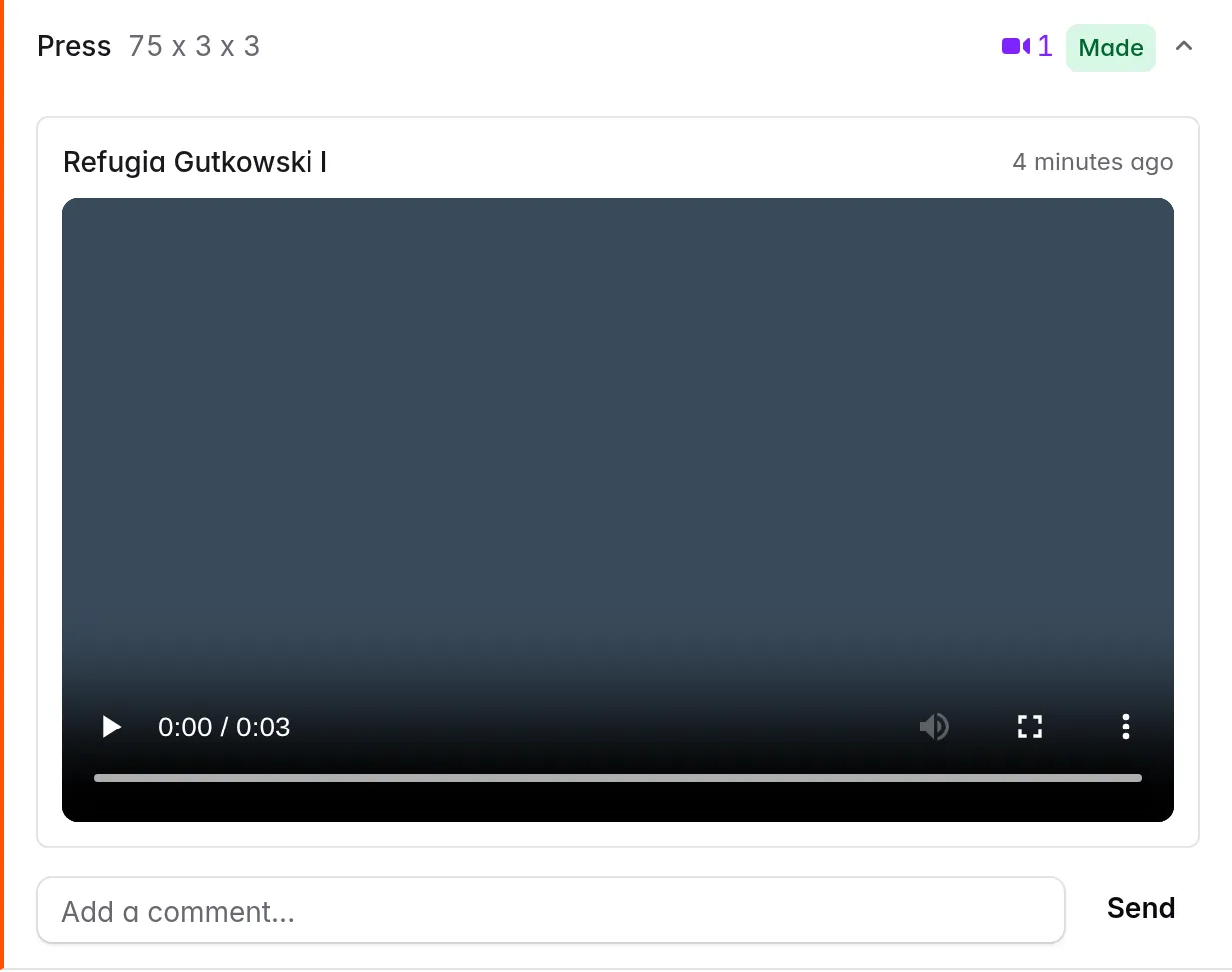
- Select the exercise with the camera and count. The video plays in place, with its own controls.
Watch a video on the workout’s page
- Open the workout. For example, select its link in the notification.
- Under the exercise, find the line that counts its videos and comments, such as “1 video”. Select Show.
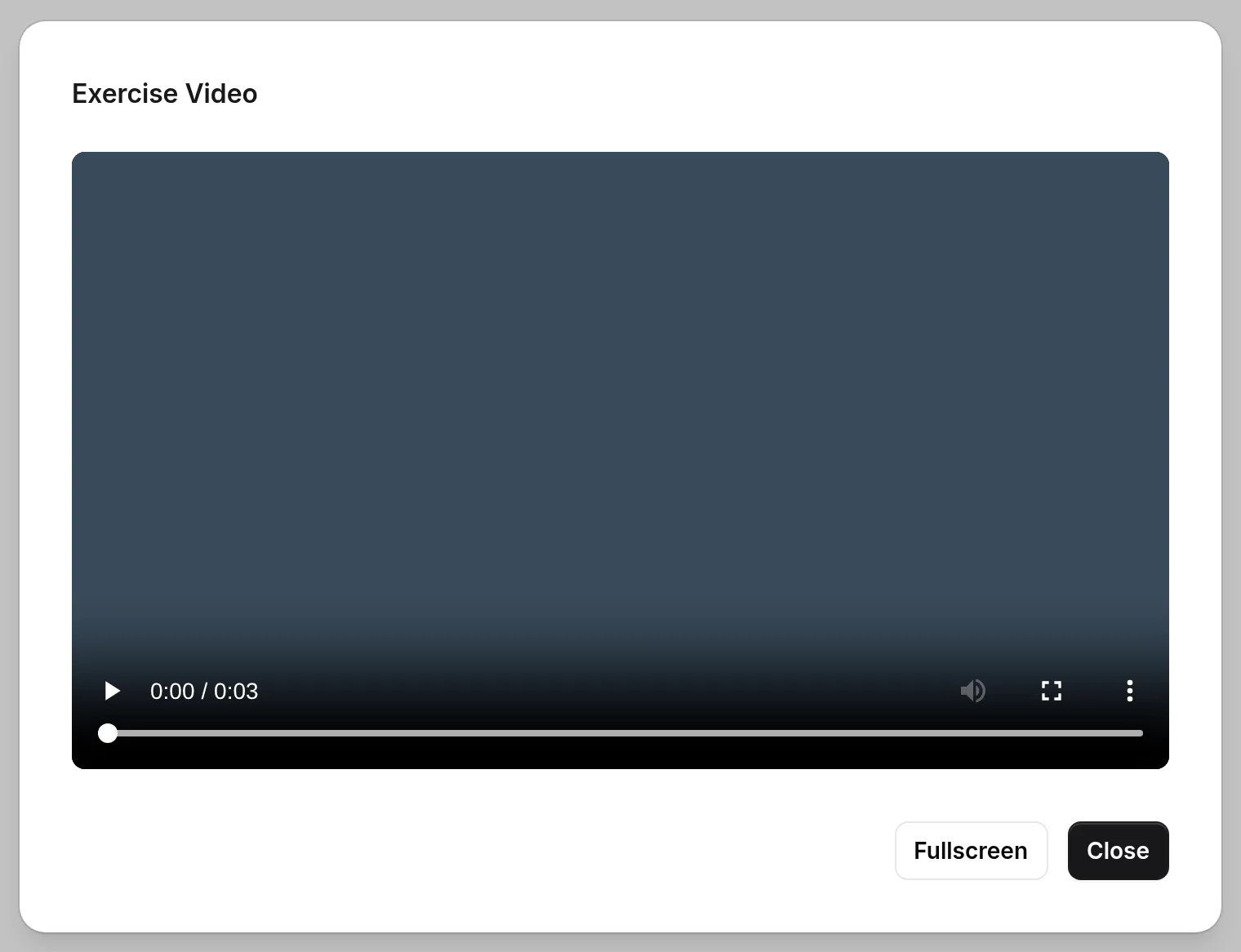
- Select the video’s picture to open Exercise Video.
- Select Fullscreen to fill the screen. Select Close when you are done.
Reply to the client
- Under Needs Attention, type in the comment box under the video and select Send.
- On the workout’s page, type in the box under the exercise’s videos and comments and select Post.
The client gets a notification that you left feedback, and a push notification if they turned them on.
Your reply also clears the client’s earlier comments and videos on that exercise. If the workout still needs review, it stays under Needs Attention until you select Complete Review.
To clear a whole workout without replying, select Complete Review or Dismiss. See Review finished workouts.
Video limits
Clients upload one video at a time, as an MP4, MOV or WebM file of 200 MB or less.
Get help
If something on this page does not match what you see, contact support.