Program on the calendar
See a client's month of workouts, copy and paste a block of workouts, drag a workout to a new day, and hide or delete several at once.
The calendar shows one client’s workouts a month at a time. From it you add workouts, move them by dragging, and copy a week or more of training to new dates.
Open the calendar
- Open My Clients and select the client.
- Select Programming Calendar.
- Select Calendar, next to List.
CoachSync remembers your choice in this browser, so the page opens on the calendar next time. The calendar opens on the month of the client’s latest workout. Use the arrows to move a month back or forward, and Today to return to the current month.
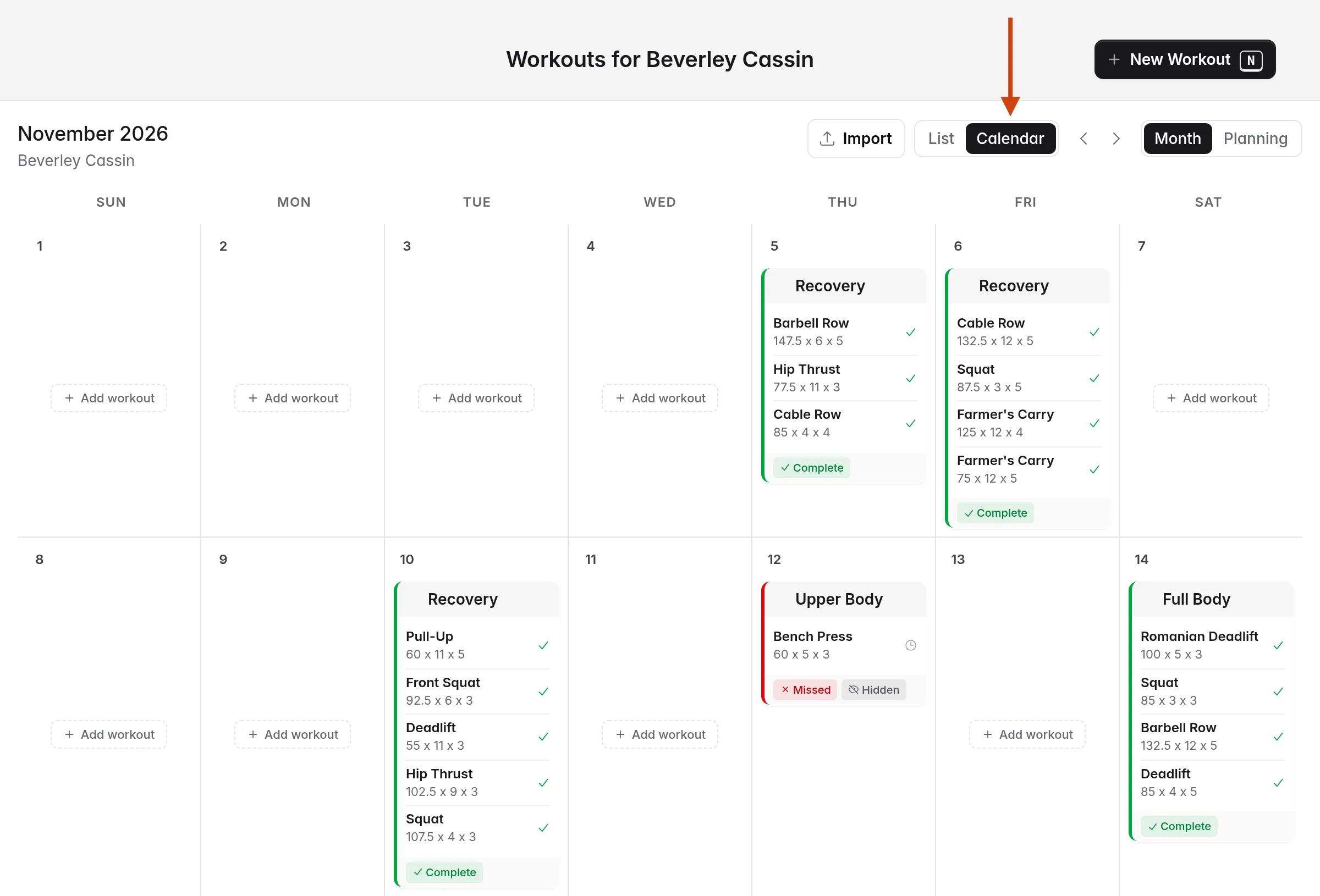
Each workout card shows its title, its exercises with the first line of each prescription, and its status. The status is Complete, Pending or Missed. A speech bubble with a number shows how many comments and videos the workout has. Hidden means the client cannot see the workout. A day shows up to three cards. When it has more, it says how many more, for example “+1 more”.
Add a workout
- On an empty day, select Add workout.
- Write the workout. The form opens in a panel beside the calendar, with the date set to that day.
- Select Save workout.
To close the panel, select the X at its top or press Escape. On screens narrower than 1024 pixels, the form opens as its own page. For the form itself, see Create a workout.
To add a workout on a day that already has one, select New Workout and change the date.
Open or edit a workout
Select a workout card. The workout opens in the panel. Select Open page to see it full size, or open Workout actions for Edit, Duplicate, Publish or Unpublish, and Delete.
Move a workout to another day
Drag the workout card onto the new day. CoachSync shows “Workout rescheduled.” You can move completed workouts too.
You cannot drag while workouts are selected. First select Clear selection, the X at the end of the bar at the bottom.
Copy and paste workouts
Copying creates new workouts on the days you choose and leaves the originals where they are.
- Point at a workout card and select the checkbox that appears at its top left. A bar appears at the bottom of the screen with “1 in clipboard”.
- Select more cards to add them. To add every workout on a day, select the checkbox at the top right of that day. Select a card again to take it out.
- If you are pasting into another month, use the arrows to go there. Your selection stays.
- Point at the day where the earliest copied workout should go. The day shows Paste here. Select it. On a day that already has workouts, select an empty part of the day.
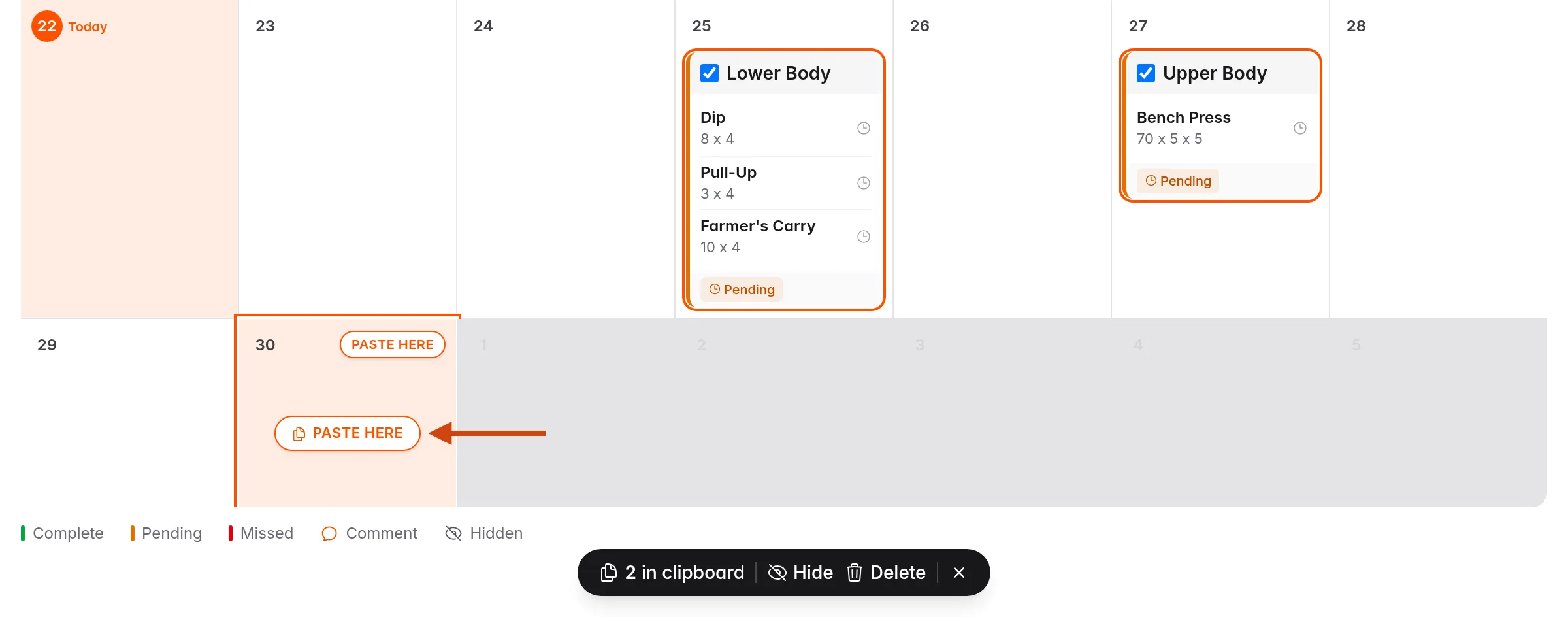
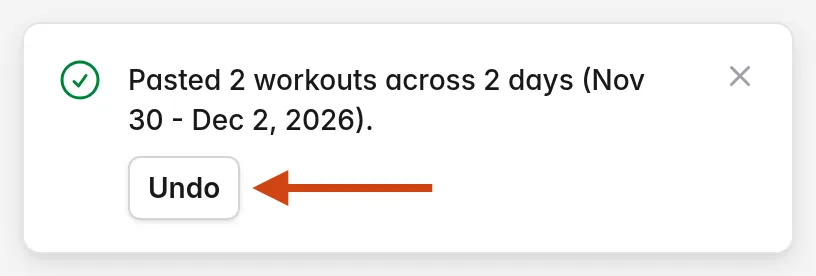
The copies keep the same gaps between days as the originals. If you copy workouts on Monday, Wednesday and Friday and paste on the next Monday, the copies land on Monday, Wednesday and Friday of that week. CoachSync confirms with a message such as “Pasted 3 workouts across 3 days (Nov 23 - Nov 27, 2026).”
Copies have the original’s exercises, prescription and notes. They do not copy the client’s logged sets, comments or videos.
You can also paste with the keyboard. With workouts selected, press Tab to move to a day, then press Enter or Space.
Undo a paste
Select Undo in the message that confirms the paste. CoachSync removes every copy from that paste, including copies you edited after pasting, and shows “Pasted workouts removed.”
The message stays on screen until you close it or leave the page. Pasting again, or selecting Hide, Show or Delete in the bar at the bottom, also closes it. Undo works for one hour after the paste.
Hide, show or delete several workouts
- Select the workouts, as in the steps for copying.
- In the bar at the bottom, select Hide. When every selected workout is already hidden, the button is Show instead.
To delete the selected workouts, select Delete in the bar, then confirm with Delete workouts.
To look at several weeks at once, switch to the Planning view.
Get help
If something on this page does not match what you see, contact support.