Message a client
Start a conversation with a client, send messages, and keep track of the ones you have not read.
Conversations are private messages between two people in your CoachSync account. Use them to talk with a client about their training without leaving the app.
Who you can message
- Owners and admins can message anyone in the account.
- A coach can message their own clients and the other staff in the account.
- A client can message only their coach.
Open a conversation with a client
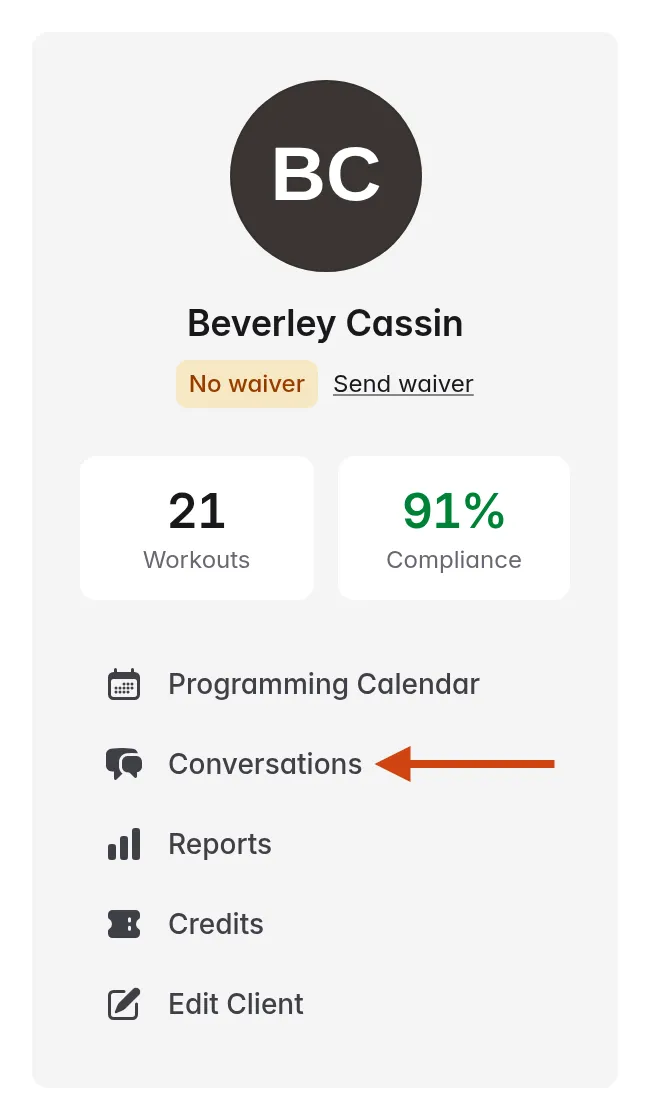
- Open My Clients and select the client.
- Select Conversations.
CoachSync opens your conversation with that client, or starts one if you have none yet.
Other ways in
- Open the CoachSync menu at the top of the page and select Conversations. It lists your conversations, most recent first. Select one to open it.
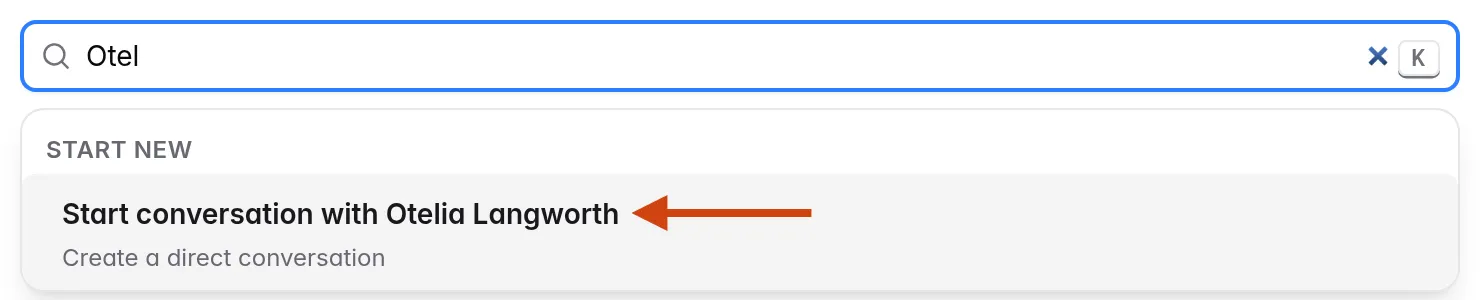
- On the Conversations page, type a name in Search conversations or people. Select an existing conversation, or select Start conversation with followed by the person’s name.
- Admins can select Message beside a person on the Users page.
- On a class roster or a session’s page, select Message under the person’s name.
- On Today, unread messages wait under Unread messages. Open the line to read them and reply in place. See See your day on Today.
Send a message
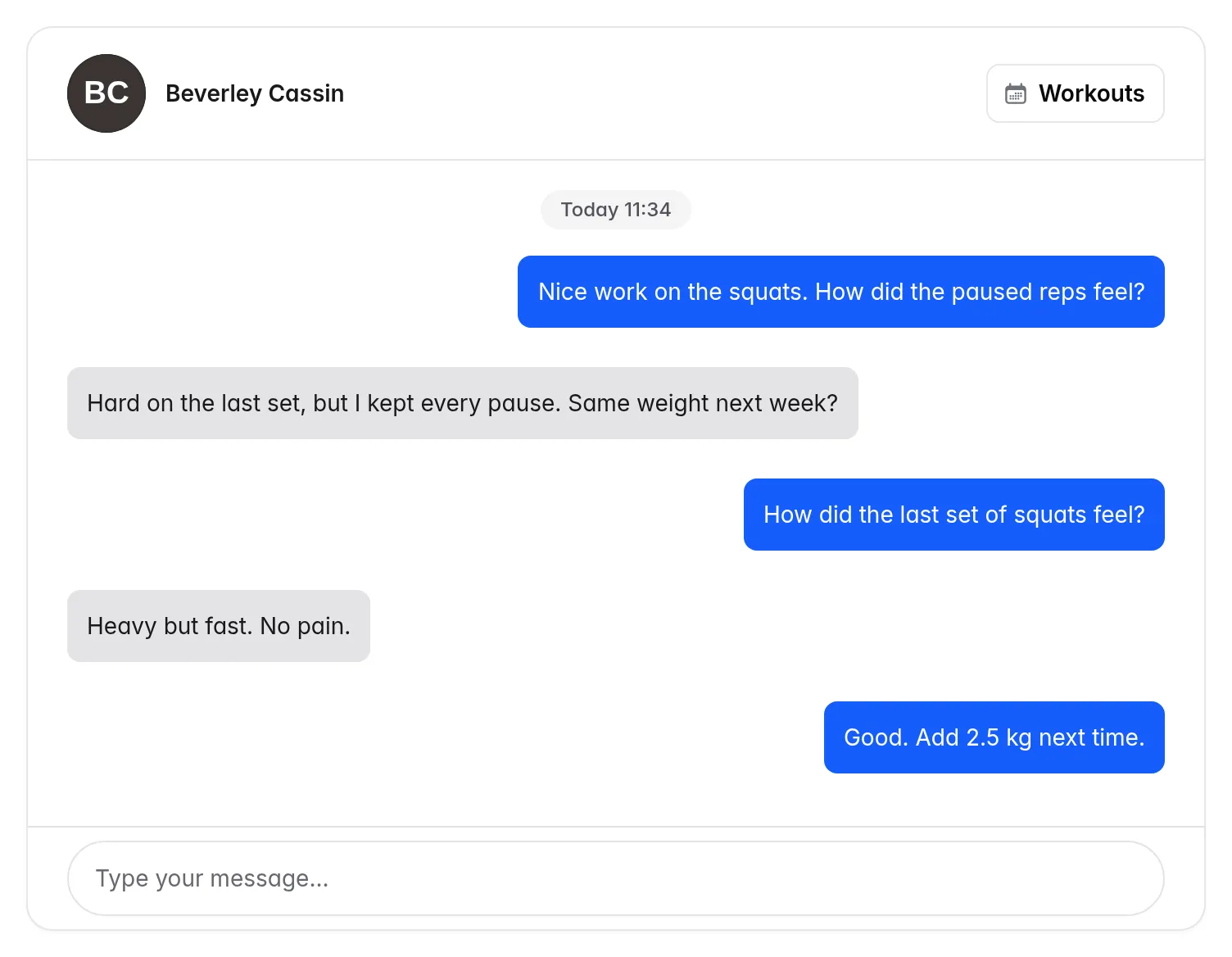
- Type in the box at the bottom of the conversation.
- Press Enter, or select the send button.
To start a new line without sending, press Shift+Enter.
The message appears in the conversation at once. If it contains a link, CoachSync adds a preview of the first linked page.
What the client sees
- The conversation shows Unread in their list.
- A green dot appears on Conversations in their CoachSync menu.
- They get a notification, and a push notification if they turned them on.
See which conversations are unread
On the Conversations page, each conversation shows Unread while it holds a message to you that you have not opened. Otherwise it shows Read. CoachSync does not show whether the client has read your messages.
Unread messages from a client also appear under Needs Attention on the client’s page. If you are the client’s coach, select Reply there to open the conversation. See Review finished workouts.
When no one else is left in a conversation
When you delete a client, your conversation with them leaves the Conversations list and search. Opened from an old link or notification, the conversation still shows its messages, and says “No one else is in this conversation.” in place of the message box. A conversation with more people goes on while anyone else is still in it.
Go from a conversation to the client’s training
At the top of a conversation with a client, select the client’s name to open their page. Select Workouts to open their workouts.
For the client’s side of a conversation, see Message your coach.
Get help
If something on this page does not match what you see, contact support.