Create a workout
Write a dated workout for one client, with each exercise's load, reps, sets and notes.
A workout is one day of training for one client. It has a date, an optional title and a list of exercises, each with its prescription and your notes.
Before you start
- Owners and admins can program for any client. A coach can program only for the clients assigned to them.
- The exercise box in the form lists the exercises in your library. To use a new exercise, add it to your exercise library first.
- Loads are in the client’s weight unit, kilograms or pounds. To set it, select Edit Client on the client’s page and choose a Weight Unit.
Open the form
- Open My Clients and select the client.
- Select Programming Calendar.
- Select New Workout, or press N.

From the list, the form opens as its own page, headed “New workout for” and the client’s name. From the calendar on a screen 1024 pixels wide or wider, it opens in a panel beside the calendar. On the calendar, you can also select Add workout on an empty day. See Program on the calendar.
Write the workout
- Check the date at the top of the form. It starts on today’s date.
- Type a title if you want one. A workout with no title shows as Workout.
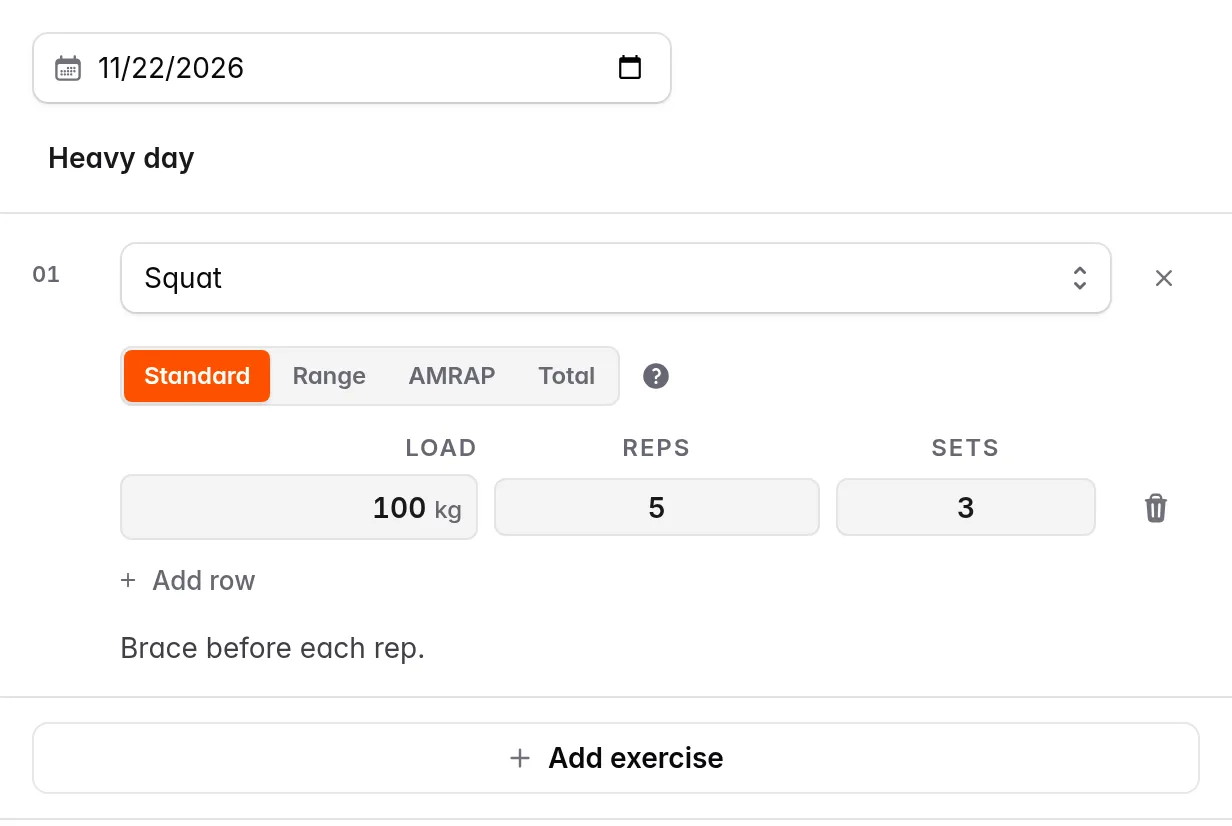
- Select the exercise box, type part of the exercise’s name and pick it from the list. The prescription grid appears once an exercise is picked.
- Choose a prescription mode. The modes are Standard, Range, AMRAP and Total, and the next section explains each one.
- Fill in the row. Load and Reps start empty, and Sets starts at 1.
- To prescribe a different load or rep count for later sets, select Add row and fill in the new row.
- To add coaching cues, select Add notes and type them. The client sees the notes under the exercise.
- Select Add exercise and repeat for each exercise.
- Select Save workout.
CoachSync shows “Workout was successfully created.” From the full-page form, it returns to the client’s workouts list. From the panel, the calendar stays open and the panel shows the new workout.
Choose a prescription mode
Each exercise has one mode. To read the same list in the app, select the question mark beside the modes. It opens Prescription modes.
- Standard. Same load and reps every set. Each row has Load, Reps and Sets.
- Range. A rep range target per set. The Prescription modes list calls it Rep Range. Each row has Load, a minimum and maximum for Reps, and Sets.
- AMRAP. As many reps as possible, every set. Each row has Load and Sets, and Reps shows Max. The client enters the reps they got.
- Total. A rep target across any number of sets. The Prescription modes list calls it Total Reps. The exercise has one Load and a Total reps target, with a minimum and a maximum. The client logs sets until they reach the total.
Leave Load empty when the exercise has no load to prescribe.
Decide whether the client can see it
The bar above Save workout says who can see the workout. On a new workout, it shows the client’s first name followed by “can see this workout.”
To keep the workout from the client while you work on it, select Unpublish before you save. The bar then says “Only you can see this workout.” Select Publish to change it back.

Remove an exercise
In a workout with two or more exercises, select the X beside the exercise’s name. CoachSync asks “Remove exercise?” Select Remove exercise, then Save workout. The exercise’s prescription and notes are gone once you save.
Edit a workout
- On the client’s workouts list, select Edit workout on the workout’s card. On a phone, open the card’s Workout actions menu and select Edit.
- Change what you need.
- Select Save workout.
Sets the client already completed stay as they logged them, even if you change the prescription.
Get help
If something on this page does not match what you see, contact support.