Import workouts from a spreadsheet
Bring a client's training history into CoachSync from a CSV file, check it, then confirm.
Import copies a client’s past training into CoachSync from a CSV file, so their reports and lift history start with everything they have done. You upload one file per client and check every row before anything is saved.
Before you start
- You must be an owner or admin, or the client’s coach.
- The Import button shows on screens 768 pixels wide or wider. Use a computer or tablet.
- Check the client’s weight unit. Select Edit Client on the client’s page and look at Weight Unit. CoachSync converts the file’s weights to that unit. The unit locks once the client’s workouts have weights.
- The file must be a CSV under 2 MB.
Prepare the CSV
Each row is one exercise line. Rows with the same workout_date become one workout. Use one row per load and rep scheme, and set sets to how many sets were done that way. Use a second row for the same exercise only when the weight or reps change, for example back-off sets.
| Column | Required | Accepted values |
|---|---|---|
workout_date |
Yes | YYYY-MM-DD, for example 2024-01-10 |
weight_unit |
Yes | lb or kg, the same on every row |
exercise_name |
Yes | Any text |
workout_title |
No | Any text, the same for every row on a date |
workout_status |
No | completed, or empty |
exercise_status |
No | made, missed or pending |
sets |
No | A whole number |
reps |
No | A whole number |
weight |
No | A number, for example 225 or 102.5 |
coach_instruction |
No | Any text |
client_note |
No | Any text |
The import page has two files to start from. Select Download CSV template for the headers alone, or Download example CSV for three filled rows.
What CoachSync makes from each column
workout_status.completedmarks the workout completed on its date. When it is empty, CoachSync marks the workout completed if any of its rows has sets, reps, weight or a client note. Any other value imports the workout as not completed.exercise_status.madefills in the client’s logged sets from the row’s weight and reps. When it is empty, an exercise in a completed workout counts as made.coach_instructionbecomes the exercise’s notes.client_notebecomes a comment from the client on that exercise, dated the day of the workout.
Every imported exercise uses the Standard prescription mode.
Upload the file
- Open My Clients, select the client, then select Programming Calendar.
- Select Import. It is above the workouts list, and in the calendar’s header.
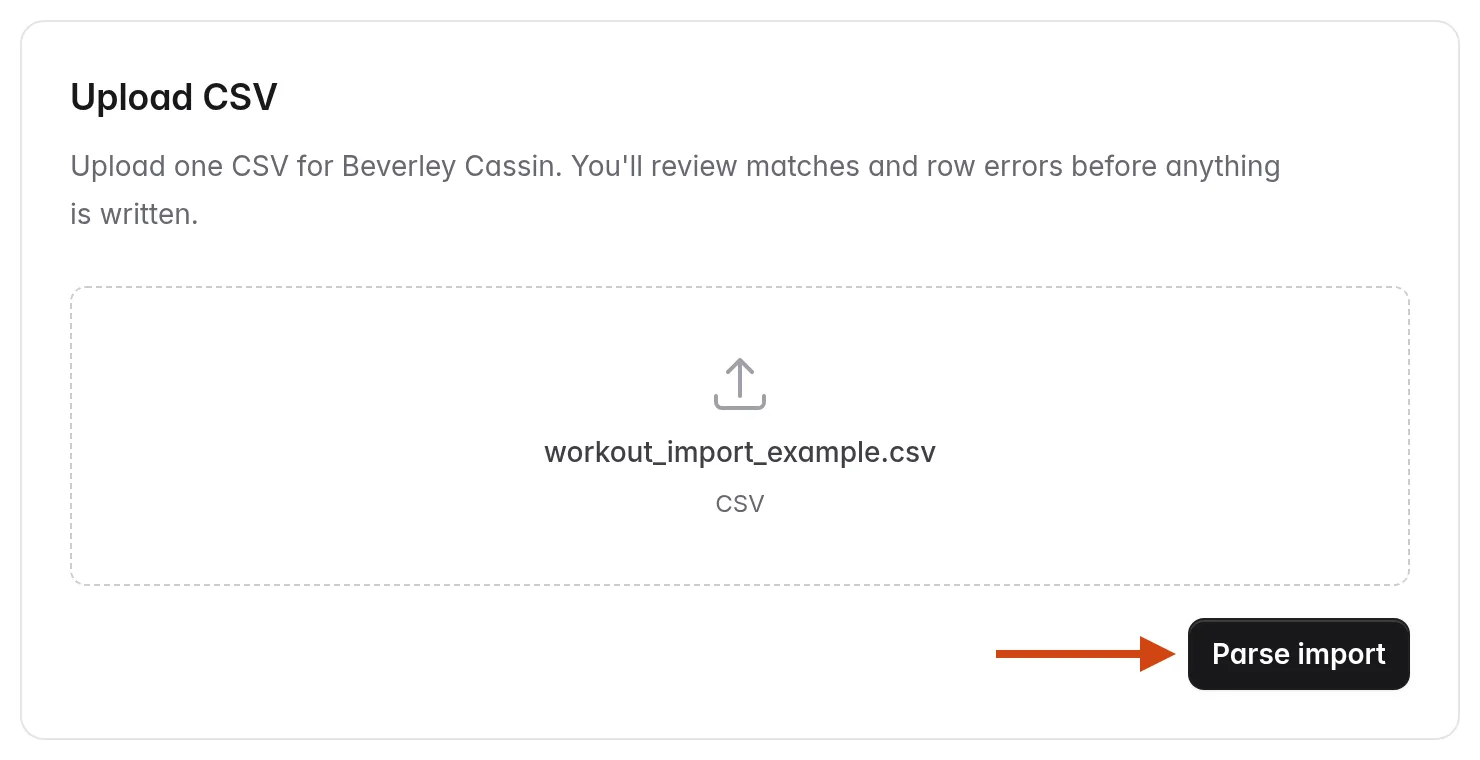
- The Import workout history page opens. Under Upload CSV, choose your file.
- Select Parse import.
Review the import
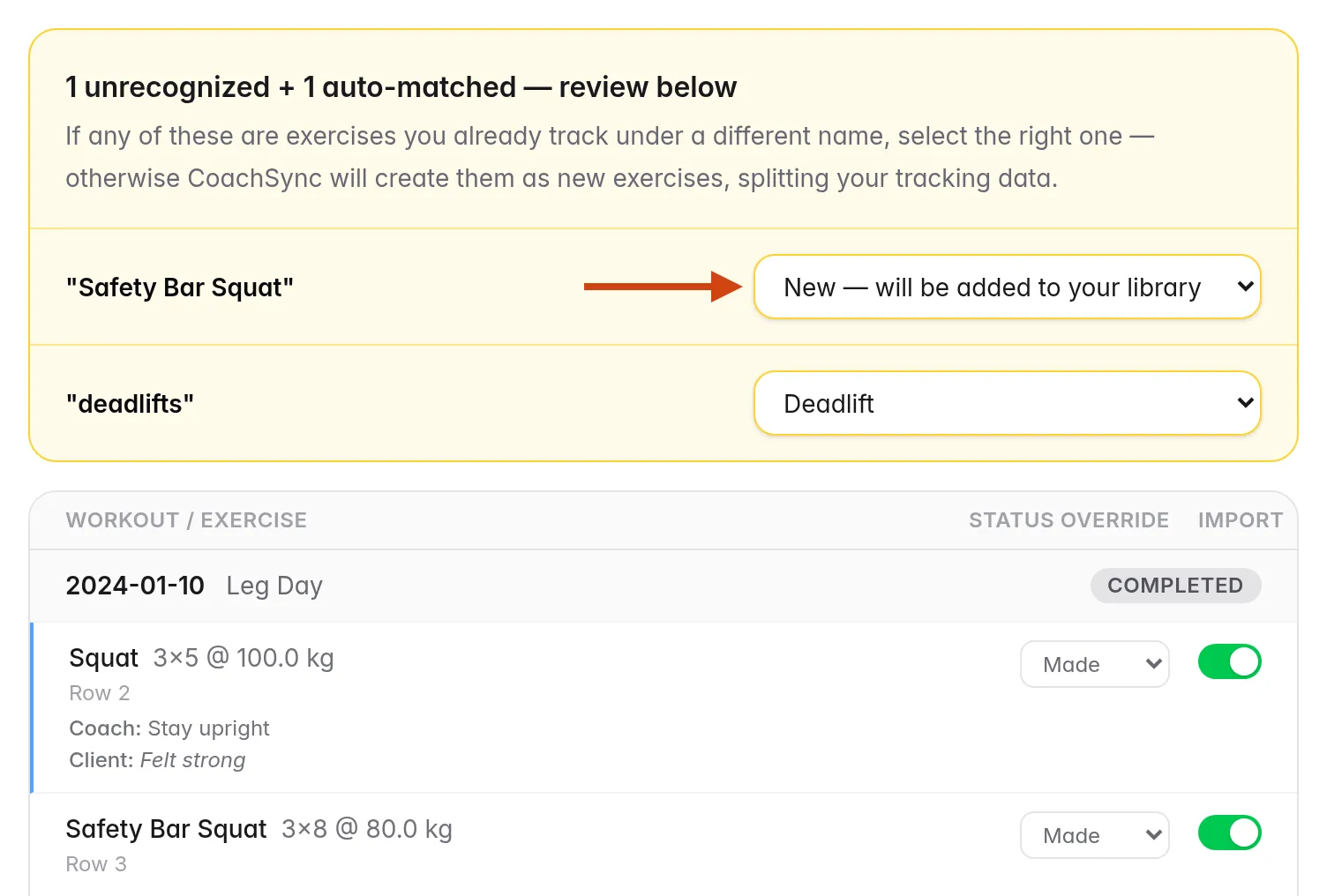
The Review import page shows each workout CoachSync will create, grouped by date. Nothing is saved until you confirm. Work through each box that appears.
- Problem rows. CoachSync lists rows it cannot import and why. Fix the file and upload it again, or select a row to skip it.
- Exercise names, in a box headed for example “2 exercise names weren’t recognized”. A name that matches no exercise in your library shows here, with a menu beside it. Names that CoachSync matched despite small differences, such as capitals or a plural, show here too, for you to confirm. In each menu, do one of the following.
- Choose an exercise under Your exercise library to use that exercise.
- Choose a name under Same exercise as when two new names are the same lift.
- Leave the first choice, which starts with New, to create a new exercise.
- These dates may already have workouts. The client already has a workout that looks the same on these dates. Check that you are not importing it twice.
In the list of workouts, each exercise has two controls.
- Status override changes whether the exercise counts as made, missed or pending.
- Import leaves the exercise out when you switch it off.
Select Save changes to see the list with your choices applied.
Confirm the import
- Select Confirm import in the bar at the bottom of the page. It stays unavailable while any row has an error you have not skipped. After you skip rows, select Save changes to make it available.
- CoachSync shows Import complete, with the number of workouts added and any new exercises added to your library.
- Select Back to workouts.

Imported workouts are visible to the client as soon as you confirm. They arrive already reviewed, so the import adds nothing to the client’s Needs Attention list.
Fix common errors
- “Missing required columns”, followed by column names. Add those columns to the first row of the file.
- “Use one weight unit for the entire import.” Every row needs the same
weight_unit. - “Workout titles must match for rows on the same date.” Give every row on that date the same
workout_title, or leave it empty after the first row. The same rule applies toworkout_status. - “The CSV could not be read.” Look for a stray quote mark or a row with the wrong number of columns.
Get help
If something on this page does not match what you see, contact support.