Edit your profile
Change your name, email address, phone number, photo and other details on your CoachSync profile.
Your profile holds the details your coach sees about you. You can change most of them yourself.
Change your details
- Tap CoachSync at the top of the page to open the menu.
- Tap Profile. The page is titled Edit User.
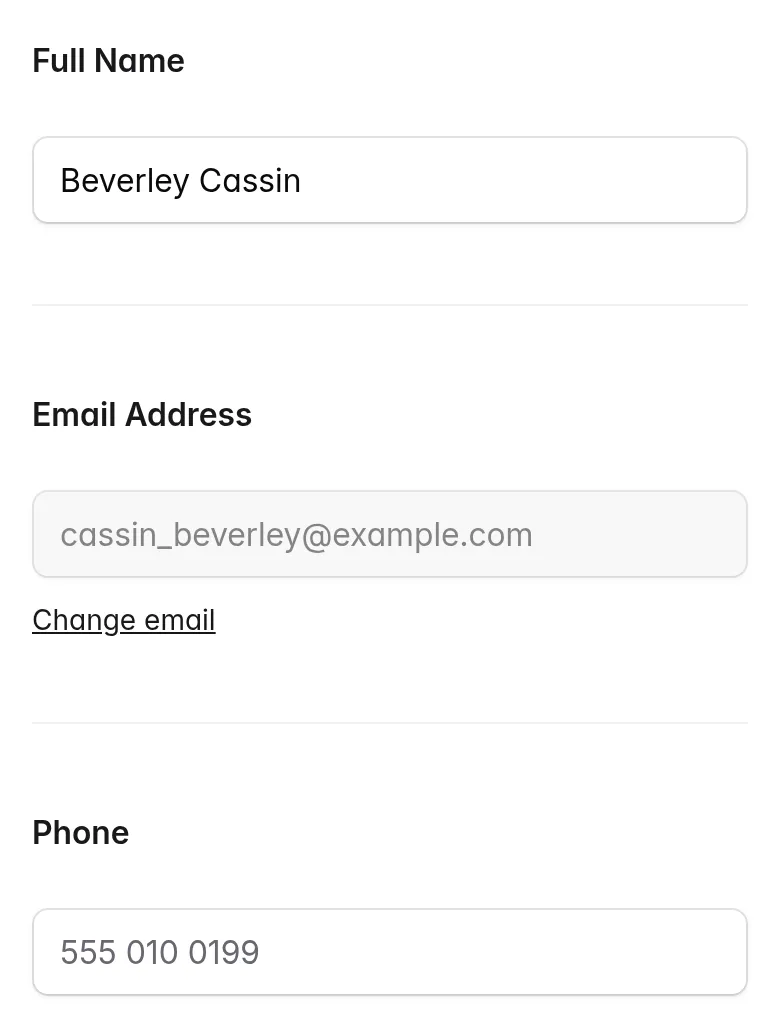
- Change any of Full Name, Phone, Time Zone, Date of Birth and Photo.
- Tap Save changes.
CoachSync shows User updated successfully.
For Photo, a close-cropped headshot of at least 100 by 100 pixels works best.
Two fields on the page are for your coach to change:
- Assigned Coach shows who coaches you. Only your coach or a gym admin can change it.
- Weight Unit sets whether your workouts show weights in kilograms or pounds. Only your coach or a gym admin can change it, and only until your workouts have weights in them.
Change your email address
- On your profile, under Email Address, tap Change email.
- Enter your new email address.
- Tap Send confirmation.
- Open the email that CoachSync sends to the new address, and follow its link within 30 minutes.
- Tap Continue.
CoachSync changes your email address and opens your profile. Sign in with the new address from now on. If the new address has no CoachSync login yet, your password stays the same.
If the link is more than 30 minutes old, CoachSync shows Confirmation Link Expired. Tap Try another email change and start again.
Get help
If something on this page does not match what you see, contact support.