Log a workout
Open a workout from your coach, record the weight and reps of every set, and finish it so your coach sees your results.
Your coach writes your workouts in CoachSync. You log each set on your phone while you train. When you finish, your coach gets a notification and sees what you lifted.
Find your workout
Your Training Log opens when you sign in. To get back to it, tap CoachSync at the top of the page, then tap Training Log.
The Training Log has two lists:
- Upcoming Workouts shows the workouts you have not finished, from today to three weeks from today.
- Past Workouts shows the workouts dated before today and every workout you have finished. Each one is marked Completed or Missed.
Tap a workout to open it. The workout page lists each exercise with what your coach prescribed and any instructions your coach wrote.
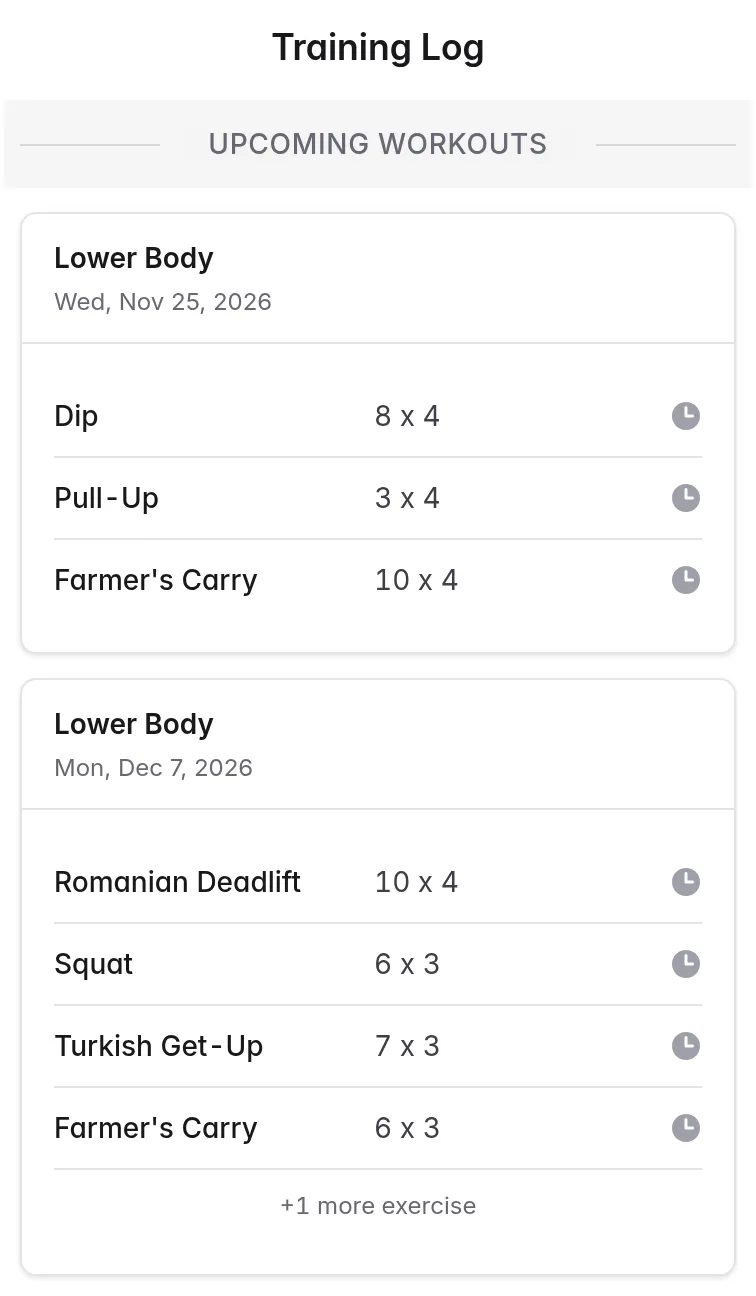
If you have no upcoming workouts, the list says No workouts. If you have an assigned coach, it also shows a Message Coach button.
Start the workout
- Open the workout.
- Tap Start workout at the bottom of the page.
The logging page opens. A timer at the top counts the time since you started. If you leave the page, open the workout again and tap Resume workout.
Log each set
Under each exercise, the logging page shows the prescription, your coach’s instructions and one row for each set. Each row has the weight, the reps and a check box. The weight and reps start at what your coach prescribed.
- If you lifted a different weight, tap the weight and enter what you lifted.
- If you did a different number of reps, tap the reps and enter what you did.
- Tap the check box at the end of the row.
- Repeat for each set.
CoachSync saves each change as you make it. A weight or a rep count below the prescription changes color. The bar at the top of the page fills as you check off sets.
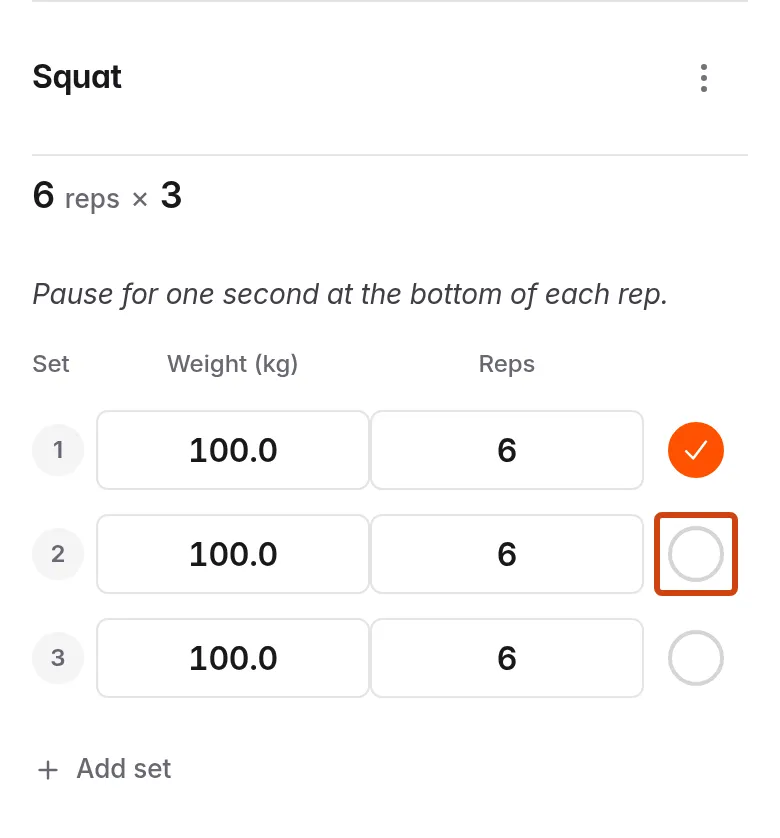
A set needs at least one rep before you can check it. For a set prescribed as MAX reps, enter the reps you did, then tap the check box.
Add or delete a set
- To add a set, tap Add set under the exercise. The new set copies the first set’s prescription.
- To delete a set on a phone, swipe the row to the left, then tap Delete. On a computer, select the trash button at the end of the row.
CoachSync deletes the set as soon as you tap, without asking first.
For an exercise prescribed as total reps, add as many sets as you need. The line under the sets counts your checked reps against the target, for example 32 of 50 reps logged.
Use the exercise tools
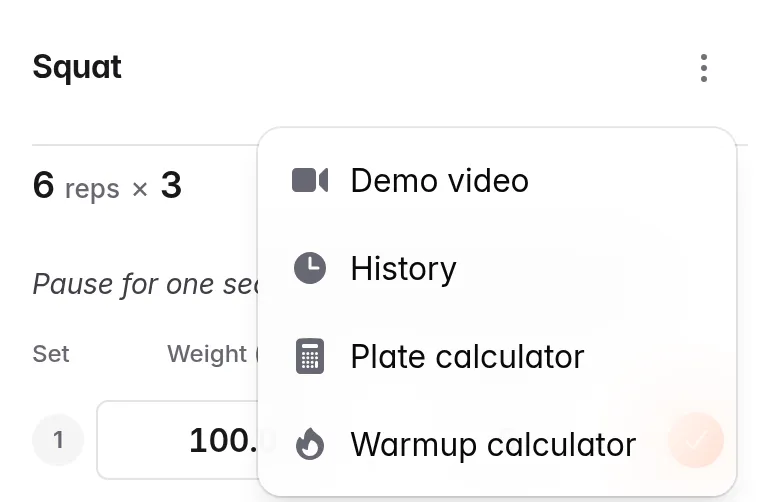
Tap the three-dot button beside an exercise’s name to open its tools:
- Demo video plays the video your coach linked to the exercise. It appears only when the exercise has one.
- History shows your past results for the exercise. It has your heaviest sets of 1, 2, 3 and 5 reps, a progress chart and your recent lifts.
- Plate calculator shows the plates to load on each side of the bar for the first set’s weight. Choose the bar’s weight at the top. It appears only for barbell exercises.
- Warmup calculator lists warmup sets that build up to the first set’s weight.
Finish the workout
Tap Finish at the top of the logging page.
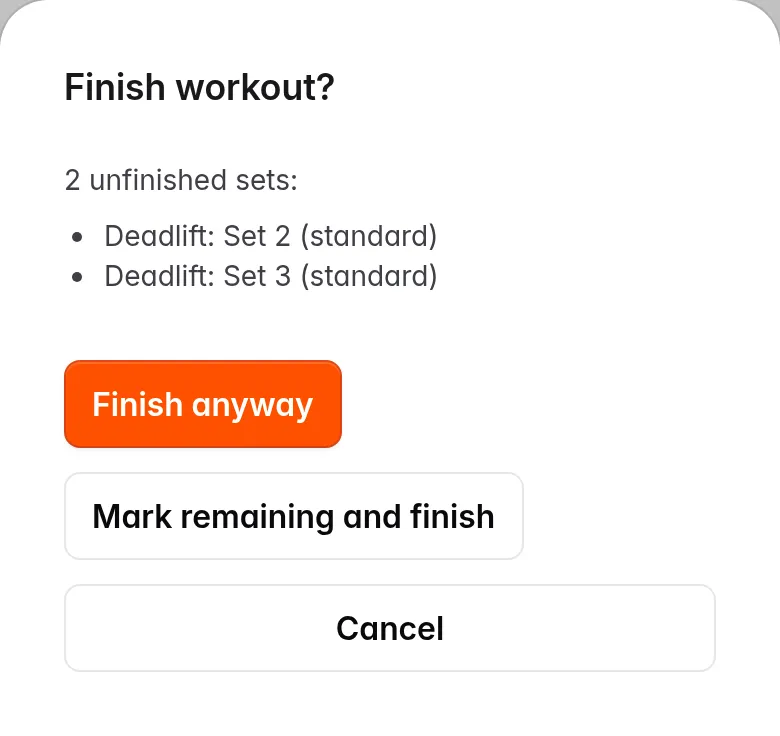
If you checked every set, CoachSync finishes the workout at once. If some sets are not checked, Finish workout? lists them and offers three buttons:
- Mark remaining and finish checks each open set with the weight and reps shown in its row, then finishes. Open sets of a total-reps exercise stay unchecked.
- Finish anyway finishes and leaves the open sets unchecked.
- Cancel returns you to the logging page.
If a set prescribed as MAX reps is not checked, the dialog says AMRAP sets need rep counts before you can finish. You cannot finish until you check those sets:
- Tap Cancel.
- On each MAX set, enter the reps you did and tap the check box.
- Tap Finish again.
When the workout finishes, your coach gets a notification and your summary opens. See Share a workout summary.
Change a finished workout
- Open the workout from Past Workouts.
- Tap Edit session.
- Change the sets you need to fix. CoachSync saves each change.
- Tap Done.
CoachSync updates each exercise’s result and your summary. Your coach does not get a second notification.
What the results mean
Each exercise on a workout shows one of these results:
- Pending. The workout is not finished yet.
- Made. You met the prescription on every prescribed set.
- Missed. The workout is finished, and at least one prescribed set is missing, unchecked or below the prescription.
What counts as meeting the prescription depends on how your coach wrote it:
- A weight and reps. Every set is at or above that weight and that number of reps.
- A rep range. Every set is at or above the lowest number in the range.
- MAX reps. Every set is checked.
- Total reps. Your checked sets add up to at least the target.
On a phone, the Training Log shows these results as icons. A check means Made, a cross means Missed and a clock means Pending.
To tell your coach about a set, leave a note on the exercise. See Message your coach.
Get help
If something on this page does not match what you see, contact support.