Add CoachSync to your phone
Put CoachSync on your home screen like an app and turn on push notifications for messages and feedback from your coach.
CoachSync runs in your phone’s web browser. There is nothing to download from an app store. Add it to your home screen to open it like an app, then turn on push notifications so your phone tells you when your coach messages you or leaves feedback.
Add CoachSync to an iPhone
- Open
https://app.coachsync.ioin Safari or Chrome and sign in. - Tap the share button.
- Tap Add to Home Screen.
- Open CoachSync from its icon on your Home Screen.
If CoachSync asks you to sign in when you open it from the icon, sign in with your email address and password.
Add CoachSync to an Android phone
- Open
https://app.coachsync.ioin Chrome and sign in. - Tap the menu button, the three dots.
- Tap Install app.
In Firefox, tap the menu button, then tap Install.
Once installed, CoachSync opens without the browser’s address bar. To refresh a page, pull down from the top of the page.
Turn on push notifications
Turn on push notifications on each phone or computer where you want them.
- Tap CoachSync at the top of the page to open the menu.
- Tap Notifications.
- Tap Settings, the gear button at the top of the page.
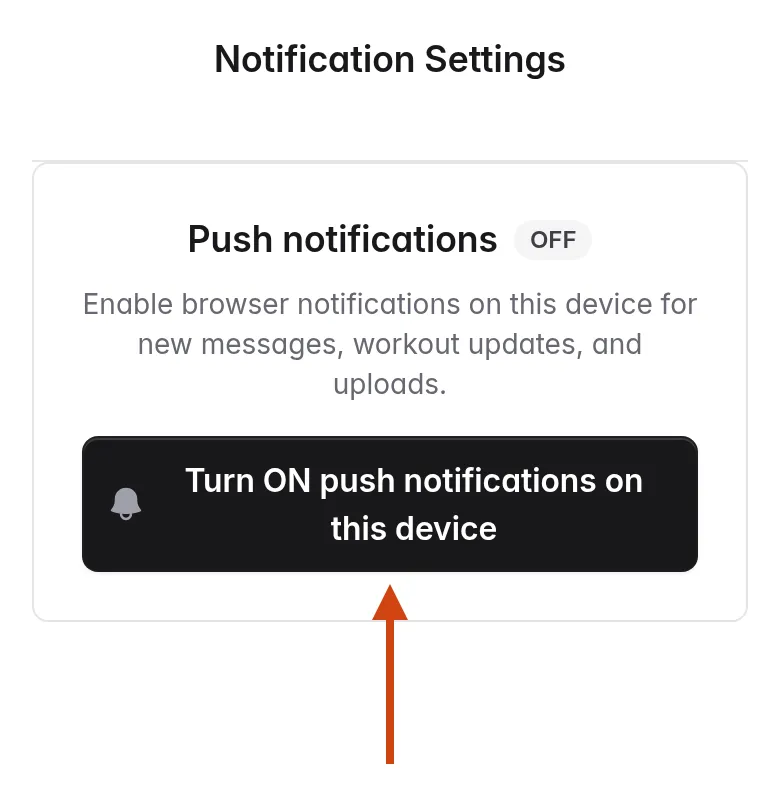
- Tap Turn ON push notifications on this device.
- When your phone asks, allow notifications.
The Push notifications box then shows ON.
What CoachSync notifies you about
You get a push notification for:
- a message from your coach
- feedback from your coach on a workout or an exercise
- a video your coach adds to one of your workouts
- updates about your sessions and classes, such as reminders and cancellations, if your gym takes bookings in CoachSync
Tap a notification to open the page it is about. Where your phone supports app badges, the CoachSync icon shows how many notifications you have not read.
Every notification also appears under Notifications in the menu, with push turned on or off. On that page, Mark all as read marks every notification read, and Filters narrows the list by type.
If notifications do not arrive
The Push notifications box shows one of these:
- OFF. Push is not on for this phone. Tap Turn ON push notifications on this device. If the box has no such button, follow the steps under Help me fix this.
- BLOCKED. Notifications for CoachSync are blocked on this phone. Follow the steps under Help me fix this, then open the page again.
- SYNC NEEDED. CoachSync has no record of this phone’s notification setup. Tap Turn ON push notifications on this device again.
Help me fix this at the bottom of the box gives the steps for your phone and browser. When push is on, that section is called Not receiving notifications? instead.
On an iPhone, check that notifications are allowed for the app:
- Open the Settings app.
- Scroll to CoachSync and tap it.
- Tap Notifications.
- Turn on Allow Notifications.
Get help
If something on this page does not match what you see, contact support.