Plan a training block in the Planning view
See seven weeks of a client's workouts at once and copy a whole block of training forward.
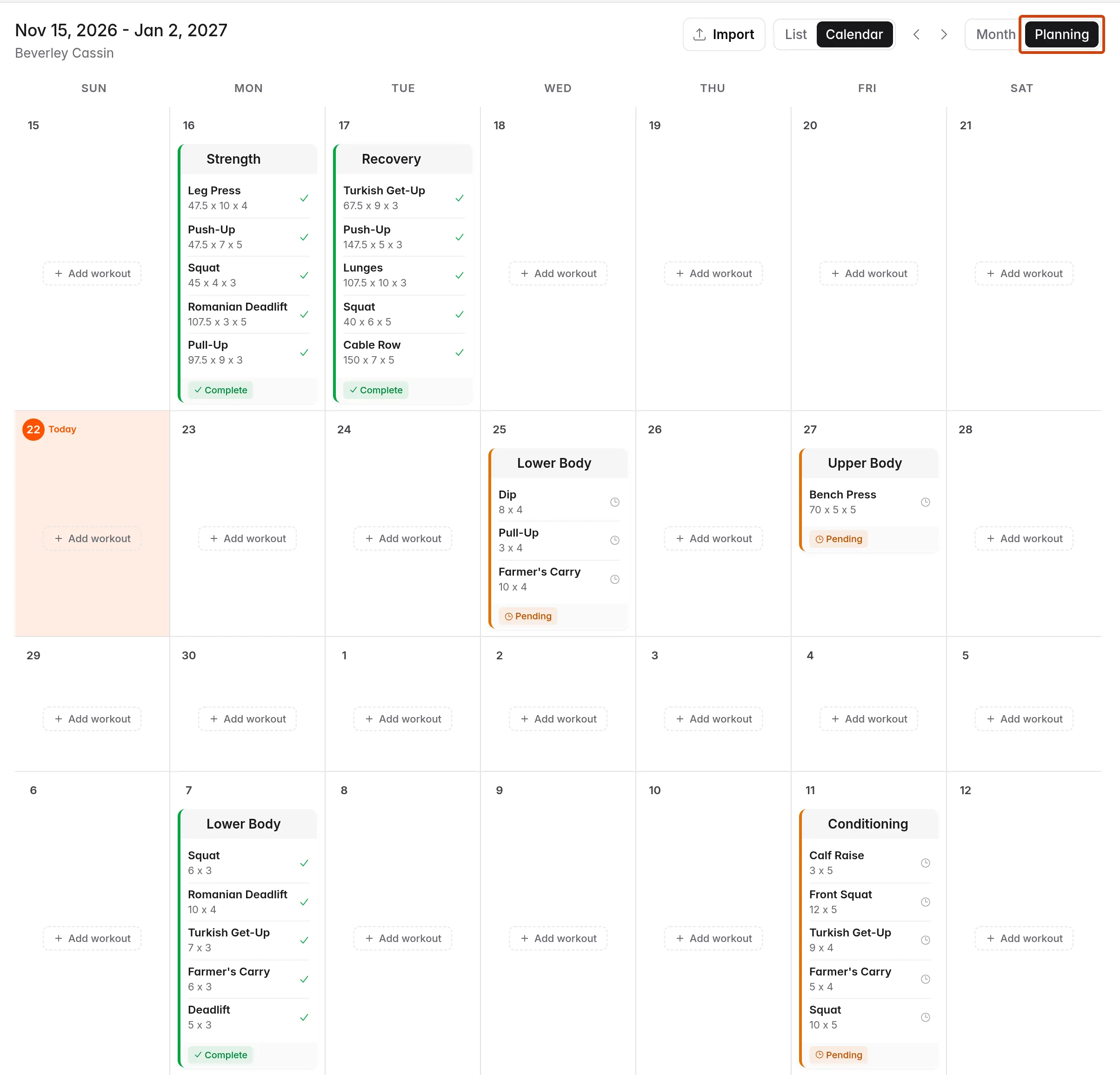
The Planning view shows seven weeks of one client’s workouts in a single grid. Use it to see a full training block, and to copy that block to the weeks after it.
Switch to the Planning view
- Open the client’s calendar. See Program on the calendar.
- Select Planning, next to Month.
The header shows the dates the grid covers. Each row is one week, Sunday to Saturday.
Move through the weeks
- The arrows move the grid one week back or forward.
- Today shows when the current week is off screen. It puts the current week fifth of the seven, so you see the four weeks before it and the two after.
- Month returns to the month view.
The Planning view stays on when you switch between List and Calendar. Reloading the page returns to the month view.
Copy a block to the next weeks
You can add, open, drag, select, paste, hide and delete workouts here, as on the month view.
- Move the grid until the block you want to copy is on screen.
- Select the workouts in the block. To select every workout on a day, point at the day and select the checkbox at its top right. Repeat for each training day in the block.
- Use the arrows to bring the weeks after the block on screen. Your selection stays.
- Point at the first day of the new block and select it when it shows Paste here.
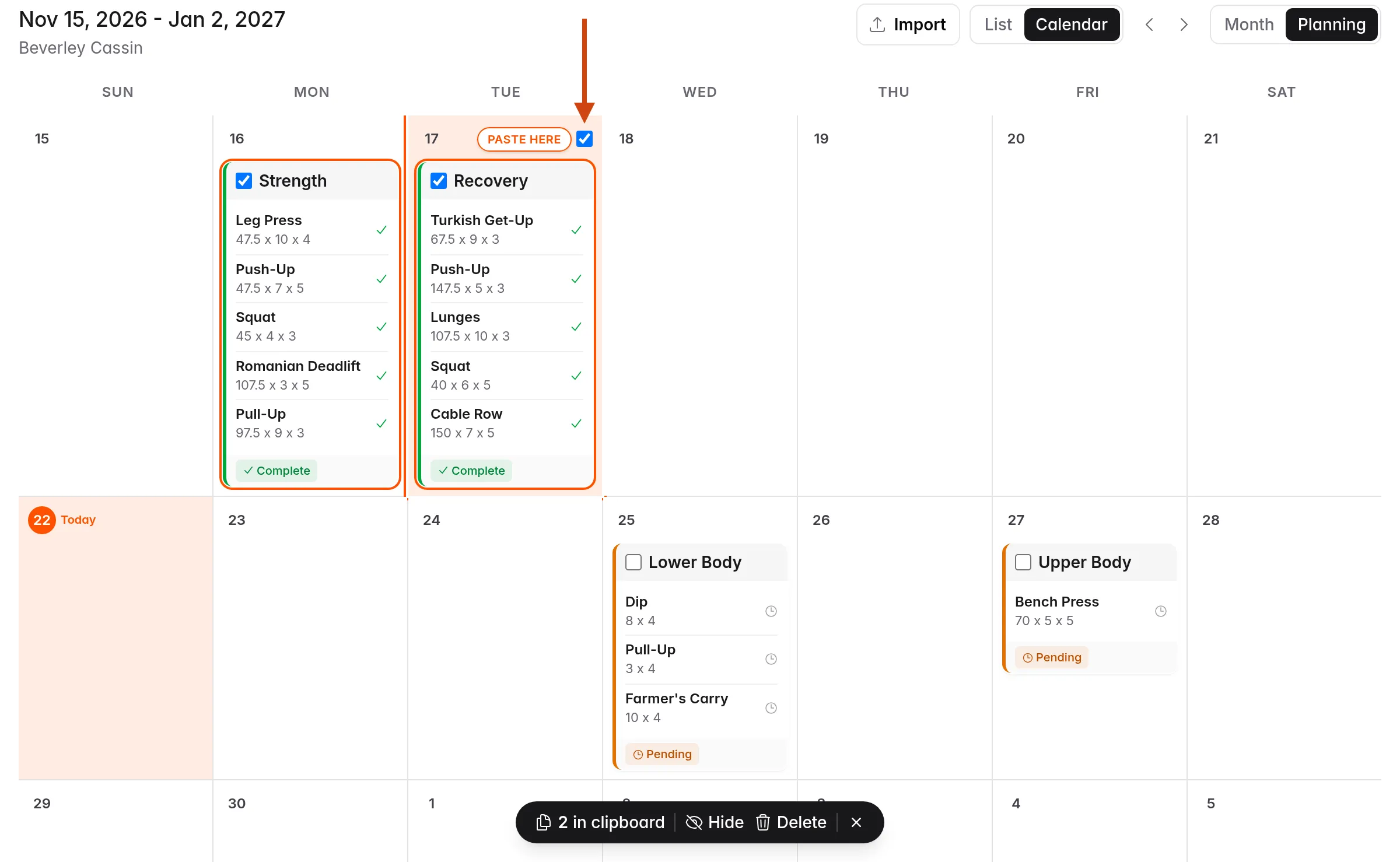
The copies keep the same gaps between days as the originals. If the block runs four weeks from a Monday and you paste on the Monday after it, the copies fill the next four weeks on the same weekdays.
Get help
If something on this page does not match what you see, contact support.