Set your weekly hours
Create an availability schedule so clients can book 1:1 sessions in the hours you choose, and change the hours on single dates.
An availability schedule holds the weekly hours a 1:1 session type can be booked in. Clients see open start times inside those hours. CoachSync takes out your time off, events from your connected calendars, the classes you coach and the sessions already booked.
Before you start
- Coaches see and edit only their own schedules. Owners and admins see every coach’s schedules and can create one for any coach.
- A schedule does nothing until a 1:1 session type uses it. You can tick the types on the schedule, or pick the schedule on the type. See Create a session type.
Create a schedule
- Open Availability from the menu.
- Under Schedules, select New schedule. If you manage several coaches, use the button in that coach’s section.
- In Name, enter a name for what the hours cover, such as “PT hours” or “Consultations”. Only staff see it.
- If the form shows Coach, choose whose hours these are. You cannot change the coach later.
- If your account has locations, choose a Location, or No fixed place. Hours at a location are read in that location’s time zone.
- Under Weekly hours, type the hours for each day. Leave a day empty to close it.
- Under Session types, tick the 1:1 session types that clients book in these hours.
- Select Create schedule.
The schedule’s page opens with the message “Schedule created.”
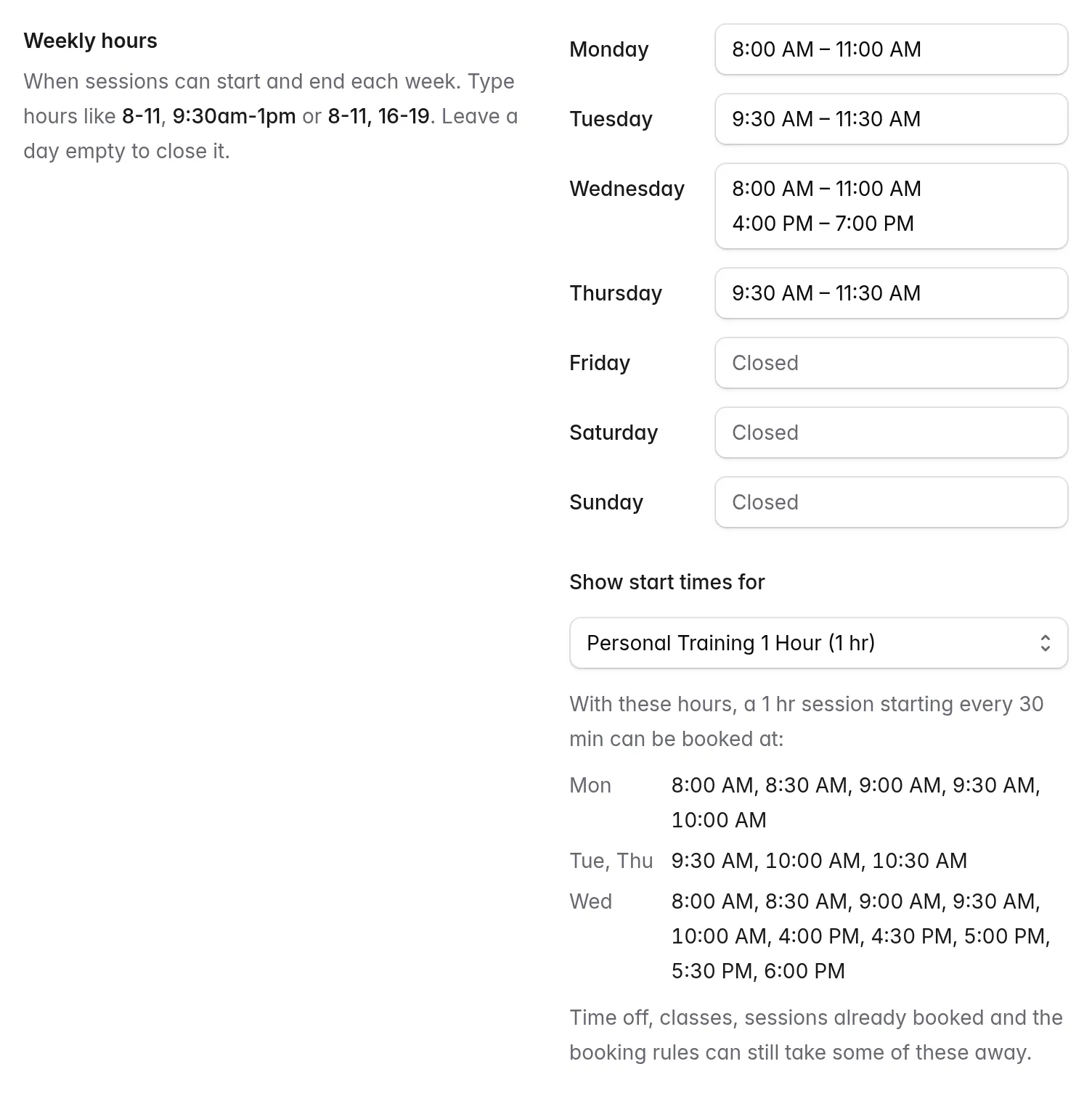
A session must start and end inside the hours. With hours of 9-12, a 1-hour session can start at 11:00 but not at 11:30.
Type the hours
Each day’s field takes one or more stretches of time:
8-11is 8:00 to 11:00.9:30am-1pmis 9:30 to 13:00.8-11, 16-19is two stretches in one day.
Separate stretches with a comma or a new line. You can write noon and midnight.
When you move to the next field, the form lists the start times the hours give. Choose a type under Show start times for to see the times for that type’s length. Time off, classes, booked sessions and the booking rules can still take some of these times away.
Session types on a schedule
Coaches see only the session types they already offer. Owners and admins see every 1:1 session type. When an owner or admin ticks a type, the coach is added to that type with these hours.
Booking rules
Under Booking rules, the form shows the account’s rules for start times, notice, how far ahead clients can book and the cancellation window. To give this schedule different rules, tick Use different booking rules for this schedule and change them. Add locations and set booking rules explains each rule.
If the schedule has no location, it uses the account’s time zone. To use another, tick Use a different time zone for this schedule and choose one.
Check what clients can book
Open the schedule from Availability. The page shows:
- Weekly hours, with the time zone they are read in.
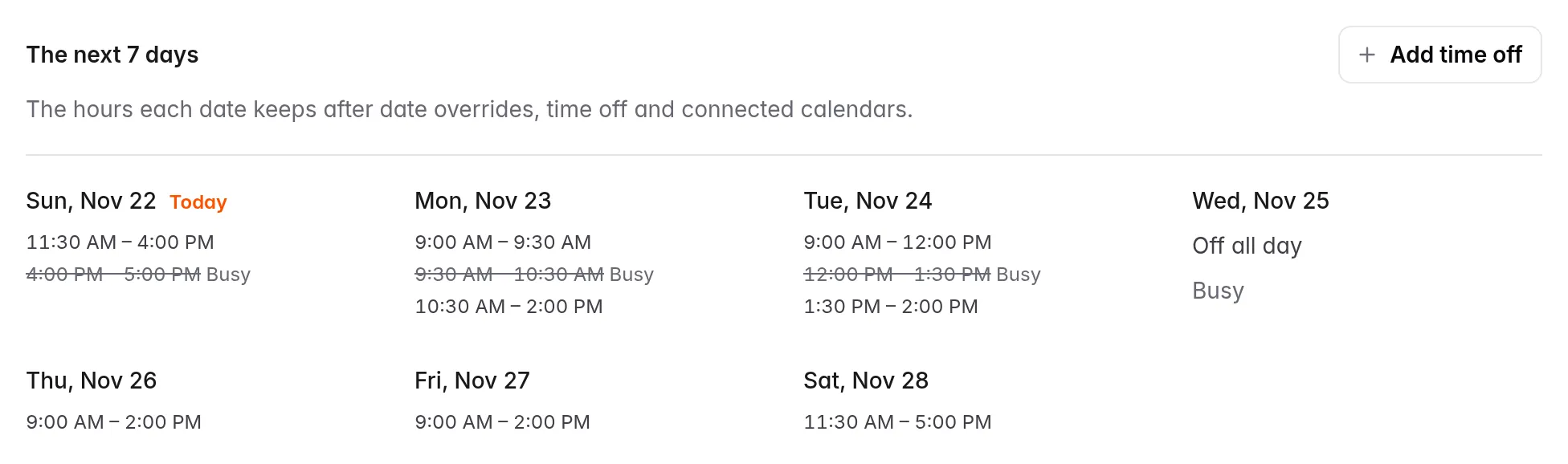
- The next 7 days, the hours each date keeps after date overrides, time off and connected calendars. A struck-through time shows what took it away.
- Session types, the open start times for each type over the next 7 days.
- Details, the coach, location, time zone and booking rules. A rule marked “account default” follows the account’s rule.
Change the hours on one date
A date override replaces the regular hours on one date. Use it to close for a holiday or to keep different hours for a day.
- Open the schedule from Availability.
- Under Date overrides, select Add a date.
- Choose the Date.
- In Hours on this date, type the hours for that day. Leave the field empty to close for the day. The regular hours for that weekday show under the field.
- Select Add date.
If the date already has its own hours, saving replaces them. To go back to the regular hours, select the trash button next to the date, then Remove.
To block a time on every schedule at once, add time off instead. See Block time off.
Delete a schedule
The Delete button shows only when no session type uses the schedule. To remove it from a type, untick the type under Session types on the schedule’s edit form, then save.
- Open the schedule from Availability.
- Select Delete, then confirm.
Get help
If something on this page does not match what you see, contact support.