Book a session for a client
Book a 1:1 session, or the same time every week, for anyone on your account.
Staff book sessions from the Coach Calendar. The form lists the coach’s open times first. You can also choose any other time that does not overlap another of the coach’s sessions, including times outside the coach’s hours. Clients can also book their own sessions. See Book a session as a client.
Book one session
- Open Coach Calendar from the menu.
- Select Book session.
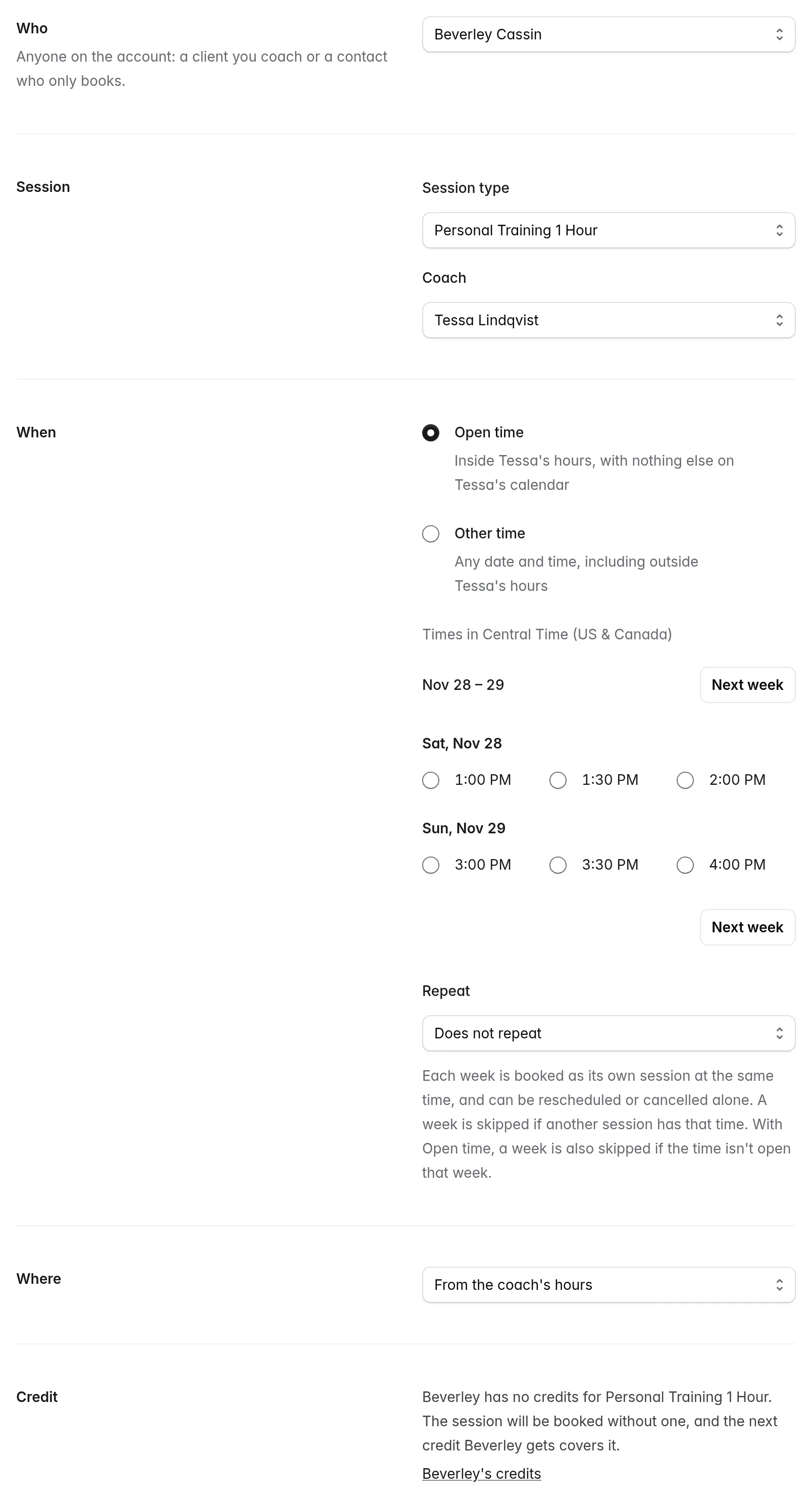
- Under Who, search for the person and pick them. You can book for anyone on the account, such as a client you coach or a contact who only books.
- Choose the Session type.
- If you are an owner or admin, choose the Coach.
- Under When, leave Open time selected and select one of the coach’s open times. Next week and Earlier move between weeks. To book a time that is not listed, select Other time and enter the Date and Start time.
- Leave Repeat on Does not repeat.
- Fill in any fields the session type adds. They are described below.
- Select Book session.
The session’s page opens with the message “Session booked.”
Times are in the account’s time zone. If your locations are in different time zones, times are in the chosen location’s time zone.
Open time and other time
- Open time lists the times inside the coach’s hours with nothing else on the coach’s calendar: no other session, time off, class or event from a connected calendar. Your minimum notice and how-far-ahead rules do not apply to staff, so the list can start today and run a year ahead.
- Other time takes any date and start time. CoachSync refuses a time that overlaps another of the coach’s sessions. If the time overlaps the coach’s time off, a class they run or a calendar event, CoachSync lists what it overlaps. Tick Schedule over it, or Schedule over them, then select Book session again.
If someone books the open time you chose before you save, CoachSync shows the open times again so you can pick another.
Fields the session type adds
- Where shows for an in-person type when the account has more than one location. When all the coach’s hours are at one location, it starts on that location. Otherwise it starts on From the coach’s hours, which uses the location of the coach’s schedule.
- Phone shows for a phone call type. It starts with the phone number on the person’s profile.
- Add-ons lists the type’s add-ons. They are recorded on the session. Nothing is charged for them here.
- Credit says whether the person has a credit for this type and whether booking spends one.
Book the same time every week
- Fill in the form as for one session.
- Under Repeat, choose how many weeks, from Weekly for 2 weeks to Weekly for 26 weeks.
- Select Book session.
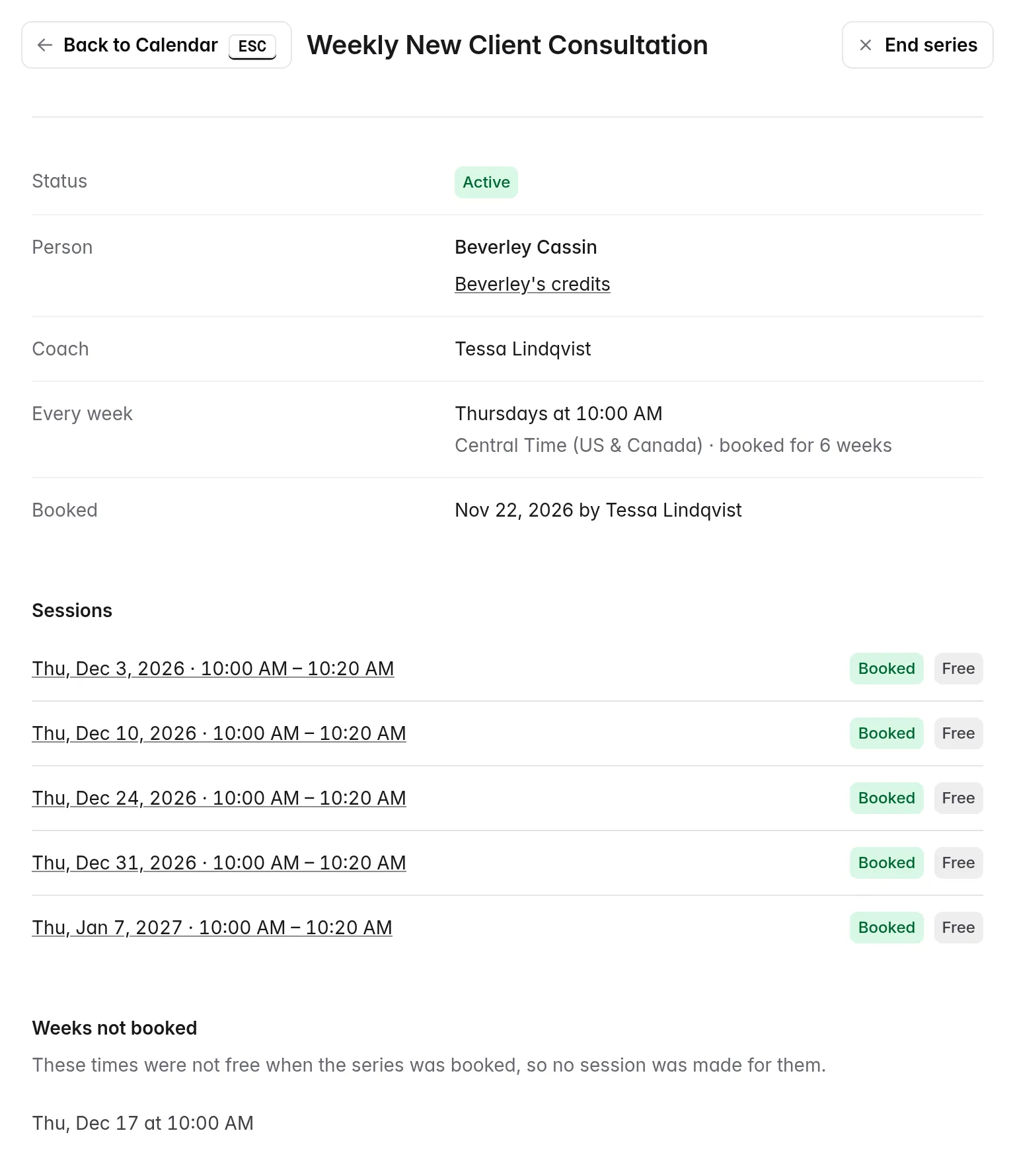
Each week is booked as its own session at the same time. You can reschedule or cancel each one alone.
- If a week’s time is already taken, CoachSync skips that week.
- With Open time, CoachSync also skips a week when that time is not open for the coach. The message after booking marks that week “(not open)”.
- If fewer than two weeks are free, CoachSync books nothing and says so.
The series page opens with a message such as “Booked 12 weekly sessions.” It lists every session and any Weeks not booked. The person gets one email that lists all the sessions.
When the person has no credit
For a paid session type, the Credit line tells you what booking does:
- If the person has a credit for the type, booking spends one. A weekly booking spends one for each week.
- If they have no credit, CoachSync books the session anyway and marks it Owing. The next credit they get for that type pays for it.
When Stripe is connected, the person can pay for an owing session by card. The booking email links to the session, and the session’s page has a Pay for this session button. See Sell session packs and manage credits for how credits work.
After booking
The session’s page shows its status, the person, the coach, the time and place, the credit, and who booked it. The session also shows on the Coach Calendar.
When you may open the person’s client page, their name links to it. Workouts under the name opens their calendar, and Message opens your conversation with them.
From the session’s page you can select Reschedule or Cancel session. See Reschedule or cancel a session.
Get help
If something on this page does not match what you see, contact support.